
How to delete Windows temp files is one of the simplest things you can do to speed up a sluggish computer. If your PC has been running slower than usual, temporary files are often the hidden culprit. This guide walks you through every method, step by step, so you can clean things up fast.

What Are Temporary Files and Why Do They Build Up?
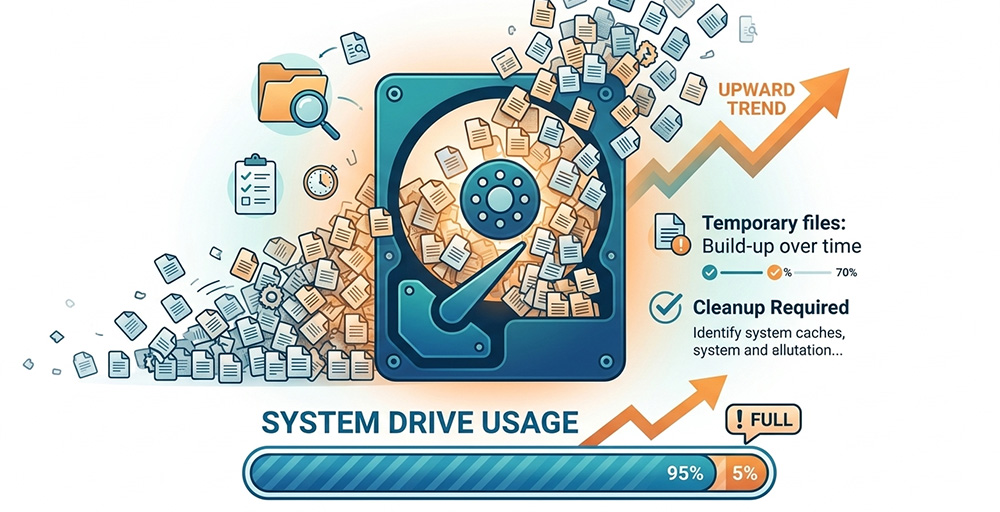
Every time you use your computer, Windows and your apps are quietly working behind the scenes. They create small files to store short-term data while tasks are being performed. These are called temporary files.
For example, when you install new software, edit a document, or browse the internet, your system creates these files to hold data during the process. They help programs run faster and more efficiently. Instead of generating the same information over and over, your system pulls it from these saved files.
In theory, temporary files should delete themselves automatically once they are no longer needed. In practice, that does not always happen. Files get left behind after program crashes, incomplete updates, or system errors. Over time, they pile up quietly in the background.
You might not notice at first. But after weeks or months of regular use, thousands of unnecessary files can accumulate on your system drive. When that happens, your computer starts to feel the strain.
How Temporary Files Affect Your Computer’s Performance
When your system drive fills up with leftover files, your computer has less room to work with. Windows needs free space on your system drive to run smoothly. It uses that space for virtual memory, system processes, and other essential tasks.
If your drive gets too full, your computer can slow down significantly. Programs may take longer to open. Your system may freeze or become unresponsive. In some cases, leftover files from failed updates or crashed programs can even trigger errors.
Many people assume their computer has a virus when it starts running slow. While that is sometimes the case, temporary file buildup is a much more common and easily fixable cause. If you want to rule out a virus, you can check out this helpful guide on computer virus repair and signs your system is infected. But before going down that road, it is worth trying a temp file cleanup first.
Regularly learning how to delete Windows temp files and doing so on a routine basis is considered a basic part of Windows maintenance. It costs nothing and takes only a few minutes.
How to Delete Windows Temp Files Using Disk Cleanup
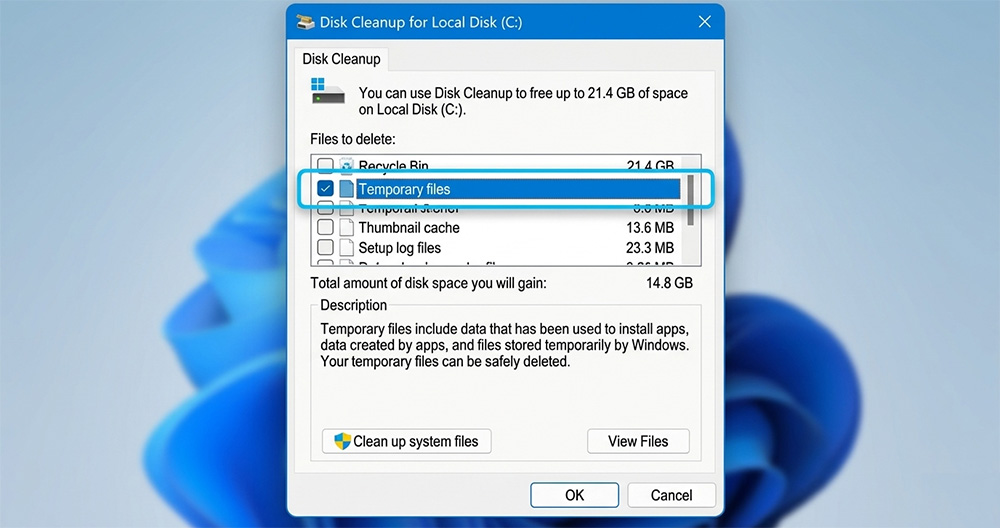
Windows includes a built-in tool called Disk Cleanup that makes it easy to remove temporary files and other unnecessary data. It has been part of Windows for many years and is one of the safest ways to free up space.
Here is how to use it:
- Click the Start menu and type Disk Cleanup in the search bar.
- Select the Disk Cleanup app from the results.
- Choose your system drive, which is usually the C: drive, and click OK.
- Wait while the tool scans your drive. This can take a minute or two.
- Once the scan is complete, a list of file types will appear. Check the box next to Temporary files.
- You can also check other options like Temporary Internet Files, Recycle Bin, and Thumbnails to free up even more space.
- Click OK and then click Delete Files to confirm.
Disk Cleanup will remove all selected files safely. It skips any files that are currently in use by active programs, so you do not need to worry about breaking anything. There are always other solutions out there; WinOptimizer 28 is one of the most comprehensive tools on the market.
Using the Clean Up System Files Option
Inside Disk Cleanup, you will also notice a button labeled Clean up system files. Clicking this runs a deeper scan that includes files left behind by Windows updates. These update files can sometimes take up several gigabytes of space.
To use it, simply click Clean up system files after the initial scan loads. The tool will restart the scan and show you additional categories. Look for Windows Update Cleanup and check that box along with any others you want to clear. Then click OK to proceed.
This is one of the most effective ways to free up disk space from temp files, especially on computers that have been running for a long time without a cleanup.
How to Delete Windows Temp Files Using the %temp% Folder
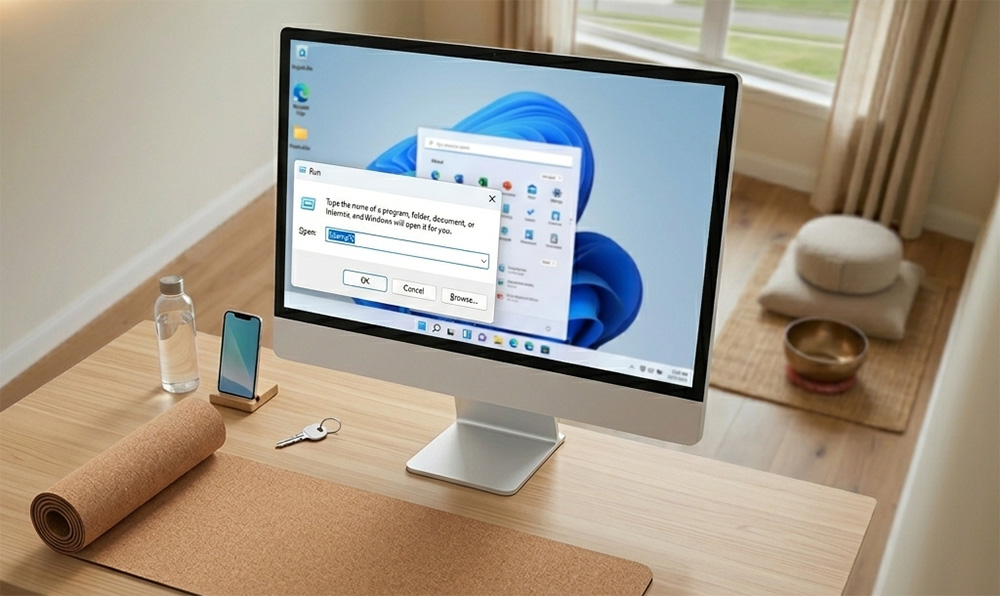
Another quick and effective method to learn how to delete Windows temp files is by accessing the temp folder directly. This folder holds a large number of temporary files created by various programs on your computer.
Follow these steps:
- Press Windows + R on your keyboard to open the Run dialog box.
- Type %temp% and press Enter.
- A folder will open showing all the temporary files stored by your apps.
- Press Ctrl + A to select all the files in the folder.
- Press the Delete key on your keyboard.
Windows will delete most of the files right away. Some files may still be in use by programs that are currently running. If a message appears saying a file cannot be deleted, simply click Skip. Windows handles this automatically and skips those files without causing any problems.
After clearing the %temp% folder, you can also clear the main Windows temp folder. To do this, go back to the Run dialog box, type C:\Windows\Temp, and press Enter. Select all the files inside and delete them the same way.
Why the %temp% Folder Fills Up So Quickly
The %temp% folder fills up because so many programs use it. Every time you open an app, run an installer, or use a browser-based tool, files get written to this folder. Most of those files are never cleaned up automatically.
On a busy computer that runs many programs throughout the day, this folder can grow to several hundred megabytes or even gigabytes over time. Clearing it out regularly as part of your routine is a simple habit that keeps your computer running well.
Using Storage Sense to Automatically Delete Temp Files
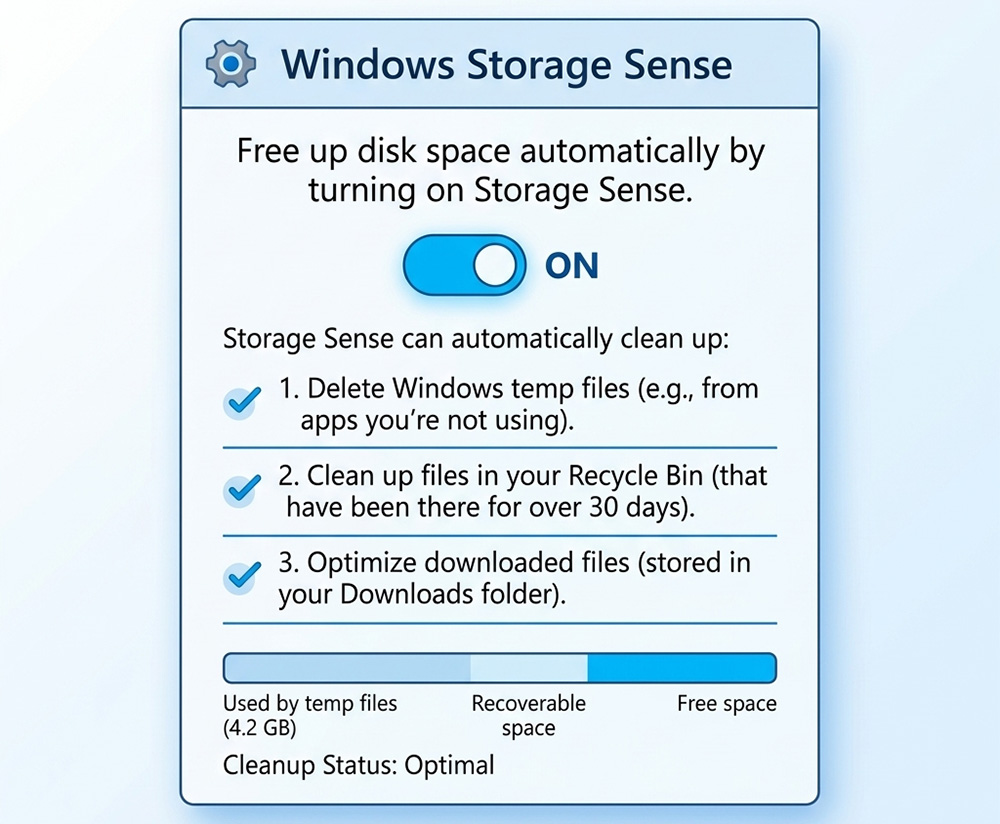
If you prefer a hands-off approach to how to delete Windows temp files, Storage Sense is the perfect solution. This built-in feature in Windows 10 and Windows 11 can automatically clean up temporary files and manage your disk space on a schedule.
Here is how to set it up:
- Click the Start menu and open Settings.
- Go to System and then click Storage.
- Find the Storage Sense toggle and turn it On.
- Click on Storage Sense to open its settings.
- Choose how often you want it to run, such as every day, every week, or every month.
- You can also set it to delete files in your Recycle Bin and Downloads folder after a certain number of days.
Once Storage Sense is active, it runs quietly in the background. You do not have to remember to clean up manually. It handles the job for you on the schedule you set.
Storage Sense vs. Manual Cleanup: Which Is Better?
Both methods have their advantages. Storage Sense is great for keeping things tidy on autopilot. However, it may not catch every single temporary file that accumulates over time. Running a manual cleanup every few months is still a good idea, even if Storage Sense is active.
Think of Storage Sense as your regular light cleaning and manual cleanup as your deep clean. Using both together gives you the best results.
How to Clear Your Browser Cache to Free Up Disk Space
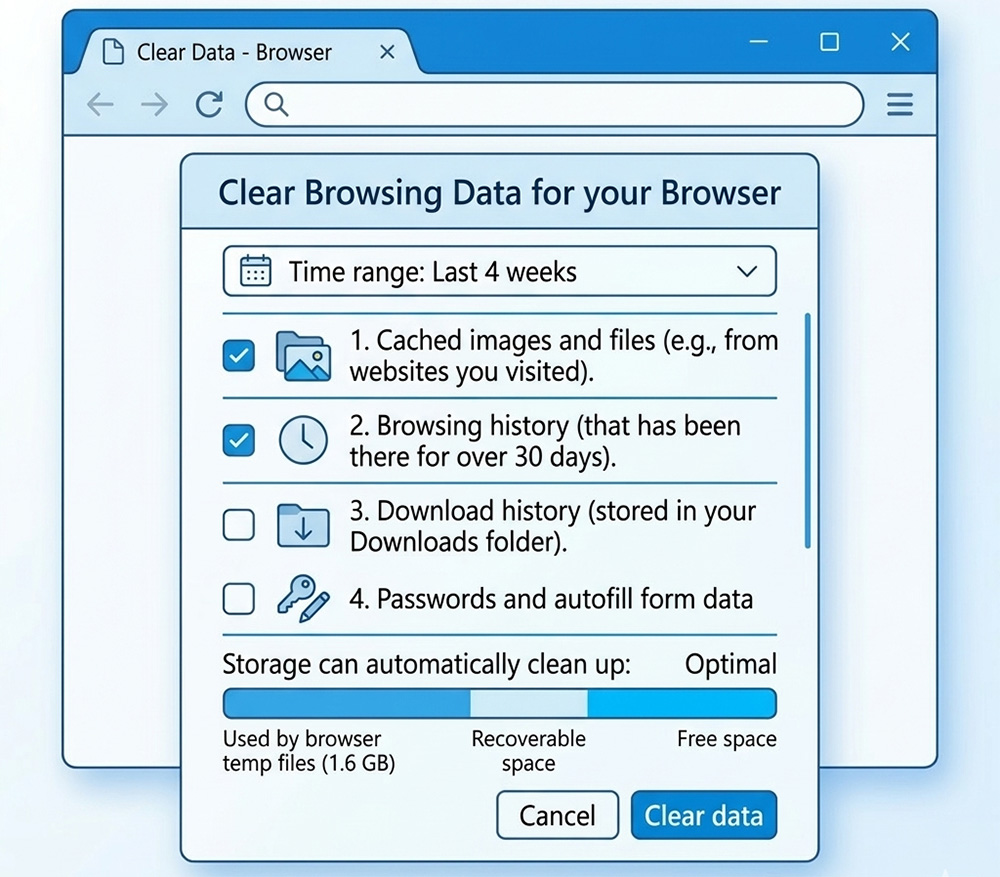
Your web browser keeps its own collection of temporary files. These are called cached files. Browsers store website images, scripts, and other data locally so pages load faster on repeat visits. Over time, this cache can grow quite large and take up a surprising amount of disk space.
Clearing your browser cache is another smart step when you are working on how to delete Windows temp files and free up space on your system.
The process is similar across most popular browsers. Here are the general steps:
- Open your browser and go to Settings.
- Look for the Privacy or History section.
- Find the option labeled Clear Browsing Data or Clear History.
- Check the box for Cached images and files.
- You can leave other options unchecked if you only want to clear the cache.
- Set the time range to All time for the most thorough cleanup.
- Click Clear Data.
This removes all the temporary website files your browser has stored. It can resolve loading issues and display problems caused by outdated cached files, and it frees up disk space at the same time.
How Often Should You Clear Your Browser Cache?
For most users, clearing the browser cache once a month is plenty. If you notice websites behaving strangely, pages not loading correctly, or your browser running slowly, clearing the cache sooner can help. It is a quick fix that takes less than a minute and often makes a noticeable difference.
Additional Locations Where Temp Files Hide
Most people learn how to delete Windows temp files and stop at the %temp% folder or Disk Cleanup. However, there are a few other spots where temporary and junk files can hide on your system.
The C:\Windows\Temp Folder
As mentioned earlier, the C:\Windows\Temp folder is separate from the user-level %temp% folder. Windows itself stores system-level temporary files here. You can open this folder through the Run dialog box and clear it out the same way you cleared the %temp% folder. Some files may be in use, so skip those when prompted.
Prefetch Files
Windows keeps a folder called Prefetch at C:\Windows\Prefetch. These files help programs launch faster by storing startup data. While they are not exactly harmful, they can accumulate over time. You can clear these files, though Windows will recreate them as needed. To access the folder, open the Run dialog box and type prefetch.
Old Windows Update Files
After major Windows updates, old system files are often left behind in a folder called Windows.old or stored in the WinSxS folder. These can take up several gigabytes of space. Using the Clean up system files option inside Disk Cleanup is the safest way to remove them.
How to Delete Windows Temp Files Safely Without Causing Problems
One concern many people have when they first learn how to delete Windows temp files is whether doing so could break something. It is a fair question. The good news is that following the steps in this guide is very safe.
Temporary files are, by definition, not permanent. They are not your personal documents, photos, or program files. They are throwaway files that programs create for short-term use. Deleting them does not uninstall programs or remove your personal data.
The only files you should be careful with are those that are currently in use. Windows and the built-in tools covered in this guide all handle this automatically. When a file is in use, Windows simply skips it rather than deleting it.
Here are a few good habits to follow when cleaning up temp files:
- Close all open programs before running a cleanup for best results.
- Empty your Recycle Bin after deleting temp files to fully recover the disk space.
- Restart your computer after a deep cleanup to let Windows refresh its processes.
- Run a cleanup at least once a month to prevent buildup from slowing things down.
Following these steps regularly keeps your system in good shape and prevents the kind of gradual slowdown that creeps up on most computers over time.
How Often Should You Delete Windows Temp Files?
Now that you know how to delete Windows temp files using several different methods, the next question is how often you should do it. The honest answer depends on how heavily you use your computer.
If you use your computer every day for work, browsing, gaming, or other tasks, a monthly cleanup is a reasonable routine. If you use it less frequently, once every two to three months may be enough.
Signs that it is time for a cleanup include a noticeable slowdown in performance, low disk space warnings from Windows, or programs taking longer to load than usual. Any of these signals means your temporary files have likely built up enough to start causing issues.
Setting a recurring reminder on your calendar makes it easy to stay on top of things. Even five minutes of cleanup each month can go a long way toward keeping your computer running the way it should.
Need Repair? Let’s Get It Fixed Today
Ready to Fix Your Computer Problem? Schedule Service Today!!