
How to backup Windows could be the most important thing you do for your computer this year. Most people assume their files are safe. They are not. This guide shows you the hidden trap that locks people out of their own data, and exactly how to protect yourself before it happens.

How to Backup Windows: The Wake-Up Call Most People Ignore
How to backup Windows is one of those things most people think about after something goes wrong, not before. If your computer crashed today and took every photo, document, and memory with it, would you be ready? This guide shows you exactly what you need to know before disaster strikes, including a hidden security trap that even surprises experienced tech users.
Your Password Does Not Protect Your Files
This is one of the biggest misconceptions in personal tech. A lot of people think that because their computer has a login password, their files are safe. That is not how it works.
Your login password keeps strangers from logging into Windows. It does not protect the actual files sitting on your hard drive. If someone removes that drive and plugs it into another computer, they can often read everything on it without ever entering your password.
So your photos, tax documents, and personal files are not as locked down as you think. That is exactly why knowing how to backup Windows matters so much, and why you need to start before you ever need it.
The Hidden Security Feature That Can Lock You Out of Your Own Computer
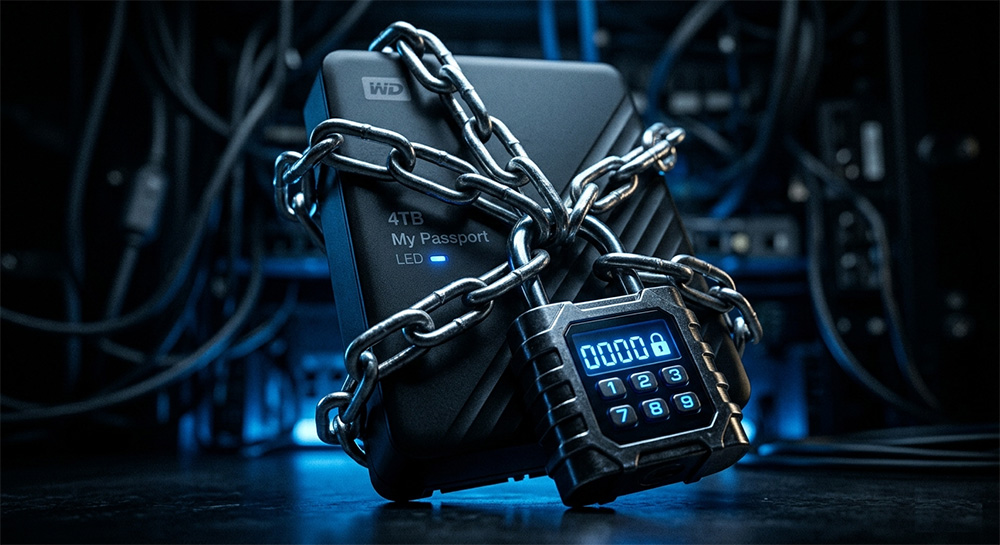
Here is where things get interesting, and honestly a little alarming for most people.
Modern Windows computers, especially laptops sold in the last few years, come with a feature called BitLocker turned on by default. You probably never turned it on yourself. You may not even know it exists. But it is there, quietly running in the background.
What Is BitLocker and Why Does It Matter?
BitLocker is Windows encryption technology. It scrambles everything on your hard drive using complex math. The idea is that if your laptop gets stolen, the thief cannot read your files even if they pull out the drive.
For a business laptop or a traveling professional, that is a great feature. For an everyday home user who never leaves the house with their computer, it is a loaded trap waiting to go off.
The 48-Digit Key You Didn’t Know You Needed
Here is the part that trips people up. When BitLocker activates, Windows generates a 48-digit BitLocker recovery key. This key is the only thing that can unlock your drive if something goes wrong.
That BitLocker recovery key is usually saved to your Microsoft account automatically. Most people have no idea it exists, and they certainly have not printed it out or stored it somewhere safe.
Now here is the scary part. If Windows fails, if you upgrade your motherboard, if a technician reinstalls the operating system, or if certain security settings change, BitLocker can trigger a lockout. At that point, no technician in the world can get into that drive without the BitLocker recovery key. Not us, not anyone. The data is mathematically locked forever.
This is not a scare tactic. It is just how encryption works.
How to Find Your BitLocker Recovery Key Before It Is Too Late
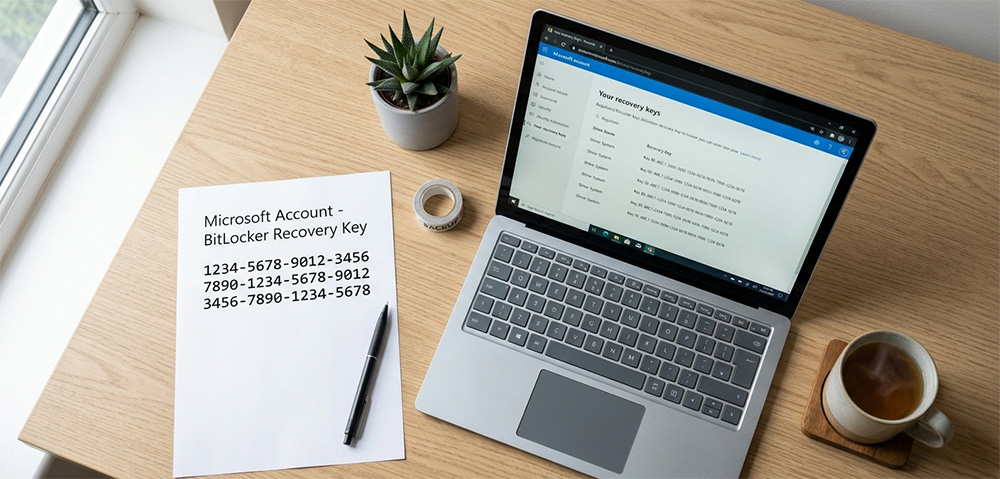
The good news is that finding your BitLocker recovery key is straightforward if you act now, before a problem happens.
Here is how to locate it. Open a browser and go to account.microsoft.com. Sign in with the Microsoft account you use on your Windows computer. Look for a section called Devices, then find your device and look for the BitLocker recovery key option.
If your key is there, write it down or print it out right now. Store that printed copy somewhere safe and completely separate from your computer. A fireproof lockbox, a filing cabinet, or even a trusted family member’s home works well.
If your key is not there, it may mean BitLocker is not active on your device, or it was saved elsewhere. Either way, it is worth checking so you know exactly where you stand.
Knowing how to backup Windows is only part of the picture. Protecting that BitLocker recovery key is just as important as the backup itself.
Why “It Only Lives on My Computer” Is the Most Dangerous Phrase in Tech
Think about your most important files for a moment. Your family photos, your tax returns, your business documents. Now ask yourself honestly: do copies of those files exist anywhere other than your computer right now?
If the answer is no, then those files do not truly exist. They are one hard drive failure, one spilled drink, or one house fire away from being gone forever.
This is what tech professionals call the Off-PC Rule. If a file only exists on your computer, it is not backed up. Full stop.
External Hard Drives: Your First Line of Defense
An external hard drive is one of the simplest and most affordable ways to protect your files. You plug it in, copy your important files over, and unplug it when you are done. That is really all it takes to get started.
When you are thinking about how to backup Windows properly, an external drive gives you a local copy you can access quickly without needing an internet connection. For large amounts of data like photos and videos, this is often the fastest option.
A good rule of thumb is to use a drive that is at least twice the size of your current hard drive. That gives you plenty of room and leaves space for future backups.
Cloud Backup: Your Second Line of Defense
An external drive is great, but it sits in your home. If there is a fire or a flood, both your computer and your backup drive could be destroyed at the same time.
That is where cloud backup comes in. Services like OneDrive, which is built into Windows, and Google Drive let you store copies of your files on remote servers. Even if your home burns down, your files survive.
The best approach to knowing how to backup Windows is to use both. An external drive for fast local access and a cloud service for off-site protection. Together, they cover almost every disaster scenario you can imagine.
Should You Just Turn BitLocker Off?
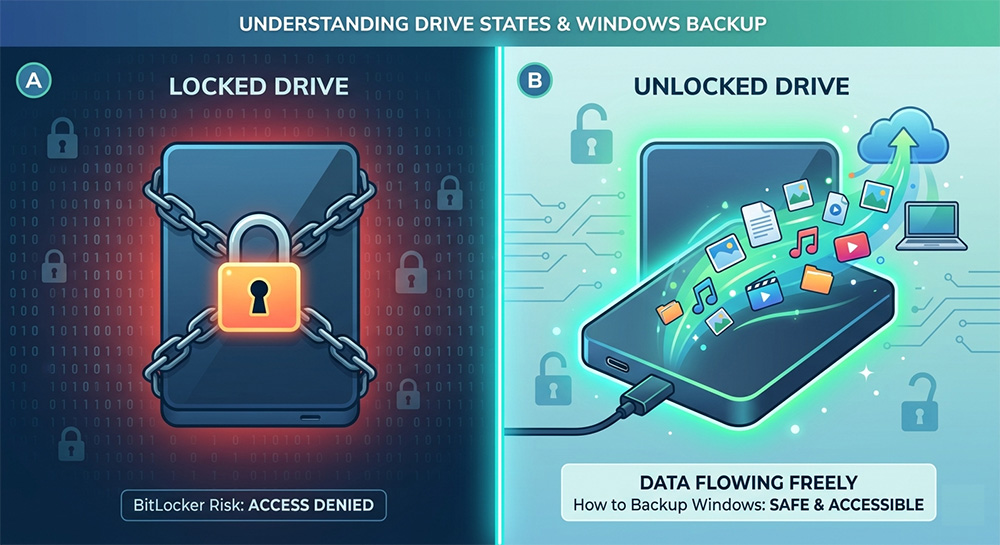
This is a fair question and one worth thinking through honestly.
If you are a home user with a desktop PC that never leaves your house, and the biggest risk to your data is a hardware failure rather than theft, then BitLocker may be adding risk without much benefit for your specific situation.
Turning off BitLocker is a personal decision. If you do decide to disable it, Windows will decrypt your drive, which can take several hours depending on how much data you have. Once it is off, the encryption lockout risk goes away entirely.
On the other hand, if you use a laptop, travel with it, or store sensitive financial or personal information, keeping BitLocker on makes sense. You just need to make sure your BitLocker recovery key is saved, printed, and stored safely before anything goes wrong.
There is no universal right answer here. The right answer is the one that fits your situation after you understand what BitLocker actually does.
Improper Shutdowns Can Also Put Your Computer at Risk
Before wrapping up the conversation about how to backup Windows, there is one more thing worth mentioning. How you shut down your computer matters more than most people realize.
Pressing the physical power button to force your PC off, rather than using the Start menu to shut down properly, can cause file system corruption over time. Repeated forced shutdowns can damage Windows and potentially trigger BitLocker or other recovery scenarios unexpectedly.
If you want to learn more about whether that habit is hurting your computer, check out this post on Is It Bad to Turn Off Your PC With the Power Button?
The Right Way to Think About How to Backup Windows
Most people treat computer backups the way they treat insurance. They know they should have it, they keep meaning to set it up, and then something goes wrong and they wish they had done it sooner.
Knowing how to backup Windows is not complicated. It does not require a tech degree. It just requires doing a few things before disaster strikes rather than after.
Start with these steps today. Go to your Microsoft account and find your BitLocker recovery key. Print it out and store it somewhere safe. Pick up an external hard drive and copy your most important files onto it. Set up OneDrive or Google Drive so your documents and photos sync automatically.
That is it. Four steps. Done right, they protect everything you care about on your computer from almost any scenario you can imagine.
A Quick Recap of What You Should Do Right Now
Go to account.microsoft.com and locate your BitLocker recovery key. Print it and store it away from your computer. Connect an external hard drive and back up your files. Enable OneDrive or Google Drive for automatic cloud syncing. Check your shutdown habits and make sure you are powering down properly.
These are not complicated tasks. They are simple habits that can save you from a situation where even a skilled technician cannot recover your data.
From Hoping to Prepared: How to Backup Windows the Right Way
The goal here is not to scare you. The goal is to shift your mindset from hoping your computer never crashes to being fully prepared for the day it does.
Because it will. Hard drives fail. Windows corrupts. Accidents happen. The question is not if you will face a computer problem someday. The question is whether you will be ready when you do.
Knowing how to backup Windows and understanding your BitLocker recovery key are the two most important things you can do for your digital life right now. They take less than an hour to set up, and they can save you from losing everything.
You worked hard to collect those photos, documents, and memories. Take the time today to make sure they are protected. Future you will be very glad you did.
Need Repair? Let’s Get It Fixed Today
Ready to Fix Your Computer Problem? Schedule Service Today!!