
How to clean your computer so it runs faster is something most Windows users search for when their PC starts slowing down. If your computer feels sluggish, freezes, or takes forever to open apps, this post walks you through the built-in Windows tools that can help.

Why Your Computer Slows Down Over Time
Your computer collects a lot of junk over time. Every time you browse the web, install an update, or run a program, Windows creates temporary files in the background. These files pile up fast. Over time, they take up space and force your system to work harder than it should.
The good news is that Windows already has tools built in to help with this. You do not need to buy anything or download any extra software to get started. A few simple steps can make a real difference.
However, if your computer is running very slow and cleanup does not seem to help, it could be a sign of something more serious. Sometimes slow performance points to a virus or malware infection. If that sounds familiar, check out this post on signs your system is infected and how to fix it.
How to Clean Your Computer So It Runs Faster Using Disk Cleanup
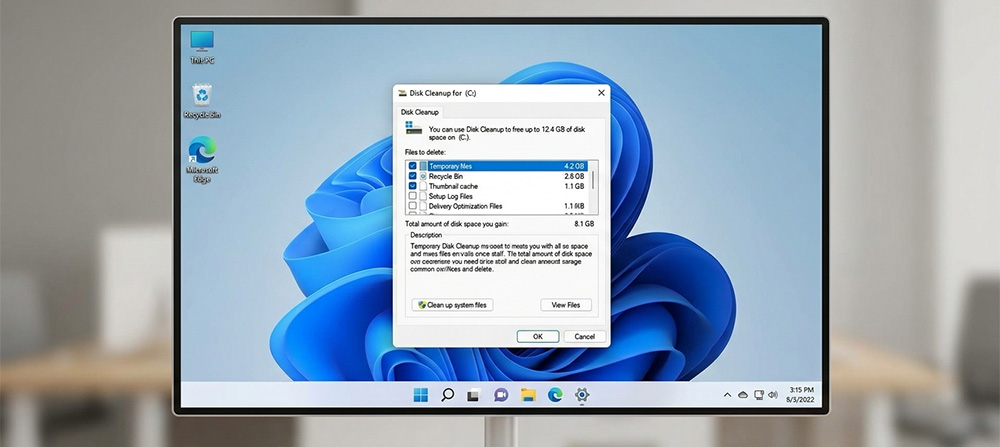
One of the easiest ways to learn how to clean your computer so it runs faster is by using the built-in Disk Cleanup tool. It has been part of Windows for years, and it still works great on both Windows 10 and Windows 11.
How to Open Disk Cleanup on Windows 10
On Windows 10, opening Disk Cleanup is quick and easy. Click the Start button and type Disk Cleanup in the search box. It should appear at the top of the results. Click on it to open the tool.
Once it opens, select the drive you want to clean. For most users, that will be the C: drive. Click OK, and the tool will scan your drive and show you a list of file types you can remove.
How to Open Disk Cleanup on Windows 11
On Windows 11, you can use the same search method. Click the Start button, type Disk Cleanup, and select it from the results. Alternatively, you can go to Settings > System > Storage and use the Cleanup recommendations option, which Microsoft designed as a more modern alternative.
Either method works. Both will show you a breakdown of files that are safe to delete.
What Files Should You Delete?
When the tool opens, you will see a checklist of file categories. Some common ones include temporary files, cached thumbnails, and items in the Recycle Bin. You can safely check most of these boxes.
If you want to go deeper, click the Clean up system files button. This unlocks extra options like old Windows update files, which can take up several gigabytes on their own. Just be aware that if you recently upgraded Windows, you may want to wait a few days before deleting previous installation files in case you need to roll back.
How to Delete Windows Temp Files Manually
Another useful step is learning how to delete Windows temp files directly. Temporary files often sit in a hidden folder and never get cleaned up on their own. Knowing how to delete Windows temp files can free up extra space that Disk Cleanup might miss.
To access the temp folder, press the Windows key + R on your keyboard to open the Run dialog. Type %temp% and press Enter. A folder will open showing dozens or even hundreds of temporary files. You can select all of them and delete them. Windows may skip a few files that are currently in use, and that is completely normal.
This is a simple but effective step. It is part of knowing how to clean your computer so it runs faster without needing outside help.
Check Your Computer’s Performance With Task Manager
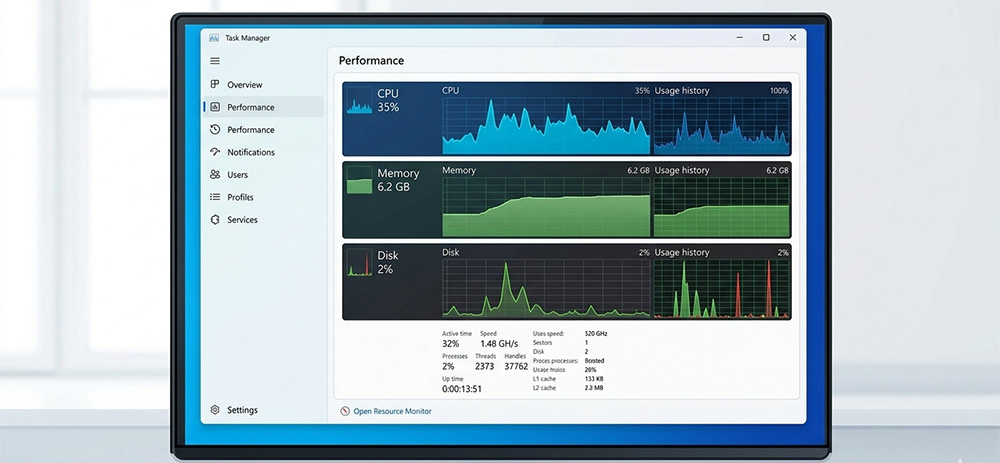
Once you have run Disk Cleanup and cleared out your temp files, it is smart to take a look at what is actually running on your system. Task Manager is a built-in tool that shows you exactly how much of your CPU, memory, and disk your computer is using in real time.
How to Open Task Manager
There are a couple of easy ways to open Task Manager. The fastest method is to press Ctrl + Shift + Esc on your keyboard. You can also right-click on the taskbar at the bottom of your screen and select Task Manager from the menu.
What to Look for in Task Manager
Once Task Manager is open, click on the Performance tab. This tab shows live graphs for your CPU, memory, and disk usage. Here is what to watch for:
CPU usage — If your CPU is constantly running at 80% or higher with no programs open, something may be working in the background that should not be.
Memory usage — High memory usage means your computer may not have enough RAM to handle what you are asking it to do. This often causes slowdowns and freezing.
Disk usage — A disk running at or near 100% is one of the most common causes of a slow Windows PC. It means your hard drive is working at full capacity and struggling to keep up.
If you see high numbers in any of these areas, it is a signal that something deeper may be going on. That kind of issue is often beyond what a basic cleanup can fix.
When Cleaning Your Computer Is Not Enough
Running Disk Cleanup and checking Task Manager are great first steps in figuring out how to clean your computer so it runs faster. They can absolutely help improve performance in many cases. But sometimes, knowing how to clean your computer so it runs faster only goes so far.
If your CPU, memory, or disk usage stays high even after a cleanup, or if your computer keeps slowing down shortly after you clean it, the problem likely goes deeper. It might be a hardware issue, too many startup programs, or even a malware infection running quietly in the background.
That is where professional help makes a difference. At RDP Shop, we offer computer repair services in Knoxville, TN for exactly these kinds of problems. Whether your PC needs a tune-up, a deeper diagnostic, or a full repair, a professional can spot things that basic cleanup tools simply cannot.
Knowing your limits is not a weakness. It is smart. Some computer problems need more than a search result to fix.
Need Repair? Let’s Get It Fixed Today
Ready to Fix Your Computer Problem? Schedule Service Today!!