
PC won’t wake from sleep mode? You are not alone. This is one of the most frustrating problems a Windows user can run into. This guide walks you through exactly why it happens, how to fix it right now, and how to stop it from coming back.
Why Your PC Won’t Wake From Sleep Mode
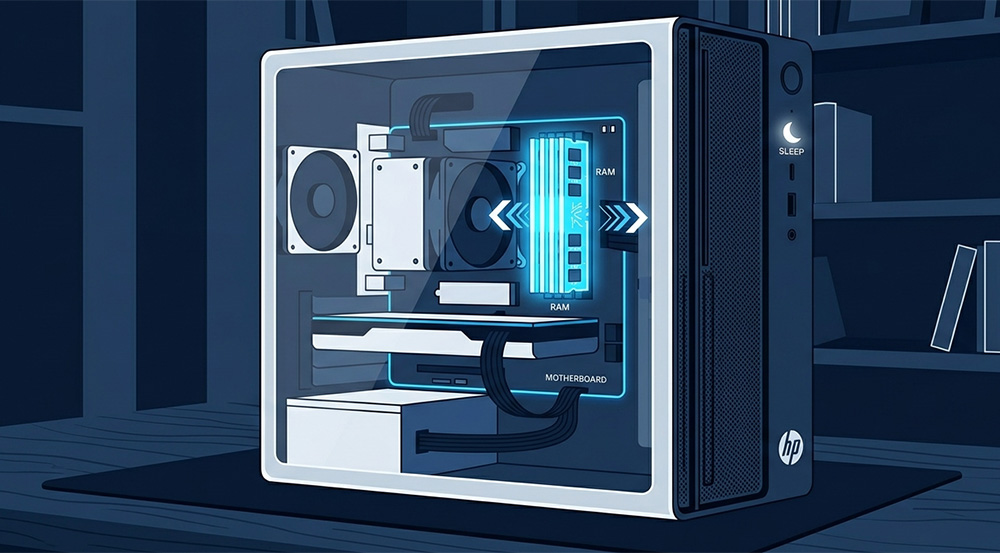
When your computer enters sleep mode, it saves the state of everything you have open directly to your RAM. Your browser tabs, open documents, and running programs all sit in memory while the system drops into a low-power state. The idea is that you can pick up exactly where you left off in just a few seconds.
But that handoff between sleeping and waking is where things go wrong.
A bad driver update, a Windows bug, or a conflict in your BIOS settings can cause the wake signal to fail. When that happens, your PC gets stuck in a limbo state. It is not fully on, and it is not fully off. The screen stays black, the machine does not respond, and nothing you do seems to bring it back.
This is exactly what causes so many people to assume their hardware has died. Before you panic, know that this is almost always a software issue, not a dead motherboard or a failed monitor.
Is It a Virus?
A black screen that will not respond can also make you wonder if something malicious is going on. In some cases, malware can interfere with normal system operations and mimic sleep mode problems. If your PC won’t wake from sleep mode on a regular basis and you have noticed other strange behavior like slow performance or unexpected pop-ups, it may be worth ruling out an infection. You can read more about the warning signs in this post on computer virus repair and how to fix an infected system.
The Pros and Cons of Sleep Mode
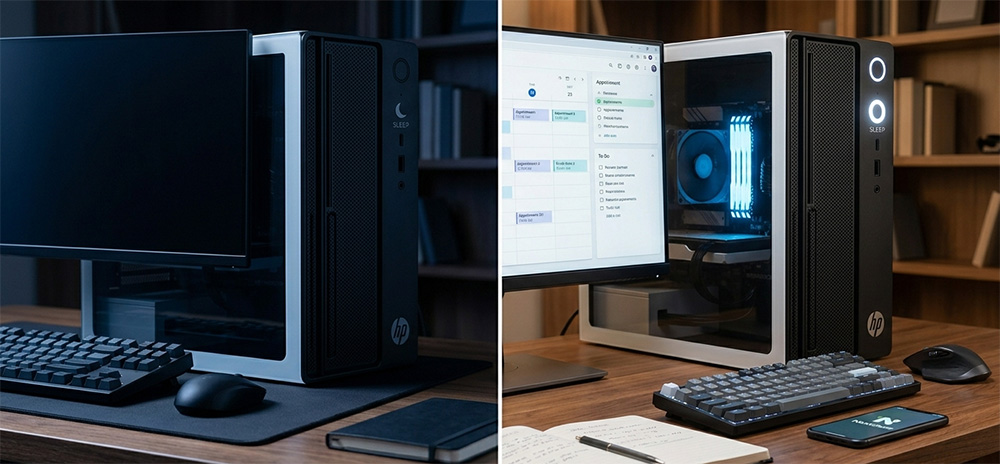
Sleep mode was designed as a convenience. For most casual users, it works without a hitch. For others, it creates more problems than it solves. Understanding both sides helps you decide whether to keep it enabled or turn it off for good.
On the positive side, sleep mode gives you near-instant access to your open work when you sit back down. It reduces electricity use compared to leaving the PC fully running. It also reduces wear on mechanical hard drives by spinning them down during idle periods.
On the negative side, sleep mode is one of the most common sources of wake failures, crashes, and peripheral issues. Many users come back to find their Bluetooth mouse will not reconnect, their Wi-Fi has dropped, or their second monitor is not being recognized. On modern desktops, the energy savings are also fairly small compared to a full shutdown.
For some users, keeping sleep mode enabled makes perfect sense. For others, especially those who have dealt with a PC that won’t wake from sleep mode more than once, disabling it is the smarter move.
How to Revive a Frozen Sleeping PC

If your computer is stuck right now and is not responding, work through these steps in order. Do not skip ahead.
Step One: Use the Keyboard Shortcut
Press Win + Ctrl + Shift + B on your keyboard. This shortcut is built into Windows and specifically restarts your graphics driver. It is one of the most effective first steps when your PC won’t wake from sleep mode because a frozen or crashed display driver is one of the top causes.
You will hear a short beep and the screen may flicker. That is normal. Give it a few seconds and see if the display comes back.
Step Two: Tap the Power Button
If the keyboard shortcut does not work, tap your power button once. Do not hold it down. Some systems are configured to respond to a power button press as a wake command rather than a keyboard or mouse input. A single tap sends that signal and may be all it takes.
Step Three: Perform a Hard Reset
If neither of the first two steps worked, it is time for a hard reset. Hold your power button down for a full 10 to 15 seconds until the machine fully powers off. Wait five seconds. Then turn it back on normally.
This is not ideal because you will lose any unsaved work. But when your PC won’t wake from sleep mode and nothing else is working, a hard reset is the right call. It is far better than leaving the machine stuck indefinitely.
How to Disable Sleep Mode in Windows
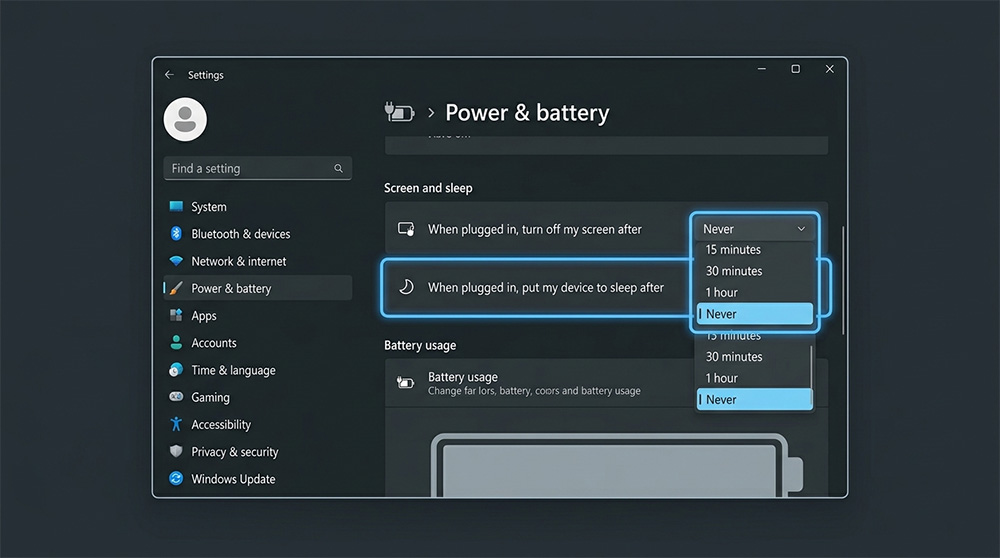
If sleep mode is causing repeated problems, disabling it entirely is a completely valid solution. When you disable it, your PC will either stay fully awake or be completely shut down. There is no in-between state for anything to go wrong.
How to Disable Sleep Mode in Windows 11
Follow these steps to turn off sleep mode in Windows 11.
First, click the Start button and open Settings. You can also press Win + I as a shortcut.
Next, go to System and then select Power and battery.
Click the dropdown labeled Screen and sleep.
Set both the “On battery power, put my device to sleep after” and the “When plugged in, put my device to sleep after” options to Never.
Once you do this, your PC will no longer enter sleep mode on its own. It will stay active until you manually shut it down or put it to sleep yourself.
How to Disable Sleep Mode in Windows 10
The process is slightly different in Windows 10 but just as straightforward.
Click Start and open Settings.
Go to System and then select Power and sleep.
Under the Sleep section, change both dropdown menus to Never. One controls what happens when you are on battery power, and the other controls what happens when the PC is plugged in.
That is all it takes. Your computer will no longer fall asleep automatically.
Consider Using Hibernate Instead
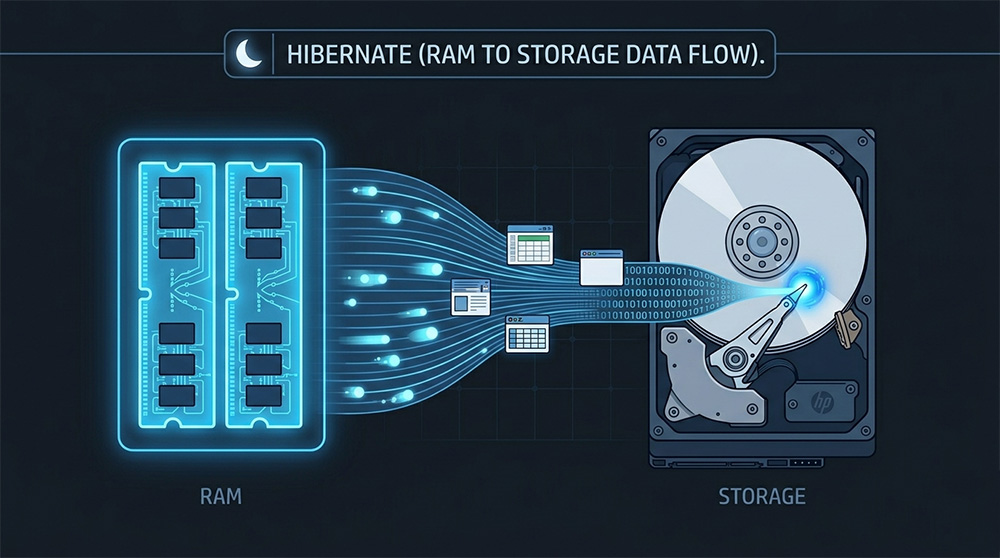
If you like the idea of saving your work state but you are tired of dealing with a PC that won’t wake from sleep mode, hibernate is worth considering.
Hibernate works differently from sleep. Instead of keeping your data in RAM, it saves everything to your hard drive or SSD and then cuts power completely. This means you are not relying on the system maintaining a fragile low-power state in order to resume. When you turn the PC back on, Windows loads your saved session from the drive rather than from memory.
The result is a longer startup time compared to waking from sleep, but a much more reliable one. Your system behaves exactly like a fresh boot from a reliability standpoint, while still giving you the ability to pick up where you left off.
Hibernate is especially useful on laptops where you want to conserve battery without risking a failed wake. It is also a great option for desktop users who want the convenience of a saved work state without the risks that sleep mode can bring.
Common Causes of Sleep Mode Wake Failures
Understanding why your PC won’t wake from sleep mode can help you prevent it from happening again. Most cases where a pc won’t wake from sleep mode come down to a small handful of causes.
Driver conflicts are at the top of the list. Graphics drivers and USB drivers in particular are frequent culprits. When Windows updates one of these drivers without your input, it can introduce a bug that breaks the wake process.
BIOS or UEFI settings can also cause problems. Some firmware versions have bugs related to power management that require a BIOS update to resolve. Others have settings that need to be adjusted to allow proper wake behavior.
Windows Update itself is another common cause. A poorly timed or incomplete update can leave your system in a state where sleep works but waking does not. This is more common than most people realize.
Finally, connected peripherals can interfere with sleep and wake cycles. USB devices, external monitors, and wireless adapters all communicate with Windows during the wake process. If one of them fails to respond correctly, it can stall the entire process.
When to Call a Professional

Most sleep mode issues are fixable with the steps above. But there are situations where your pc won’t wake from sleep mode because of something deeper going on with the hardware.
If your computer is crashing frequently, not just during wake attempts but during regular use as well, that can indicate a hardware problem. RAM issues, a failing power supply, or an overheating processor can all manifest as sleep-related problems even when the root cause is physical.
If you have tried every step in this guide and your PC still won’t wake from sleep mode reliably, a professional diagnosis is the right next move. A technician can run hardware tests, check your system logs, and identify the specific cause rather than guessing.
RDP Shop provides computer repair services for exactly these kinds of situations. Whether the problem turns out to be a simple driver fix or something more involved, having a professional look at it can save you hours of frustration and prevent further damage from repeated hard resets.
Quick Summary
Sleep mode is supposed to make your life easier, but when your PC won’t wake from sleep mode, it quickly becomes a source of stress. The good news is that most cases are fixable. Start with the keyboard shortcut, move to a power button tap, and use a hard reset as a last resort. From there, update your drivers, check your BIOS, and consider whether disabling sleep mode or switching to hibernate makes more sense for how you use your machine.
If the problem keeps coming back, do not ignore it. Repeated wake failures are a sign that something in your system needs attention, and the sooner you address it, the better.
Need Repair? Let’s Get It Fixed Today
Ready to Fix Your Computer Problem? Schedule Service Today!!