
Are you struggling with why does my default printer keep changing in Windows every time you try to print? This issue can slow your workflow, cause documents to print to the wrong printer, and create frustration. This guide explains the common causes and shows step-by-step how to fix it, keeping your printer settings stable.
Why Does My Default Printer Keep Changing
Are you struggling with why does my default printer keep changing in Windows every time you try to print? This issue can slow your workflow, cause documents to print to the wrong printer, and create frustration. This guide explains the common causes and shows step-by-step how to fix it, keeping your printer settings stable.
Understanding the Windows Default Printer Setting
Windows has a feature that tries to be helpful by managing your printers. It tracks which printer you used last at a specific location. If you move your laptop between your home and your office, Windows might switch the default printer automatically. While this sounds convenient, it often leads to the wrong device being selected.
Many users find that their computer ignores their manual choice. This happens because the operating system is programmed to take control of the selection process. When this feature is active, your manual settings are often overwritten by the system’s logic. If you are not 100% sure what, why or how to setup a default printer, this guide will help you.
How to Stop Windows From Managing Your Printer
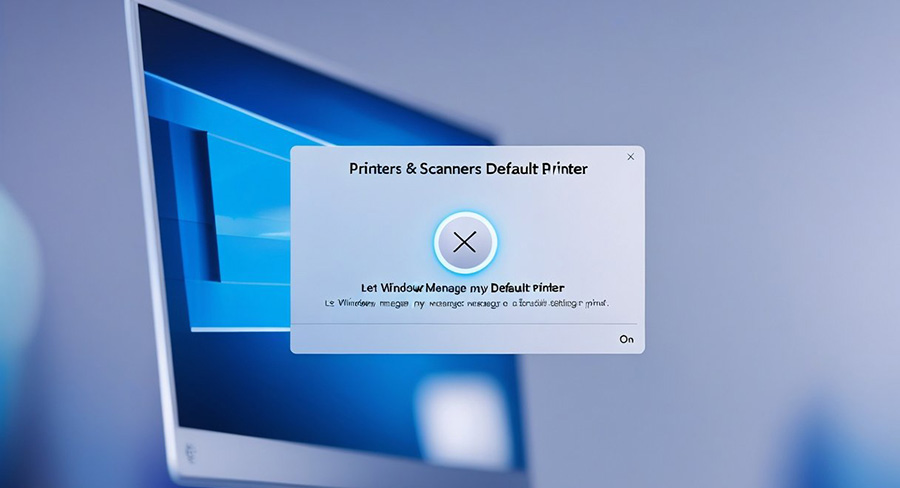
The most common reason for this problem is a specific setting in your Windows menu. You can easily turn this off to regain control. Follow these steps to fix the issue on a Windows 10 or Windows 11 computer.
Click on the Start button and select the Settings gear icon.
Go to the Bluetooth & devices section on the left menu.
Click on Printers & scanners.
Scroll down until you see a toggle switch labeled “Let Windows manage my default printer.”
Switch this toggle to the Off position.
Once you turn this off, Windows will stop trying to guess which printer you want to use. You can now manually select your favorite printer, and it should stay as the default.
Manually Setting Your Default Printer
After you disable the automatic management feature, you must tell the computer which printer you prefer. This ensures that every time you hit print, the document goes to the right machine.
To set your default printer, stay in the Printers & scanners menu. Look at the list of available devices. Click on the name of the printer you use most often. You will see a button that says “Set as default.” Click that button, and a green checkmark or a “Default” status should appear next to it.
AI Image Prompt 2: A close-up, high-quality 3D render of a computer mouse hovering over a digital “Set as Default” button on a clean software interface. The colors are professional blues and greys with soft, focused lighting. The composition is centered and clear, emphasizing the action of making a selection.
Fixing Registry Issues That Change Printers
Sometimes the problem is deeper within the computer system. If the standard settings do not work, there might be an issue with the Windows Registry. This is a database that stores all the settings for your computer.
Errors in the Registry can cause Windows to forget your printer choice every time you restart. Fixing this requires a bit more care. You should always be careful when changing Registry files. It is often best to seek professional help if you are not comfortable with advanced computer settings. At RDP Shop Services, we can help you navigate these technical hurdles to ensure your hardware works perfectly.
The Role of Printer Drivers in Connection Issues
A printer driver is a small piece of software that helps your computer talk to your printer. If this software is old or broken, the computer might lose track of the device. When the computer cannot find your main printer, it might jump to a different one, like a “Print to PDF” option.
You should check for driver updates regularly. You can do this by visiting the website of the company that made your printer. Look for the “Support” or “Drivers” section and enter your model number. Installing the latest version often solves the mystery of why does my default printer keep changing.
Network Connections and Printer Visibility
If you use a wireless printer, the connection might be the culprit. If your Wi-Fi signal drops for a moment, the computer thinks the printer is gone. It will then look for any other available printer to use as a backup.
Ensure your printer is close enough to your router.
Check if other devices are interfering with the wireless signal.
Consider using a USB cable if the wireless connection is not stable.
When the connection is steady, the computer is much less likely to switch your settings. A stable network is key to a reliable printing experience.
Third-Party Software Interference
Many users find that their computer ignores their manual choice, often leading to the question: why does my default printer keep changing? This happens because the operating system is programmed to take control of the selection process.
When this feature is active, your manual settings are often overwritten by the system’s logic, causing the default device to switch without your permission.
How RDP Shop Services Can Help
If you are asking why does my default printer keep changing, the answer is usually one of the settings or features in Windows. The most common cause is the auto manage feature that changes your default printer. Turning off this setting, removing unused printers, and updating drivers will fix most problems.
If these steps do not fix the problem, your printer or computer may have deeper issues. At RDPSHOP Services, we help troubleshoot printer settings, drivers, and network conflicts so your devices work reliably.
We understand how important it is to have a reliable setup. Whether you are working from a home office or managing a business, we provide the support you need to keep your tech running smoothly. Do not let small errors like printer changes slow you down.
If you are still struggling with printer issues or need professional tech support, we are here to help. Contact RDPSHOP Services today for expert assistance with printer setup, troubleshooting, and maintenance. We will ensure your default printer stays exactly how you want it.