
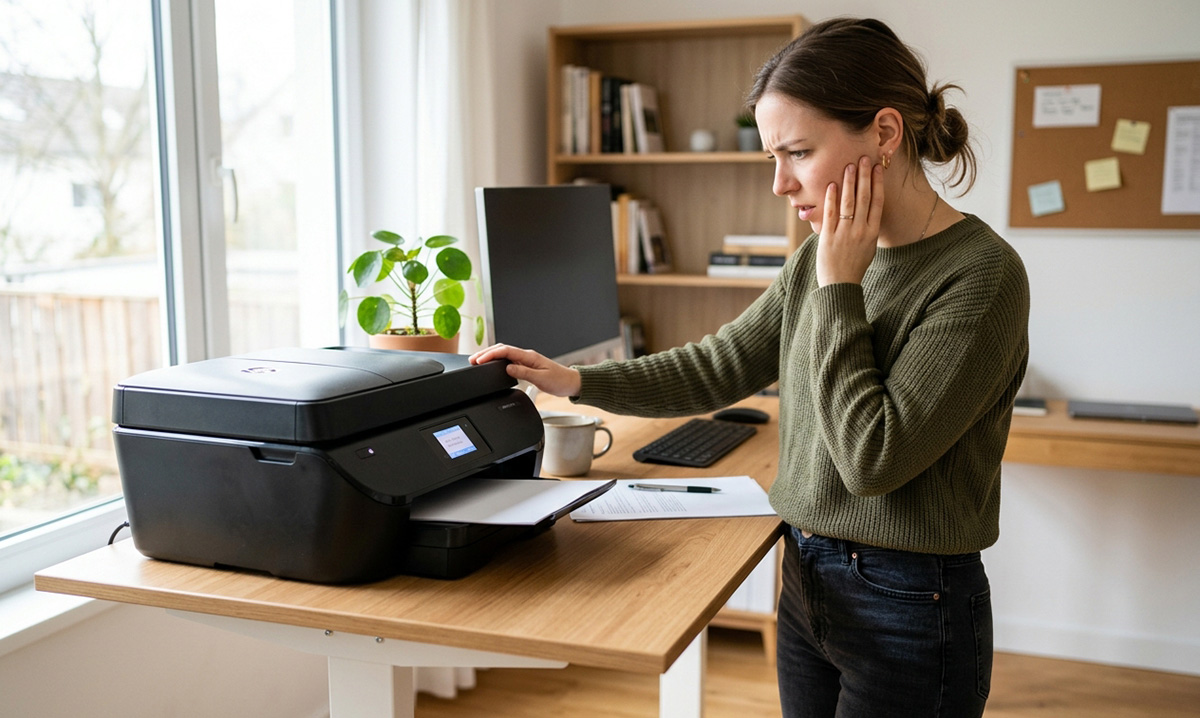
Printer won’t print even though it shows connected and ready? That frustrating message usually comes from a few common culprits, like a stuck print queue, sleep mode, the wrong default printer, or a lost Wi-Fi connection. Work through these checks in order to get pages printing again fast.
What Should You Check First When Your Printer Won’t Print?
The first thing to check is whether your printer is truly connected, since a printer is online but won’t print for several possible reasons. Work through the connection, default printer, print queue, printer status, and driver in that order below.
How Do You Clear a Stuck Print Queue?
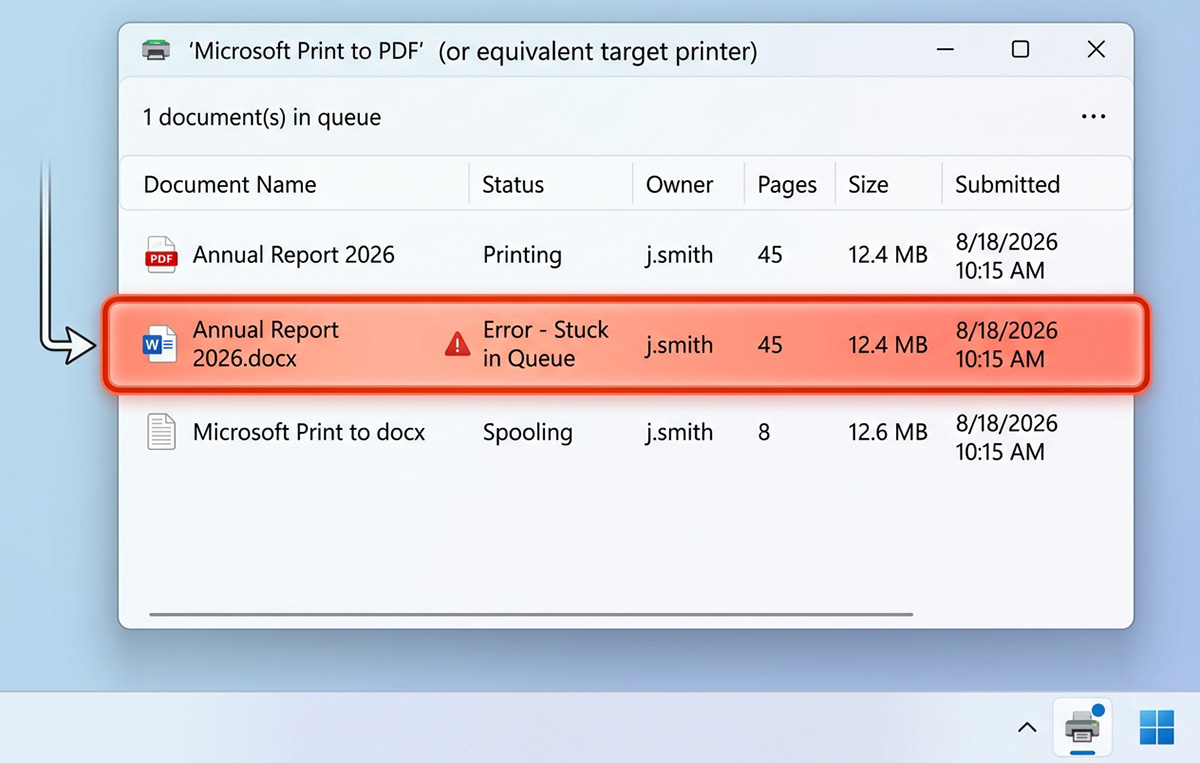
Windows sends every document through the Print Spooler, so a stuck job is one of the most common reasons a printer won’t print on the first try.
- Go to Settings, then Bluetooth & devices, then Printers & scanners.
- Select your printer and open the print queue.
- Cancel any jobs you see stuck there.
- If the queue still won’t clear, restart the Print Spooler service.
Is Your Printer Asleep or Disconnected From Wi-Fi?
Your printer may be asleep or no longer connected to the same Wi-Fi network as your computer. Sleep mode alone rarely causes problems, since printers should wake automatically.
- Wake the printer using its own controls.
- If it stays unresponsive, power it off, wait 30 seconds, then turn it back on.
- Check the Wi-Fi network shown on the printer’s display.
- Confirm your computer is connected to that same network.
Why Is the Wrong Printer Set as Default?
Windows can store several printers, and yours may not be set as the default.
- Go to Settings, then Bluetooth & devices, then Printers & scanners.
- Select your printer and choose “Set as default.”
- If that option is greyed out, turn off “Let Windows manage my default printer” first.
If your default keeps switching back on its own, read our guide on why your default printer keeps changing for a lasting fix.
Could an Ink or Paper Message Be Why Your Printer Won’t Print?
Yes, an ink, toner, or paper message can stop a print job before it starts, which is a simple reason a printer won’t print that has nothing to do with Windows. Check your printer’s own display for:
- Low ink or toner warnings
- A paper jam
- An open cover
- A cartridge the printer doesn’t recognize
Don’t spend time troubleshooting Windows when the printer itself is asking for attention.
Could a Driver Update Explain Why Your Printer Won’t Print?
Yes, a recent Windows update can expose a driver problem, which explains why your printer won’t print. Start with the checks above first, since there’s no reason to reinstall anything if a simple fix works.
- Check Windows Update for a newer printer driver.
- Or check your printer manufacturer’s support site for the current driver.
If nothing above solves it, a technician can usually diagnose a deeper driver or hardware issue quickly.
Need Repair? Let’s Get It Fixed Today
Ready to Fix Your Computer Problem? Schedule Service Today!!