
Google maps ride services popups keep returning because a corrupted cache traps your screen in a loop. Still, you can break it fast. On Android, clear the cache and data. On iPhone, delete and reinstall the app. Your saved places stay safe either way.

Why Do Google Maps Ride Services Keep Popping Up?
Google maps ride services keep popping up because a corrupted cache traps the app in a loop. However, many tutorials blame a hidden app setting or a missing button for ride services google maps problems. Instead, the real culprit is a corrupted interface cache that never registers your tap on the X.
The ride panel covers the bottom of your screen. Tapping the X closes it briefly, but any other tap brings the panel right back. Meanwhile, the blue Start and Preview buttons stay buried underneath.
The loop happens even if you never installed Uber or Lyft. Because the glitch lives inside the app, the problem has nothing to do with your other apps.
Still, a quick reset clears the problem. Android and iPhone, however, each need a different fix.
How Do You Fix Google Maps Ride Services on Android?
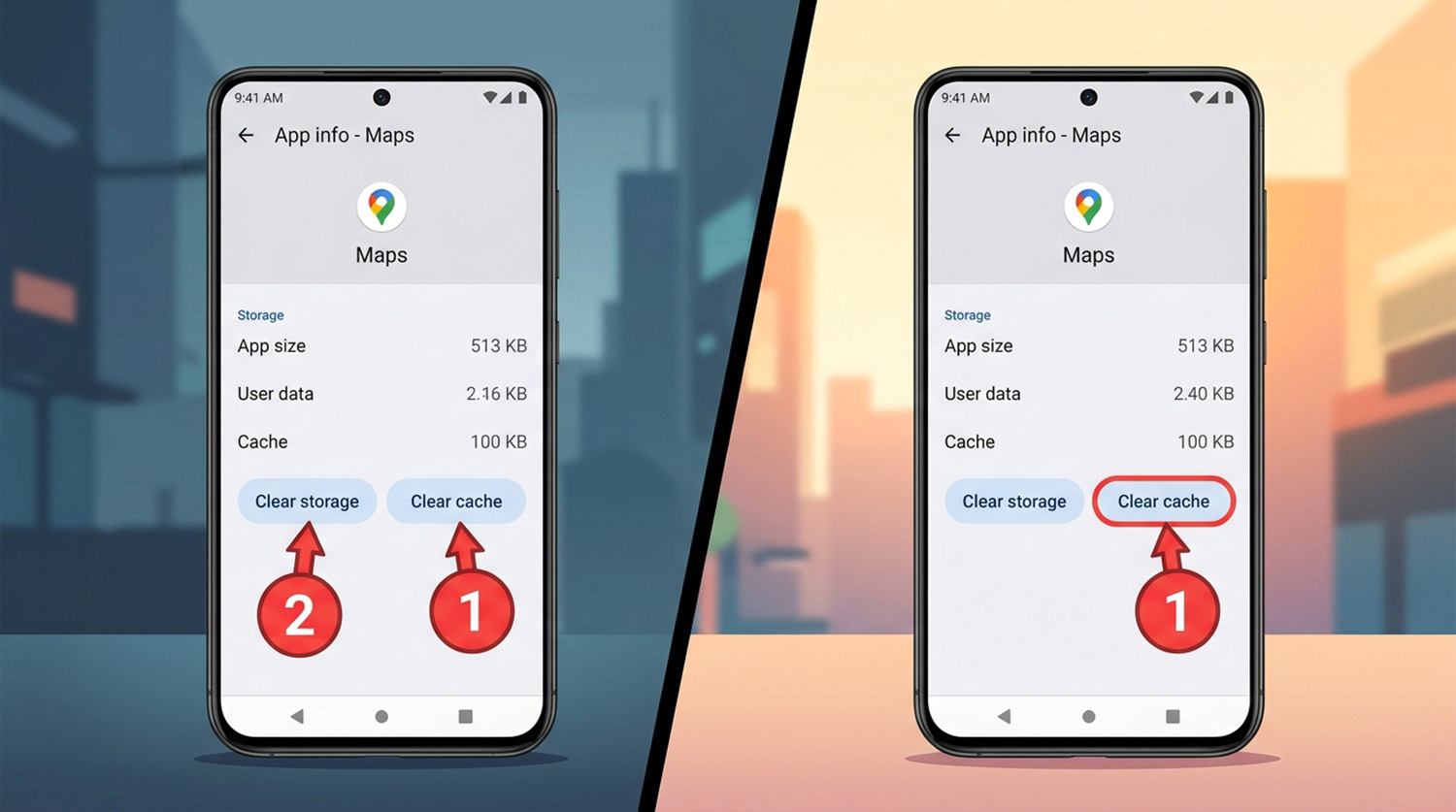
You fix the Google Maps popup loop on Android by clearing the Maps cache and data. Close the app completely first, then follow these steps.
- Open the Settings app and tap Apps, which some phones label App Management.
- Next, tap See all apps and select Maps from the list.
- Then choose Storage & cache, or simply Storage.
- After that, tap Clear Cache.
- Finally, tap Clear Data, then confirm with OK or Delete.
Once you reopen Maps, the popup loop should vanish. If the Start button works again, you fixed it. Menu names vary by phone brand, so look for similar labels if yours differ.
Clearing the cache removes temporary files, while clearing data resets the app to a fresh state. Because the glitch lives in temporary app state, you need both steps.
How Do You Fix Google Maps Ride Services on iPhone?
You fix the Google Maps popup loop on iPhone by deleting the app and reinstalling it. Because iOS has no Clear Cache button, you must delete the app to wipe the corrupted file. Before you delete, confirm you remember your Google account password.
- Press and hold the Google Maps icon on your home screen.
- Then tap Remove App and select Delete App.
- Next, open the App Store, search for Google Maps, and download it again.
After the reinstall, the google maps ride services panel should stop blocking your navigation controls.
Will Clearing Data Delete Your Saved Places?
Clearing Google Maps data does not delete your saved places, starred locations, or home and work addresses. Google stores those items in your account on its cloud servers, not on your phone. Therefore, the same is true when you delete and reinstall the app on iPhone.
Simply sign back in with your Google account, and everything reappears. As a result, you lose only the corrupted temporary files.
How Do You Stop Ride Apps From Taking Over Google Maps?
You stop Uber or Lyft from hijacking Google Maps on Android by turning off Open supported links. So, follow these steps.
- Open Settings, tap Apps, and select the ride app.
- Next, scroll down and tap Open by default.
- Then toggle off Open supported links.
Android lets apps hijack things from time to time, which can feel confusing. For example, you might suddenly receive game notifications you never asked for. A separate guide explains why you are getting game notifications on Android and how to stop them.
However, on iPhone you can skip all of this. Because iOS blocks background link hijacking, a ride app opens only when you tap Open App. That means you never need to adjust a setting on iPhone.
Where Did the Travel Mode Icons Go in Google Maps?
Google Maps now places the travel mode icons at the bottom of the screen, above the Start button. Older tutorials still tell you to look at the top, but a recent redesign moved them. Now the top bar shows only Your location, the destination, and a three-dot menu.
If a transit or ride view covers your route, tap the Car icon or the word Driving. Meanwhile, iPhone layouts vary by screen size, but tapping Car switches you back instantly.
Because older tutorials show the old layout, their steps can seem impossible to follow. Always look at the bottom row first when you want to change your travel mode.
Do You Need Notifications for Google Maps Navigation?
No, you do not need notifications turned on for Google Maps turn-by-turn navigation to work. Live route tracking and voice guidance run fine while the app stays open on your dashboard. Notifications only control background traffic alerts, business review prompts, and updates on a locked screen.
After a reset, Google Maps asks for permission again, and you can safely tap Don’t Allow. Also, iPhone shows the same system prompt, and the same choice works there. In addition, you avoid unwanted pings and save a little battery.
Therefore, saying no protects your attention without hurting your route.
How Do You Switch Google Maps From 3D Back to 2D?
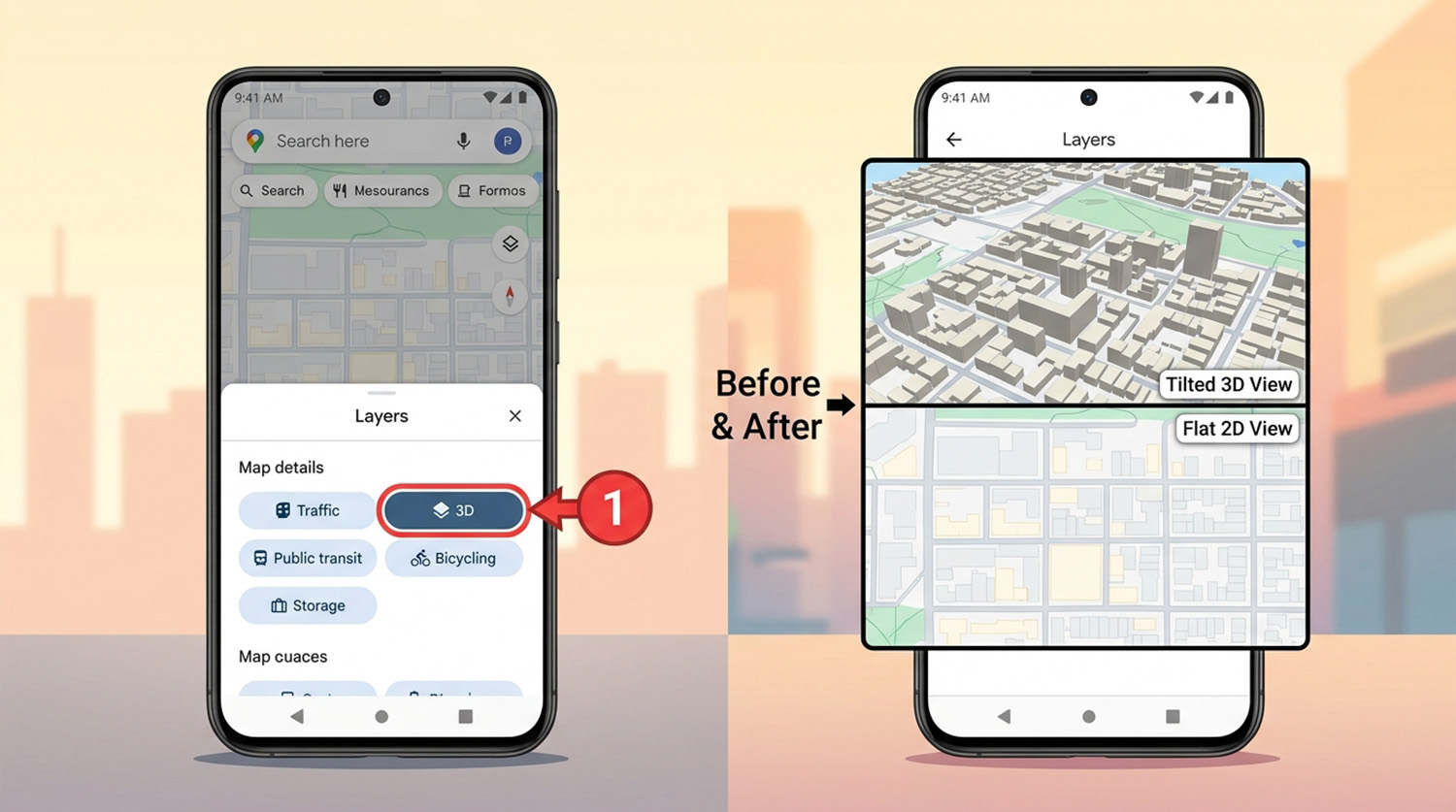
You switch Google Maps from 3D back to 2D by dragging two fingers straight down the screen. Fixing google maps ride services with a full reset also brings back the 3D map defaults. Dragging two fingers upward, however, tilts the view back into 3D.
The gesture works the same way on Android and iPhone, so you can use it anywhere.
You can also use the Layers icon. Tap Layers, then look under Map details and tap 3D once to turn it off.
For a permanent change, use the app settings instead.
- Tap your profile picture or initial in the search bar.
- Then open Settings and choose Navigation settings on Android or Navigation on iPhone.
- Finally, scroll to Map display and switch Show 3D buildings off.
What If Google Maps Ride Services Still Won’t Go Away?
If google maps ride services still return after a reset or reinstall, you likely need hands-on troubleshooting. Other apps, system updates, or phone settings can sometimes interfere with navigation. Still, you do not have to figure it out alone.
Phone and computer problems feel frustrating, but most have a clear fix. Whether you use Android or iPhone, a clear plan saves you time.
If you need computer help, use the box below to reach out for friendly, professional support.
Need Repair? Let’s Get It Fixed Today
Ready to Fix Your Computer Problem? Schedule Service Today!!