
Laptop keeps restarting or showing a blue screen because of something specific, like a bad driver, overheating, low storage, or failing hardware, not because the crash itself is the diagnosis. The stop code and whatever changed right before the crashes began are usually the real clues.
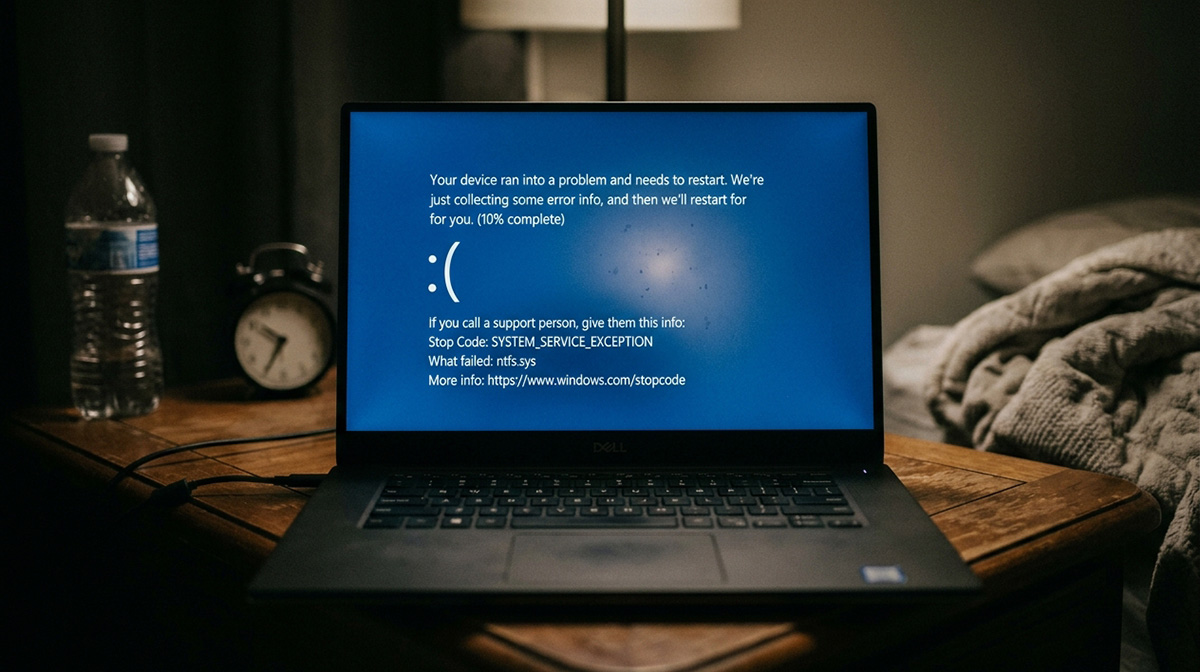
A laptop keeps restarting or blue-screening because of an underlying problem, like a driver issue, overheating, low storage, or failing hardware, not because the crash itself tells you what’s wrong. The stop code on the blue screen and whatever changed right before the crashes started are your best clues.
A blue screen is a symptom, not a diagnosis. The same blue-screen symptom can be caused by completely different problems, so restarting the laptop and hoping it goes away usually just delays finding the real cause.
What Should I Check First If My Laptop Keeps Restarting?
Start by writing down the blue-screen stop code, or take a picture of the screen if it flashes by too fast to read. That code can point toward what’s actually failing. Next, think about what changed right before the laptop keeps restarting. Did Windows update recently? Did you install new software, a driver, or a new device? Timing is often the biggest clue you have.
Could a Driver Be Causing My Laptop to Restart or Blue Screen?
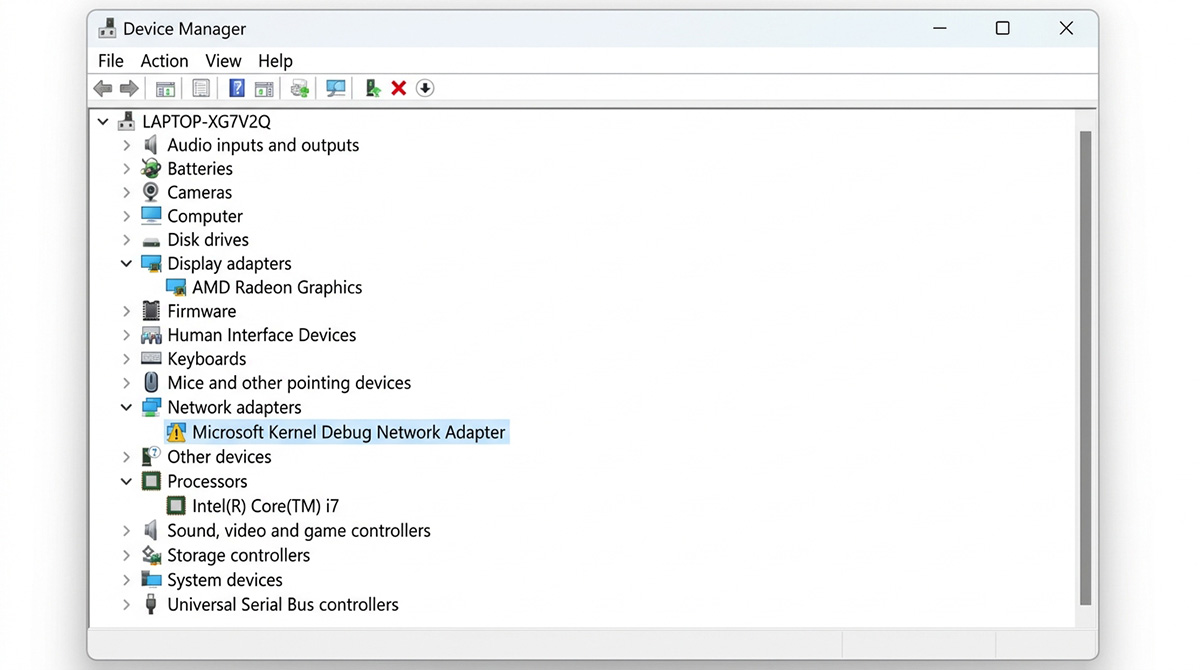
Yes, a bad, outdated, or incompatible driver is one of the most common reasons a laptop keeps restarting. Open Device Manager and look for any devices marked with a warning symbol. Graphics, storage, and chipset drivers are common culprits. Updating, or in some cases disabling or uninstalling, the problematic driver often resolves the crashes.
Could Overheating Be the Reason My Laptop Shows a Blue Screen?
Yes, if the fan runs constantly and loudly, or the laptop feels unusually hot, overheating could be causing your laptop to restart or crash to protect itself. This is common in laptops due to dust buildup, blocked air vents, or aging internal cooling components. Crashes that happen mainly during demanding tasks, like gaming or video editing, point toward heat as a likely factor.
Could Low Storage or a Failing Drive Be the Problem?
A nearly full drive can cause instability, since Windows needs free space for temporary files and normal operations. Free up space if your system drive is nearly full. A failing SSD or hard drive is a separate, more serious issue that can also cause corrupted files and repeated crashes.
What If My Laptop Keeps Crashing After Trying These Steps?
If crashes continue, Windows Memory Diagnostic can help identify a failing RAM module, and starting Windows in Safe Mode can help determine whether a third-party driver or startup program is involved. If my laptop shows a blue screen repeatedly even after these checks, proper diagnosis matters more than guessing, since replacing parts or reinstalling Windows without finding the actual cause often doesn’t solve the problem.
This is a different issue from a laptop with a completely black screen that won’t turn on. That issue usually points to a power or display problem, not a driver, heat, or hardware issue.
Need Repair? Get in Contact Today
Need Repair? Let’s Get It Fixed Today
Ready to Fix Your Computer Problem? Schedule Service Today!!