
How to identify scam emails is a skill every inbox owner needs right now. Scammers have gotten frighteningly good at looking legitimate, and one wrong move can cost you more than a password. This post shows you the red flags, the hidden traps, and the exact steps to protect yourself.

Phishing emails are fraudulent messages designed to trick you into clicking a link, giving up personal information, or confirming that your email account is active. The word “phishing” is a play on “fishing,” because attackers cast a wide net and wait for someone to bite. For years, those nets were easy to spot. Broken English, outrageous claims, and obvious misspellings made most scam emails simple to ignore. That era is over.
Today’s scammers mimic brands you trust completely. McAfee, DocuSign, PayPal, and popular subscription services are among the most impersonated names on the internet. The emails look polished. The logos are real. The formatting is professional. That is exactly why learning how to identify scam emails matters more than ever.
Why Scammers Are Targeting Your Inbox Right Now
The goal of a modern phishing campaign is rarely just about stealing one password. Attackers want to confirm that your email address is live and monitored. Once they know you opened a message, your address becomes a verified asset. They sell it to networks of unsafe email addresses, and suddenly you are on dozens of lists you never asked to be on.
The stakes are higher than most people realize. A single confirmed email address can be sold, resold, and weaponized across multiple attacks. That is why even opening the wrong message without clicking anything can cause damage. Staying informed is your best starting point, and understanding how to identify scam emails gives you a real advantage before any harm is done.
How to Identify Scam Emails Using the Red Flag Checklist
Not every scam email is obvious. Some are crafted to look almost perfect. Still, most of them share a set of common warning signs that you can learn to catch quickly.
The Sender Display Name Disguise
The display name is what you see first in your inbox. It might say “McAfee Official” or “DocuSign Security Team,” and that name alone can feel trustworthy. The problem is that anyone can set any display name they want. The real sender address is a completely different story.
When you hover over the sender name on a desktop email client, the actual address reveals itself. More often than not, it is something like xyz123@gmail.com or a jumble of letters tied to a domain you have never heard of. That is one of the clearest signs of unsafe email addresses at work. A legitimate company will always send from its own verified domain, never from a free webmail service.
The Vague DocuSign Request
One of the most common phishing tactics right now involves fake DocuSign notifications. You receive an email saying someone has sent you a document to sign. The message is urgent. The document is described only as “confidential.” There is no project name, no sender you recognize, and no context that connects it to anything in your life.
Real DocuSign emails always come from a verified sender and reference a specific document, sender, and often a company name. If you receive a signature request with no context, treat it as suspicious until you can confirm it through a separate channel.
The Fake Subscription Renewal Trap
This one shows up constantly. You receive an invoice or renewal notice for a service you may or may not use, often for an amount between $300 and $500. The email tells you the charge will process automatically and gives you a phone number to call if you want to cancel. That number connects you to a scammer, not a support team.
The pressure is intentional. A large dollar amount creates panic, and panic makes people act without thinking. If you receive an unexpected renewal notice for a service you do not remember signing up for, do not call the number in the email. Go directly to the company’s official website and check your account there.
Examples of Phishing Emails and How to Identify Scam Emails
The are some screen shots of actual scam and phishing emails that you need to take notice. Commonsense is your best tool on how to identify scam emails. For example, you see below emails referring to “payment confirmations”, “order shipments”, “invoicing”, “McAfee”, “renewals”, “Microsoft Azure“, “eSign”, and “social security”.
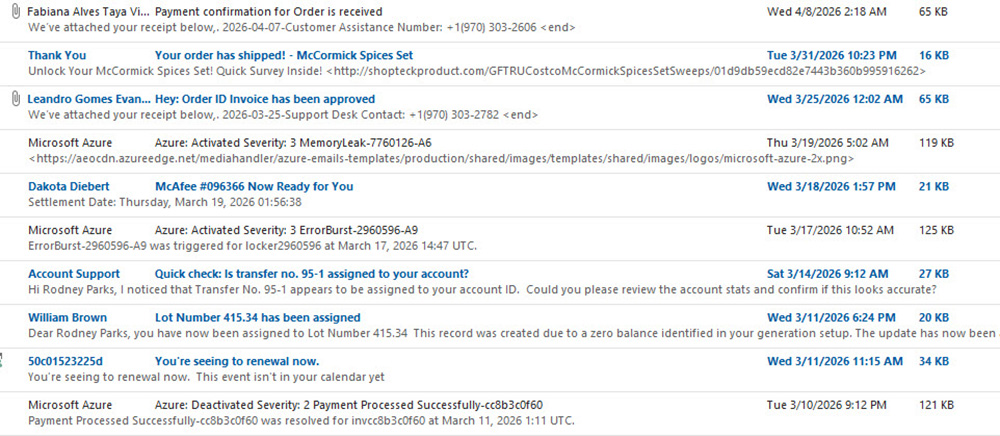
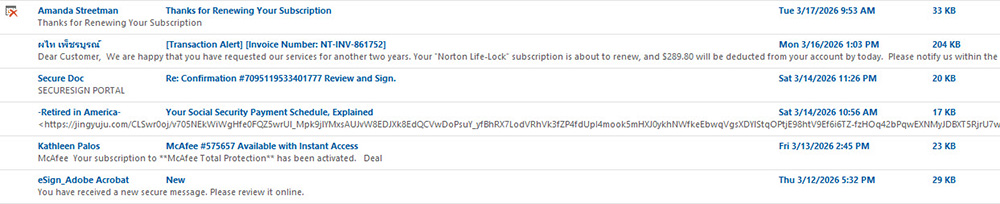
Granted, even though you may get social security emails, possibly McAfee renewals, payments or shipping notifications. You have to pay attention before opening these emails. Scammers and cybercriminals are relying on you to be in a hurry, not in the best of mind or just not paying attention. That way you will open these emails and or worse, start clicking on the links inside.
How to Identify Scam Emails With Commonsense
Where commonsense is your best weapon. When you see things like Microsoft Azure, ask yourself immediately, “Do I have an Azure account”, or do I have “McAfee”, or “am I expecting anything to be Shipped”? Ask yourself if these kinds of emails would even apply to you. If one or many do, read them carefully. If your email has a preview window, carefully read who the email is from. Take McAfee for example; they do send out renewal emails but the “FROM field” would read something like donotreply@mcafee.com or at least have @mcafee.com in the from address.
If you use the forward email trick in case you do not use a preview window. Read the message and make sure it makes sense. The best practice is, if you are not sure about the email, do not open it at all. If it is pertaining to PayPal, McAfee or any type of entity you have dealing with. Go to that website via your browser and login and see if there are any messages inside that company’s site. Never call phone numbers in these emails either. That is also just a way to get you on a spam list or try and steal your identity.
The Hidden Dangers of Just Looking at a Scam Email
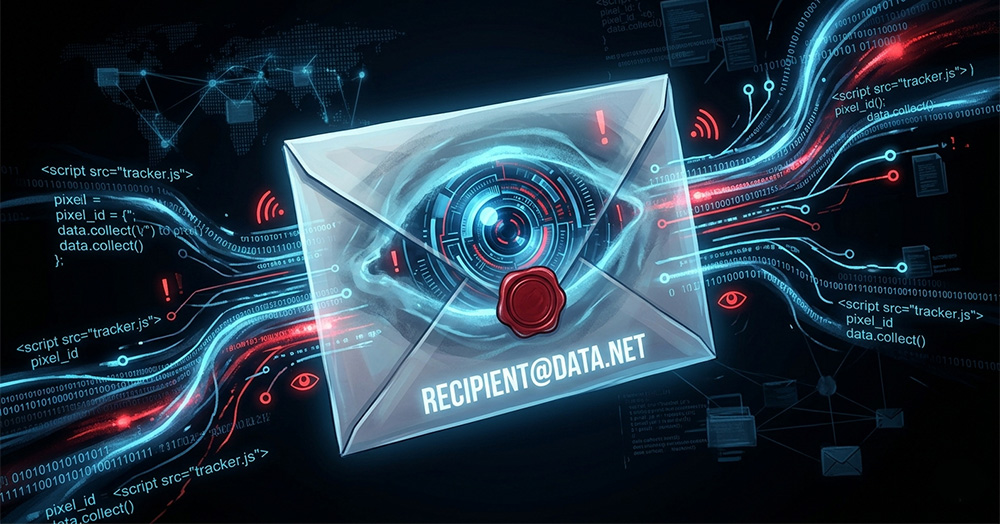
Most people believe they are safe as long as they do not click any links. That belief is one of the most dangerous misconceptions in email security. Simply viewing a scam email in certain ways can confirm your address to the attacker and trigger the exact response you were trying to avoid.
How the Preview Pane Works Against You
Many email clients display a reading pane on the right side or bottom of the screen. When you highlight a message, that pane loads it automatically. This seems convenient, but it is a significant security risk when it comes to phishing emails.
The moment an HTML email renders in your preview pane, it begins executing the code embedded in the message. You have not clicked a single link. You have not opened the email in a new window. Yet the message has already run its instructions on your device.
Tracking Pixels and What They Tell the Attacker
Most phishing emails contain tracking pixels. These are invisible images, often just one pixel in size, embedded somewhere in the email body. When the email renders, even in a preview pane, your email client sends a request to load that image from the attacker’s server.
That request tells the attacker several things at once. It confirms your email address is real and active. Records the approximate time you viewed the message. And it can also log your general location and the type of device you used. This is how networks of unsafe email addresses get built and verified at scale. You never clicked a thing, and yet you handed over valuable information.
The Forwarding Fallacy
Some people forward suspicious emails to a secondary account thinking it is a safer way to examine the content. This does not protect you. When you open the forwarding editor, your email client loads the original message to prepare it for forwarding. That rendering action triggers the same tracking mechanisms described above.
Forwarding a phishing email to inspect it is the digital equivalent of handling evidence without gloves. You interact with the threat the moment you engage with the compose window. Understanding how to identify scam emails means knowing that even indirect engagement carries risk.
The Report and Purge Workflow
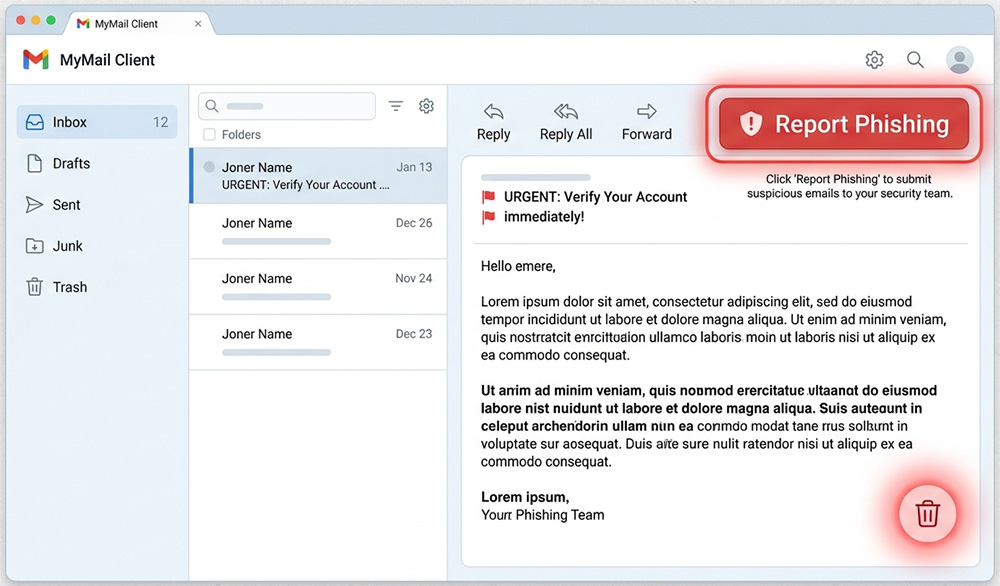
Once you recognize a scam email, your instinct might be to simply delete it and move on. Deleting is better than engaging, but it is not enough on its own. There is a more effective process that protects both you and everyone else who might receive the same message.
Why Reporting Beats Deleting
Every major email provider, including Gmail, Outlook, and Yahoo, has a “Report Phishing” or “Report Spam” option. Using it does more than remove the message from your inbox. It sends data about that sender to the provider’s security system, which helps flag unsafe email addresses across the entire platform.
When enough users report the same sender, that address gets blacklisted. Future messages from that source are filtered before they reach anyone else’s inbox. One click from you can protect thousands of other users from the same attack. Always use the report function before doing anything else with a suspicious message.
Delete Is Not Enough
After you report the message, go ahead and delete it. But understand that deleting sends the email to your Trash folder, not off the server entirely. The message still exists. It can still sync to other devices connected to your account. On some platforms, it can even be accidentally reopened.
Simply hitting delete leaves the threat sitting in a folder you might forget about entirely.
Empty the Trash Every Time
The final step in the process is to manually empty your Trash folder after deleting any suspicious email. This removes the message from the server completely. It eliminates the risk of accidentally opening it later and ensures the tracking data has no further opportunity to activate.
Make it a habit to empty your Trash regularly, especially after dealing with any message you were unsure about. It takes five seconds and closes the loop on the threat entirely.
Hardening Your Inbox Against Future Attacks
Knowing how to identify scam emails is powerful, but pairing that knowledge with the right inbox settings gives you a much stronger defense. A few simple changes can dramatically reduce your exposure to phishing attempts.
Switch to List-Only View
Turn off your preview pane entirely. Most email clients give you the option to switch to a list-only view, where messages are displayed as a list and nothing loads until you intentionally open an item. This single change eliminates the auto-rendering risk that makes preview panes a liability.
You choose what opens. Nothing loads without your permission.
Block Automatic Image Loading
Go into your email settings and find the option to block external images from loading automatically. In Gmail, this is found under Settings and then Images, where you can select “Ask before displaying external images.” Outlook and Apple Mail have similar options.
This setting cuts off tracking pixels before they can fire. Even if a phishing email lands in your inbox and you accidentally preview it, the pixel cannot load and the attacker gets no confirmation. It is one of the most effective and underused protections available to everyday email users.
Use View Source for Safe Inspection
If you ever need to examine a suspicious email without triggering its code, use the “View Source” or “Show Original” option available in most email clients. This displays the raw text and HTML of the message without rendering it. You can see links, sender information, and embedded content without allowing any of it to execute.
This is the only genuinely safe way to inspect a suspicious message in detail and how to identify scam emails. For a deeper look at related warning signs, the guide on 9 ways to recognize a phishing email or text covers additional tactics worth knowing.
Building the Habit That Keeps You Safe
Learning how to identify scam emails is not a one-time exercise. It is an ongoing habit that gets sharper the more you practice it. Scammers update their tactics constantly, and the best defense is a mindset that stays alert without becoming paranoid.
Treat every unexpected email with mild skepticism before you engage with it. Check the real sender address before reading the body. If something feels off, trust that instinct. A real company will never pressure you into acting immediately, and a real invoice will always be verifiable through the company’s official website or app.
The most dangerous emails are the ones that almost look right. They are designed to bypass your critical thinking by triggering emotion first. Knowing that is half the battle.
When you do encounter a scam email, remember the workflow. Report it first. Delete it second. Empty your Trash third. Those three steps take less than a minute and remove the threat completely while contributing to the broader fight against unsafe email addresses that target users every single day.
Your inbox is worth protecting. The tools are already there. Now you know how to use them.
Need Repair? Let’s Get It Fixed Today
Ready to Fix Your Computer Problem? Schedule Service Today!!