
How to transfer files to a new computer is the first question you ask after buying a replacement PC. This guide shows you exactly what to move. It also covers what to leave behind and how to protect your files during the switch.
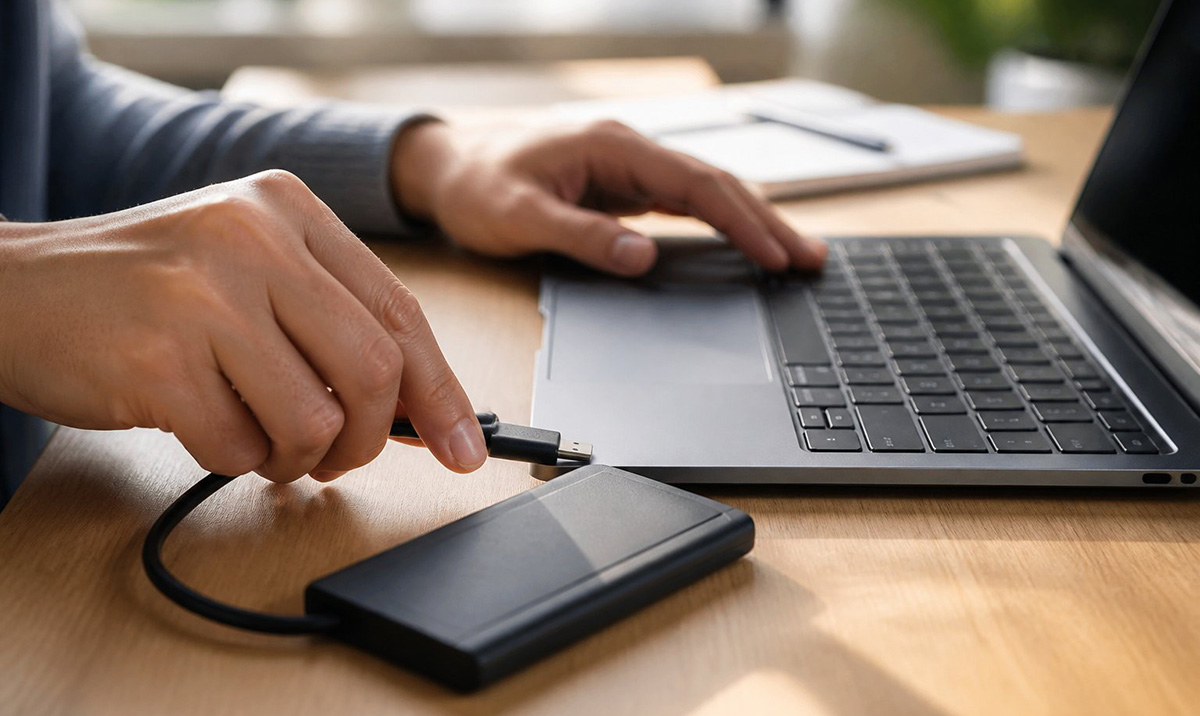
How to Transfer Files to a New Computer: What to Know First
Buying a new computer feels exciting until you remember every photo, document, and file still lives on the old one. How to transfer files to a new computer is not complicated, but it does require a plan. Rushing the process is risky. People lose photos, break their email setup, or drag old junk onto a brand-new machine.
An experienced technician rarely uses an automated migration tool for every step. Instead, they move files manually because it gives them full control over what lands on the new computer. You get the same control when you follow the checklist in this guide.
Before you copy a single file, check the old computer for malware. Moving an infected file to your new PC defeats the purpose of starting fresh. Run a full scan and confirm the results are clean.
Next, confirm your new computer has enough free storage for everything you plan to copy. Photos and video libraries take up more space than most people expect. A quick check now saves you a frustrating error message later.
Finally, set up your Windows user account on the new computer if you have not already done so. Then decide how you will physically move your files, since that choice shapes every step that follows.
Cloud Syncing
Many manufacturers push cloud syncing or automated migration wizards as the default option. These tools work fine for simple setups, but they often copy far more than you actually need. A manual approach gives you a cleaner result and helps you avoid dragging old junk onto a brand-new machine.
Think of this guide as the same checklist a technician would use on a service call. You do not need special training to follow it, just a little patience and an external drive.
By the end, you will know exactly how to transfer files to a new computer without missing anything important. You will also know when the job is worth handing off to a professional instead.
How to Transfer Files to a New Computer Step by Step
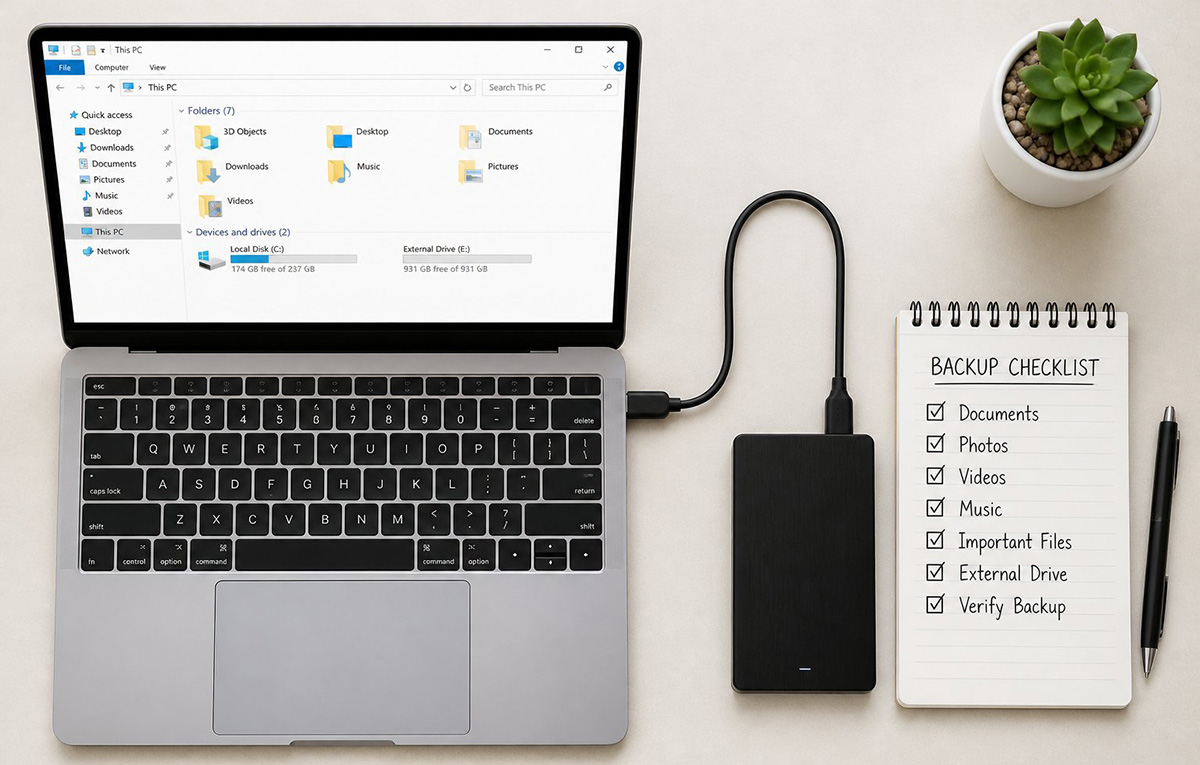
How to transfer files to a new computer becomes much easier once you break it into clear steps. Each step below builds on the one before it, so follow them in order.
Skipping a step is the most common reason a transfer goes wrong. Someone forgets to check available storage, or they copy files before confirming the old drive is even healthy. Working through the steps in order prevents most of those problems before they start.
You do not need to finish everything in one sitting either. Larger libraries of photos and video can take hours to copy. Plan around that timeline instead of rushing the last few folders.
Choose Your Storage Device
An external SSD is usually the fastest and most reliable option for moving large file libraries. A USB flash drive works fine for smaller transfers. A local network connection can also handle the job if both computers support it.
Whichever method you choose, make sure it has enough capacity for your full photo, video, and document collection. Running out of space mid transfer is a common and avoidable mistake.
Cloud storage can work too, though large photo and video libraries often take longer to upload than to copy directly. If your internet connection is slow, a physical drive is usually the faster and more reliable choice.
Label your drive clearly before you start, especially if you are moving files for more than one person. This small step prevents mixed up folders later.
Back Up Before You Touch Anything
Even with a solid plan, always create a backup before you start moving files. A backup protects you if a drive fails or a transfer gets interrupted partway through.
If you want a deeper look at building a reliable backup habit, review our backup and disaster recovery plan. It offers practical guidance you can use long after this move is finished.
A backup does not need to be complicated. Copying your key folders to a second drive or a cloud account counts as a real backup. It only takes a few extra minutes.
Skipping this step to save time rarely pays off. A single dropped connection during a transfer can corrupt files, and a backup is what protects you when that happens.
What Files You Should Actually Copy
Most users only need to move their personal files and folders. These usually include your Documents, Pictures, Videos, Music, Desktop, and Downloads folders.
You should also grab your browser bookmarks and any Outlook PST files if you use desktop email. Do not forget saved passwords or bookmarks stored inside your browser profile, since these often get overlooked.
Some programs also store personal data in hidden folders such as AppData. This folder can hold email signatures, custom templates, and configuration files tied to specific software. A quick search of AppData before you finish can save you from losing small but important settings.
Game saves are another item people often forget. Many games store progress locally instead of in the cloud. Check your game folders before you wipe the old computer.
If you use accounting or tax software, locate its data files separately from the program itself. QuickBooks, for example, keeps company files in a specific folder. That folder is easy to miss if you only check Documents.
Finally, gather any license keys or product codes you might need to reactivate software later. Storing them in a single text file on your new computer saves you a frustrating search down the road.
Getting this part of how to transfer files to a new computer right matters. It protects small details that are easy to overlook. A little extra care here pays off once you start reinstalling software.
What You Should Never Copy to Your New Computer
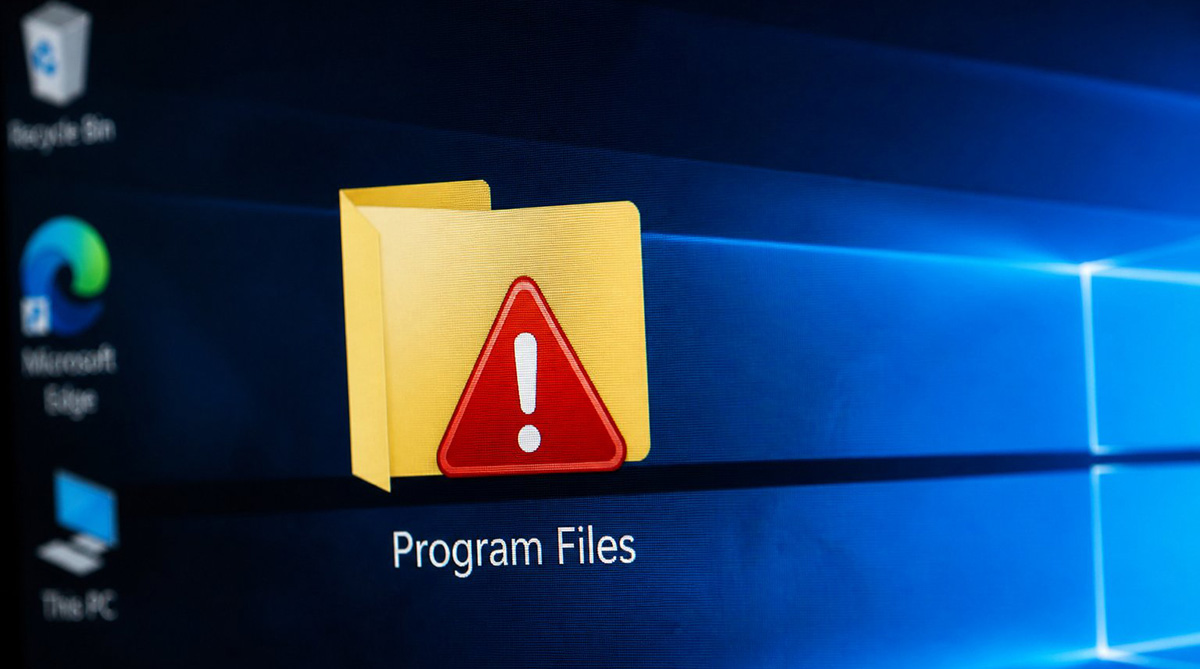
Knowing what to leave behind matters just as much as knowing what to bring. This step trips up more people than any other part of how to transfer files to a new computer.
You should never copy the Windows folder, Program Files, Program Files (x86), or any system folder from your old computer.
These folders hold operating system files and installed programs that belong specifically to the old machine. Copying them over will not properly install your software, and it can create serious conflicts on your new computer.
Skip temporary files and the Recycle Bin as well, since neither one serves any purpose on a fresh install. Instead, install each application directly on your new computer and then restore its personal data afterward. This approach gives you a cleaner, more stable system from day one.
Driver files are another category to leave behind. Your new computer needs its own drivers matched to its exact hardware. Old drivers can cause conflicts or crashes if copied over.
Browser cache and temporary internet files fall into the same category. They take up space without adding any real value, and your browser rebuilds them automatically once you sign back in.
Leaving these files behind is one of the simplest steps in how to transfer files to a new computer. It keeps your new machine running faster from day one.
The Easiest Way to Transfer Files from Old PC to New PC
If you want the easiest way to transfer files from old pc to new pc, stick with a simple process. A repeatable routine beats guessing your way through it. Plug in your external drive, copy your personal folders in order, and check each one as you finish it.
Working folder by folder keeps the task manageable, and it also makes mistakes easier to catch. You will notice quickly if a folder looks smaller than expected or a file fails to copy.
This approach also works well if you are helping a family member or coworker through their own move. A clear checklist removes the guesswork for anyone doing this for the first time.
Most people can complete a straightforward transfer in an afternoon. Larger libraries with thousands of photos may stretch that timeline. Build in extra time if your collection is especially large.
Doing this yourself also saves money compared to paying someone to move everything for you. That said, some situations call for extra caution, which we cover later in this guide.
At its core, how to transfer files to a new computer comes down to patience and a clear process. Skip the shortcuts and the process stays simple.
Software That Can Help You Move Programs Too
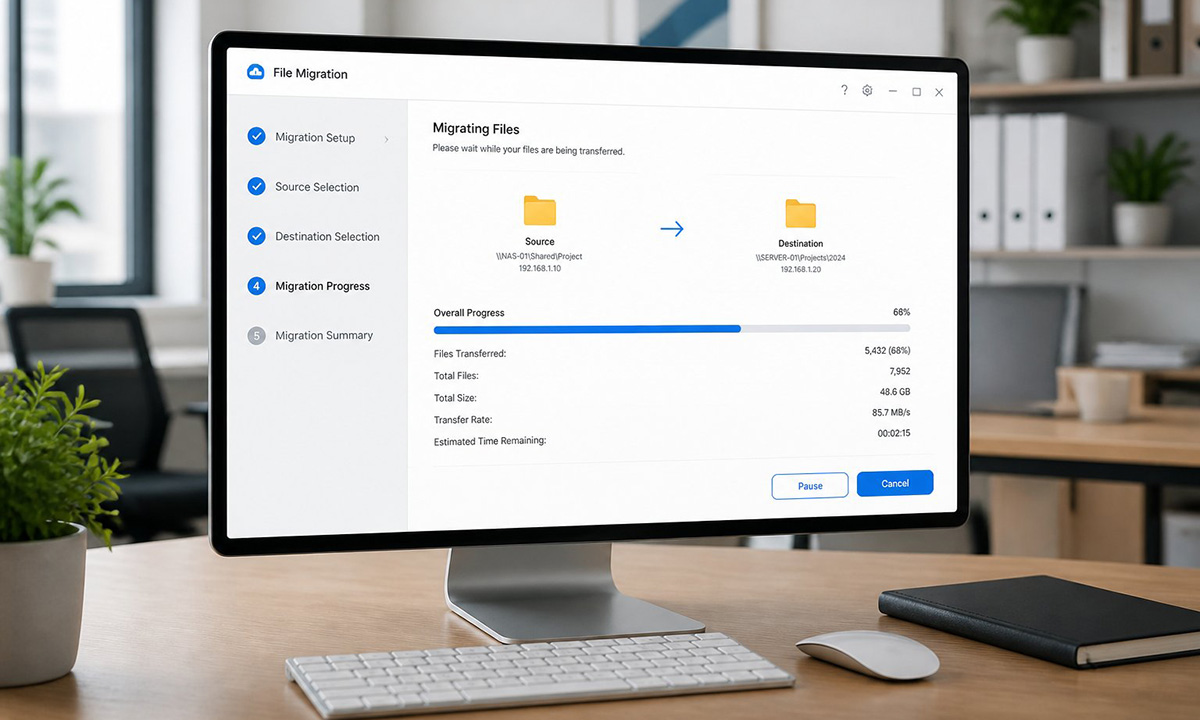
Manually copying files works well, but moving installed programs is a different challenge entirely. If you would rather not reinstall every application by hand, a few software options can help.
Laplink PCmover Express is built for users who mainly want to move files, profiles, and settings through a guided wizard. It works well for beginners, though it will not transfer your installed desktop applications.
Laplink PCmover Professional goes a step further and moves files, accounts, settings, and many installed programs at once. It supports transfers over a network, a USB transfer cable, or an external drive. Most users find the setup simple to follow.
For bigger or more complex migrations, Laplink PCmover Ultimate includes everything in the Professional edition plus extra migration tools. Many users never need those extras, so weigh the added cost against what you actually plan to move.
For ongoing safety after your move, consider Backup Pro 27. While PCmover migrates your data, Backup Pro 27 continuously protects it by taking full snapshots of your system. If your computer ever crashes or catches a virus, you can restore everything instantly.
Reactivation May Be Required
No matter which tool you choose, expect some programs to require reactivation. Software such as Microsoft Office, Adobe Creative Cloud, QuickBooks, and AutoCAD often ties its license to the original hardware.
Migration software works best for users with a large number of installed programs. If you only use a handful of applications, manually reinstalling them may actually be faster and less prone to errors.
Before you buy any migration tool, check that it supports both your old and new operating system versions. Compatibility issues are the most common complaint among users of these programs.
Software like this can speed up how to transfer files to a new computer. This helps most if you rely on many installed programs. Still, budget a little backup time in case an app needs manual reinstalling anyway.
How to Transfer Files to a New Computer Without Losing Anything
How to transfer files to a new computer without losing anything comes down to one habit: verify before you celebrate. Once your files finish copying, take a few minutes to confirm everything actually made the trip.
Compare folder sizes between the old and new computer, and spot check a handful of documents, photos, and videos. Open a few files directly to confirm they load correctly and are not corrupted.
This final stage of how to transfer files to a new computer confirms your work actually paid off. Skipping it defeats the purpose of the entire process.
Test your email if you use Outlook, and confirm your browser bookmarks carried over as expected. Reconnect your printer and any other peripherals so you know your full setup works.
Keep your old computer untouched for a week or two after the move. This gives you a safety net in case you discover a missing file later.
Create a simple checklist as you verify each folder, and check items off as you confirm them. This small habit catches mistakes far more reliably than trying to remember everything from memory.
If a file does not appear on your new computer, check the old drive again before assuming it is lost. Files sometimes get skipped due to naming conflicts or permission errors during the initial copy.
This final check is what separates a rushed job from a truly complete file transfer. Taking the extra ten minutes now can save you hours of searching later.
Final Checklist: How to Transfer Files to a New Computer the Smart Way
Use this quick checklist to confirm you have covered every step of how to transfer files to a new computer. Scan your old computer for malware first, then confirm your new computer has enough storage space.
Back up your files before you begin, then copy your personal folders while skipping system files and installed programs. Reinstall your software directly on the new computer, and verify every folder once the transfer finishes.
If any part of this process feels outside your comfort zone, that is completely normal. Many people would rather hand the job to someone who does this daily. That beats risking your files on a first attempt.
That is exactly the kind of support our team provides through our computer repair services in Knoxville, TN. We handle the entire migration for you from start to finish.
Whether you tackle this checklist yourself or bring in help, protecting your files during the move matters most. Building a lasting backup habit afterward keeps you covered long after your new computer is set up.