
How to switch outlook back to classic view trips up many Windows 11 users. One day Outlook looks completely different after an update. Microsoft now runs two separate Outlook apps, and mixing them up can make a working email account look broken. This guide shows you the exact fix.
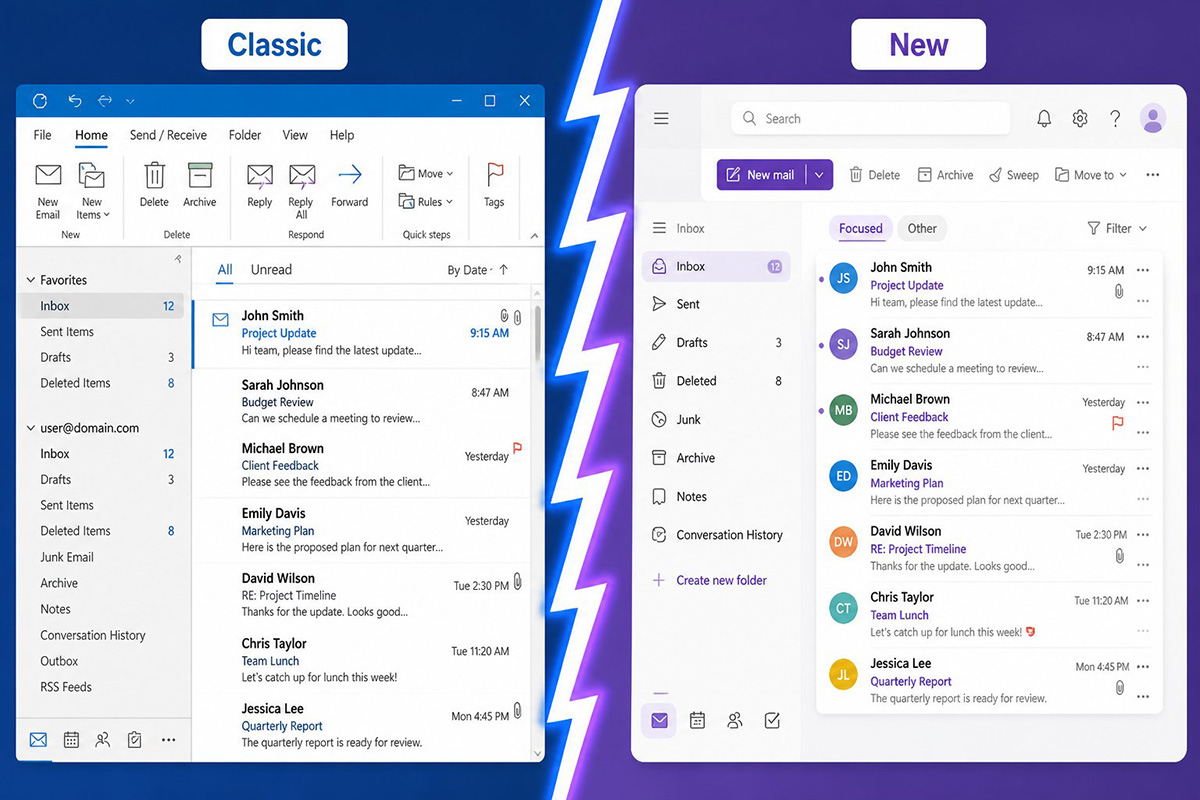
You open Outlook the same way you always have. But instead of the familiar inbox, a different looking application appears. This is not a glitch. Microsoft now installs two Outlook applications on many Windows 11 computers, classic Outlook and new Outlook. Classic Outlook is the traditional desktop app that comes with Microsoft 365 or Office. New Outlook is a newer, simplified application that Microsoft has started placing on the taskbar by default. The two apps look different, and they organize your inbox in different ways. When Windows swaps one for the other, your account can look unavailable, even though nothing is actually wrong. Nothing on your computer was deleted, and no setting broke on its own. This article covers how to switch outlook back to classic view in just a few simple steps. You can stop guessing and start working again.
Why Did Windows Open a Different Outlook on Your Computer?
Windows opened a different Outlook because Microsoft now installs new Outlook for Windows on many computers. Sometimes it replaces classic Outlook, and sometimes it simply sits alongside it. Microsoft has been pushing new Outlook through Windows updates and the Microsoft Store, often without much warning.
If you already had classic Outlook set up with your email account, contacts, and folders, this change can feel alarming. New Outlook does not automatically carry over your classic Outlook configuration. As a result, it may ask you to sign in again or show no email at all.
None of this means your original account stopped working. It simply means Windows opened the wrong application. This confusion is exactly why so many people search for how to switch outlook back to classic view. An update often changes their taskbar icon without warning.
How to Switch Outlook Back to Classic View
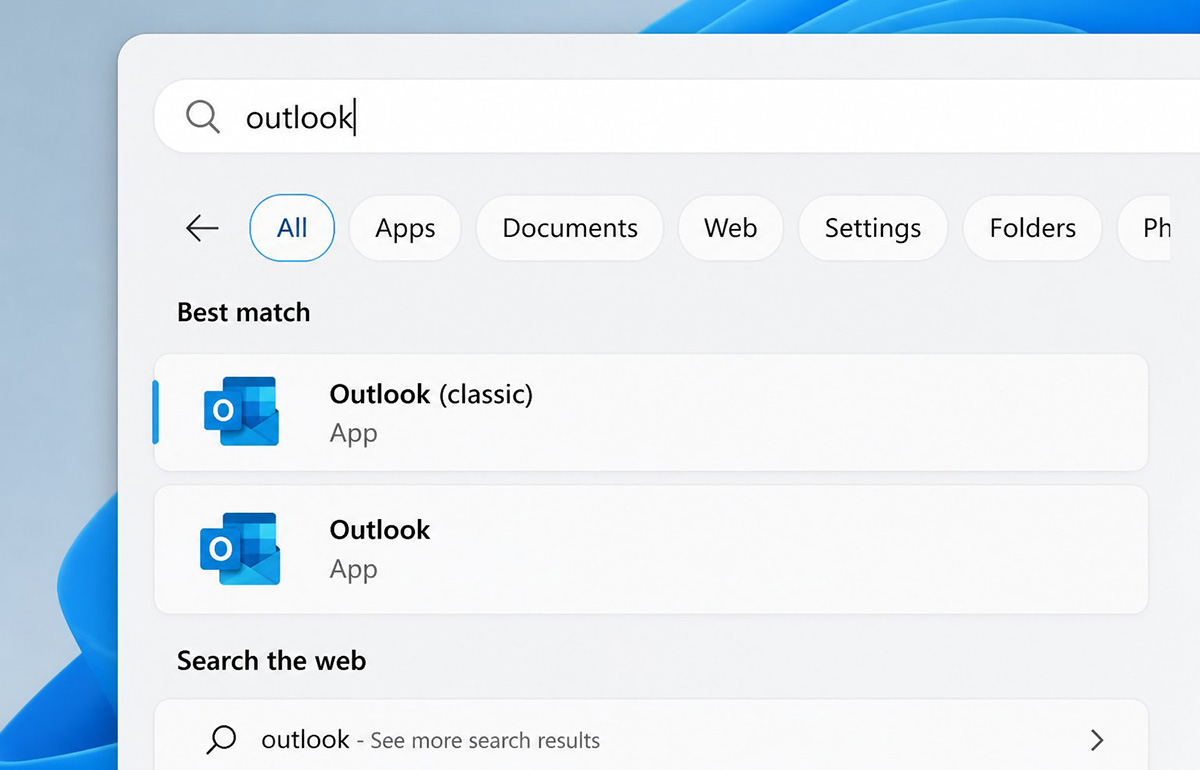
You can switch back to classic Outlook through the Windows Start menu. Simply select Outlook (classic) instead of the default Outlook icon. Microsoft labels the two applications differently inside the Start menu, so look closely at the name under each icon.
Type Outlook into the Windows search bar and check the results. You should see two separate entries. One says simply Outlook, and the other says Outlook (classic). Choose the classic option to open your existing mailbox, folders, and settings.
This method works because classic Outlook is usually still installed on your computer, even after new Outlook appears. Windows just changes which version opens first or which icon sits on your taskbar. Selecting the correct entry brings back the interface and account setup you already had.
If the taskbar icon keeps opening new Outlook, do not assume your account was removed. Instead, use the Start menu method above for now. The next section covers a more permanent fix in detail.
How to Switch Outlook Back to Classic View With a Desktop Shortcut
You can get classic Outlook back permanently with a desktop shortcut. Point that shortcut directly to the classic Outlook application file. This bypasses whichever Outlook icon Windows currently favors on the taskbar.
Right click on the Outlook (classic) entry in the Start menu. Choose the option to open the file location. Create a shortcut from that file, then drag it to your desktop. You can also pin it to your taskbar.
This is the same fix used when people ask how to get classic Outlook back. One customer’s computer began opening new Outlook after a Windows update. Their email account and settings were never lost. The desktop shortcut gave them a reliable way to reach the classic Outlook they had already configured. It is a dependable way to switch outlook back to classic view every time the computer restarts.
Once the shortcut is in place, you no longer need to search the Start menu every time. You can also pin it to the taskbar. The correct Outlook then stays one click away, no matter what future updates change.
Should You Remove New Outlook From Your Computer?
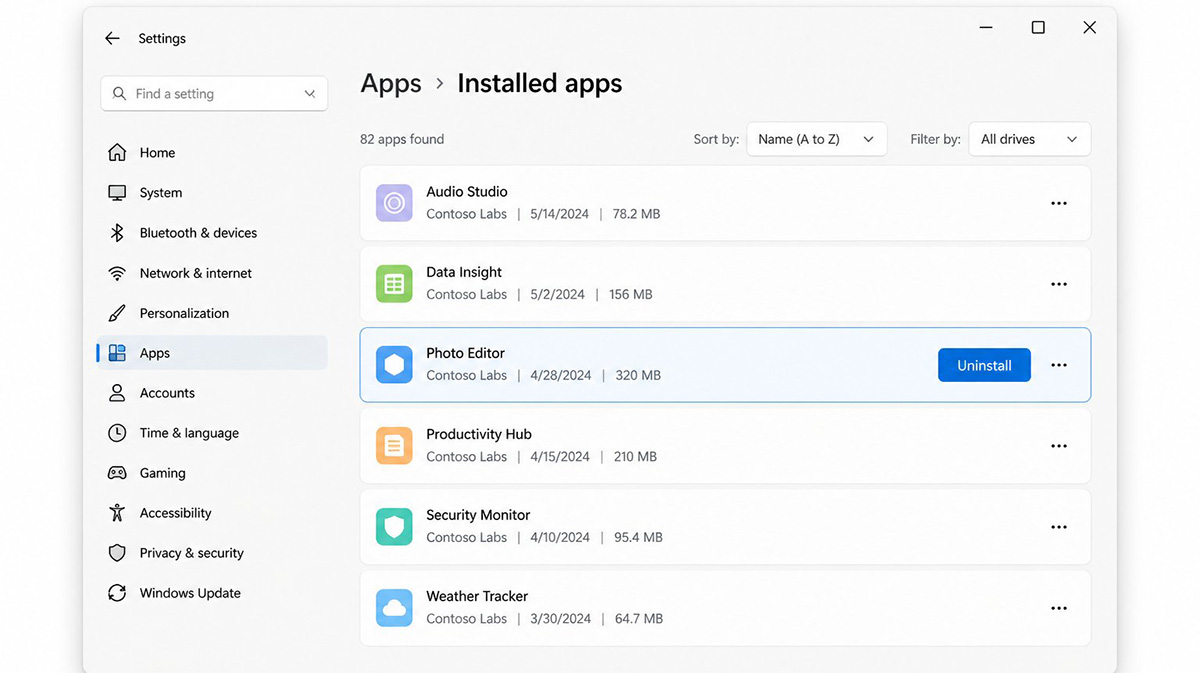
You can remove new Outlook from your computer through the Windows uninstall menu, but removing it is not always necessary. Open Settings, then Apps, then find new Outlook in the list and choose uninstall. The process takes only a minute, and it will not affect your classic Outlook installation or your stored email.
For many people, the bigger issue is not that new Outlook exists. It is that Windows made it harder to find the classic version they already relied on. Once your shortcut points to the correct application, new Outlook sitting on the computer usually causes no harm.
Some households and offices actually use both versions for different purposes. Removing new Outlook is a personal choice, not a required step. What matters most is knowing which application you are opening and making sure it connects to the account you expect. A quick glance at the title bar usually tells you everything you need to know.
Does a New Outlook Icon Mean Your Email Account Is Broken?
A new Outlook icon does not mean your email account is broken. Check which application opened before you make any changes. Many people assume a password prompt means their account was hacked or deleted.
In most cases, new Outlook is simply asking you to sign in. It has never connected to your account before. Your classic Outlook profile, with all its folders and settings, is often sitting untouched on the same computer.
Before changing a password, deleting an account, or reconfiguring your email, confirm which Outlook application is actually open. Look at the title bar or the Start menu label. This single check can save you from unnecessary troubleshooting and wasted time. It is often the fastest route to how to switch outlook back to classic view without calling for help.
How to Switch Outlook Back to Classic View for Good
How to switch outlook back to classic view for good comes down to one habit. Always open Outlook from a shortcut that points to the classic application. Once that shortcut exists, future Windows updates are far less likely to catch you off guard.
If new Outlook appears again, you will already know it does not mean your account failed. You can simply use your dedicated shortcut and keep working in the classic interface you trust.
Outlook problems are not always email problems. Sometimes the real issue is an operating system quietly changing which application opens first. That single fact solves how to switch outlook back to classic view for most Windows 11 users.
If your computer keeps opening the wrong Outlook, a technician can set up the correct shortcut for you. You can request computer repair service from RDP Shop Services and get it fixed the right way. A short appointment can save you hours of unnecessary troubleshooting.
Frequently Asked Questions About How to Switch Outlook Back to Classic View
How to Switch Outlook Back to Classic View Without Losing Your Emails?
You will not lose any emails when you switch back to classic Outlook. Classic Outlook stores your messages locally and on your mail server. Nothing about switching between the two apps deletes your data. Your folders, contacts, and calendar stay exactly where you left them.
Can I Set New Outlook as Default and Still Use Classic Outlook When I Need It?
Yes, you can set new Outlook as the default and still use classic Outlook whenever you need it. Both apps can stay installed side by side on the same computer. Your desktop shortcut will always open the version you choose, regardless of which one Windows treats as default.
Why Does New Outlook Keep Opening Even After I Pin Classic Outlook to My Taskbar?
New Outlook keeps opening because Windows sometimes resets taskbar pins after a major update. A pinned icon alone is not always reliable long term. A desktop shortcut avoids this problem, since Windows updates rarely touch shortcuts sitting on your desktop.
Is New Outlook Going to Eventually Replace Classic Outlook for Good?
New Outlook is Microsoft’s long-term direction, but classic Outlook still works today and has no official removal date. Microsoft has stated new Outlook is the future of the application. For now, both versions remain fully supported, so you can keep using classic Outlook without worry.
Need Repair? Let’s Get It Fixed Today
Ready to Fix Your Computer Problem? Schedule Service Today!!