
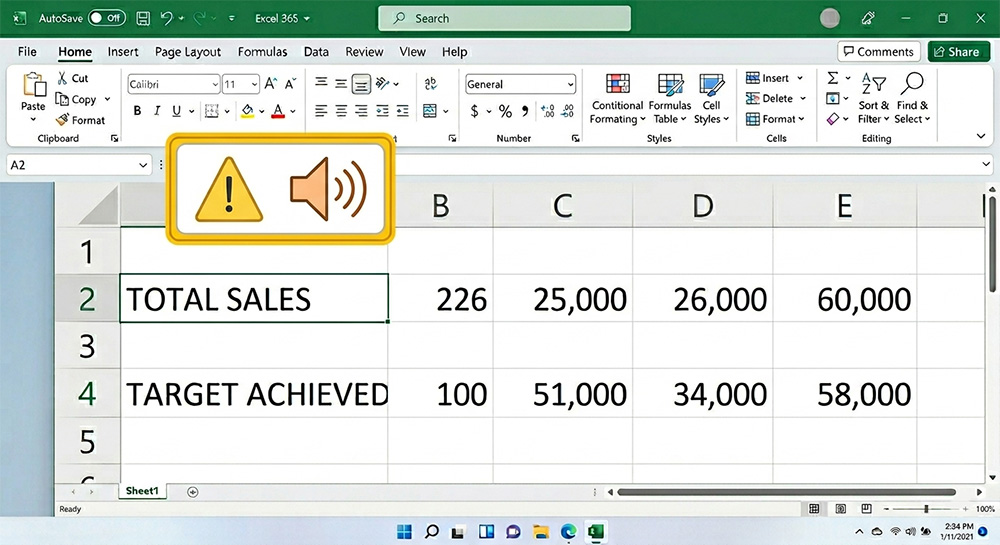
Excel Ctrl A not working is one of those maddening problems that shows up without warning and kills your productivity fast. You hit a shortcut you have used a hundred times, and suddenly all you get is an annoying beep. This guide breaks down exactly why it happens and how to fix it permanently.
Why Excel Ctrl A Not Working Happens in the First Place
This issue almost always comes down to a language setting conflict inside Excel. When Excel’s display language is set to “Match Microsoft Windows,” it can lose track of what certain keyboard shortcuts are supposed to do. As a result, pressing Ctrl + A inside a cell confuses Excel into thinking you want to select the entire spreadsheet or trigger a formula argument highlight instead of selecting your cell text.
So Excel plays an error beep and does nothing useful. That beep is Excel telling you the shortcut does not apply in the context it currently expects. It is a frustrating experience, but the good news is the root cause is simple and the fix is permanent.
This problem often surfaces right after a quiet Windows update. The update can subtly shift system language settings, and Excel picks up on that change in the worst possible way. You did not break anything. A background process did.
Is This a Virus? No, Here Is What Is Actually Going On
When a keyboard shortcut suddenly stops working, it is easy to panic and wonder if something malicious is on your computer. This is not a virus. It is a software configuration issue, and it only affects this specific shortcut behavior inside Excel.
If you are seeing other unusual activity on your machine, like unexpected popups, slow performance, or programs launching on their own, those could be separate concerns worth investigating. You can learn more about recognizing infection symptoms in this breakdown of computer virus repair and signs your system is infected. But for this particular issue, the culprit is Excel’s language settings, nothing more.
The Permanent Fix for Excel Ctrl A Not Working
The fix is straightforward and takes less than two minutes. Follow these steps carefully and the problem will not come back.
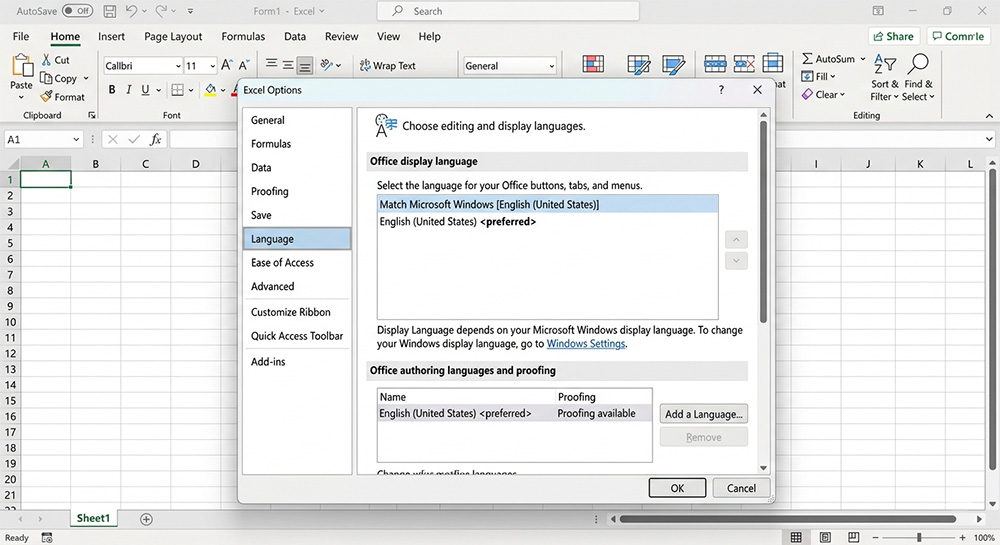
Open Excel and click File in the top left corner. Then scroll to the very bottom of the left-side menu and click Options. A new window will open. On the left sidebar of that window, click Language.
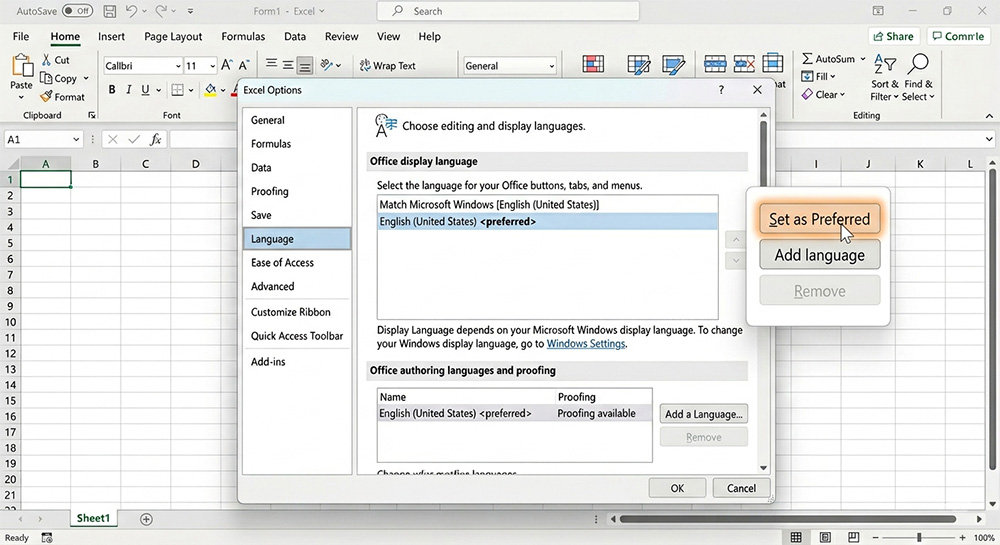
Look at the section labeled “Office display language.” If you see “Match Microsoft Windows” listed there, that is your problem. Click explicitly on your preferred language, such as English (United States). Then click Set as Preferred and make sure it moves to the top of the list. Click OK and restart Excel completely.
After the restart, go back into a cell, start editing, and press Ctrl + A. It will select all the text in that cell exactly as it should. That language setting was the only thing standing between you and a working shortcut.
Quick Keyboard Workarounds When You Cannot Restart Right Away
Sometimes you are in the middle of a critical task and cannot afford to close and reopen Excel immediately. There are reliable keyboard shortcuts you can use right now to select text inside a cell without needing Ctrl + A.
Your approach depends on where your cursor sits inside the cell. If the cursor is at the end of the text, press Ctrl + Shift + Home to select everything to the left of it. If the cursor is at the beginning, press Ctrl + Shift + End to select everything to the right.
The most reliable method, regardless of cursor position, is this three-step combo. Press Home first to move your cursor to the very start of the cell text. Then hold Shift and press End. That selects every character in the cell from start to finish, no matter where you started.
Bonus Tips for Working with Cell Text in Excel
Understanding how Excel handles text inside cells can save you a lot of frustration beyond just the excel ctrl a not working situation. These tips help you work faster and avoid common mistakes.
Overwrite Cell Text Without Selecting It First
If your goal is to replace the text in a cell entirely, you do not need to select it at all. Click the cell once without double-clicking into it and just start typing. Excel will immediately wipe out the existing content and replace it with whatever you type. This is faster than selecting and deleting first.
Handling Multi-Line Cells Correctly
If you have used Alt + Enter inside a cell to create line breaks, standard shortcuts sometimes only grab one line of text. The Home then Shift + End method does not always reach across those line breaks either. When dealing with multi-line cells, double-click into the cell first, press Ctrl + Home to jump to the very beginning, and then use Ctrl + Shift + End to select all lines at once. This approach handles line breaks properly every time.
Keep Excel Updated to Avoid Repeat Issues
Language setting conflicts like this one are sometimes introduced by Windows updates that do not properly communicate with Office. Keeping both Windows and Microsoft Office updated together reduces the chance of this kind of mismatch recurring. Check for Office updates through File > Account > Update Options inside any Office application. Staying current on both platforms keeps your shortcuts predictable and your workflow uninterrupted.
The excel ctrl a not working error is a known quirk of how Excel handles language preferences, and now you have every tool you need to address it permanently and work around it in the meantime.
Need Repair? Let’s Get It Fixed Today
Ready to Fix Your Computer Problem? Schedule Service Today!!