
How long does it take to install windows 11 is one of the most common questions people ask before starting. Most computers finish the whole process in under an hour. This guide gives you the real timeline, the smart shortcuts, and the simple fixes that keep everything running smoothly.
How Long Does It Take to Install Windows 11
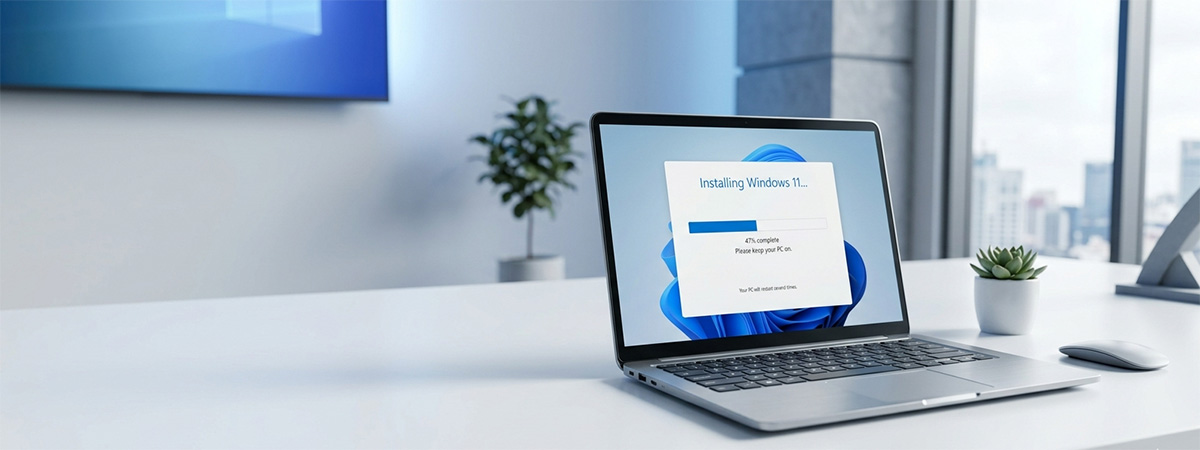
Most people assume installing an operating system takes half a day. The good news is that how long does it take to install Windows 11 is far more manageable than that. On a typical computer, you can expect the full process to take between 25 and 55 minutes from start to desktop.
That range covers everything from the moment you plug in the USB drive to the moment you are actually using your computer again. A few variables push the time toward the shorter or longer end of that window. The biggest factor is your storage drive, and we cover exactly why that matters shortly.
Understanding how long does it take to install Windows 11 before you begin helps you pick the right time to start. You do not want to kick off a 55-minute process 10 minutes before a work call or an important meeting. Giving yourself at least 90 minutes means you have breathing room if anything unexpected comes up.
The Three Phases and How Long Each One Takes
The installation breaks down into three clear phases. Knowing what each one involves helps you understand where your time is going and what you can do to speed things up.
The first phase is file copying. Windows reads the installation files from your USB drive and writes them to your hard drive or SSD. On a fast solid-state drive, this phase takes about 10 to 15 minutes.
The second phase is the setup screens, officially called the Out-of-Box Experience. This is where you pick your language, region, and account settings. If you move through these screens efficiently, the whole phase takes about 10 to 15 minutes.
The third phase is the automated background work Windows does after setup finishes. Your system installs drivers, runs updates, and prepares the desktop environment. This phase usually adds another 5 to 10 minutes and mostly runs without any input from you.
Why Your Hardware Changes Everything
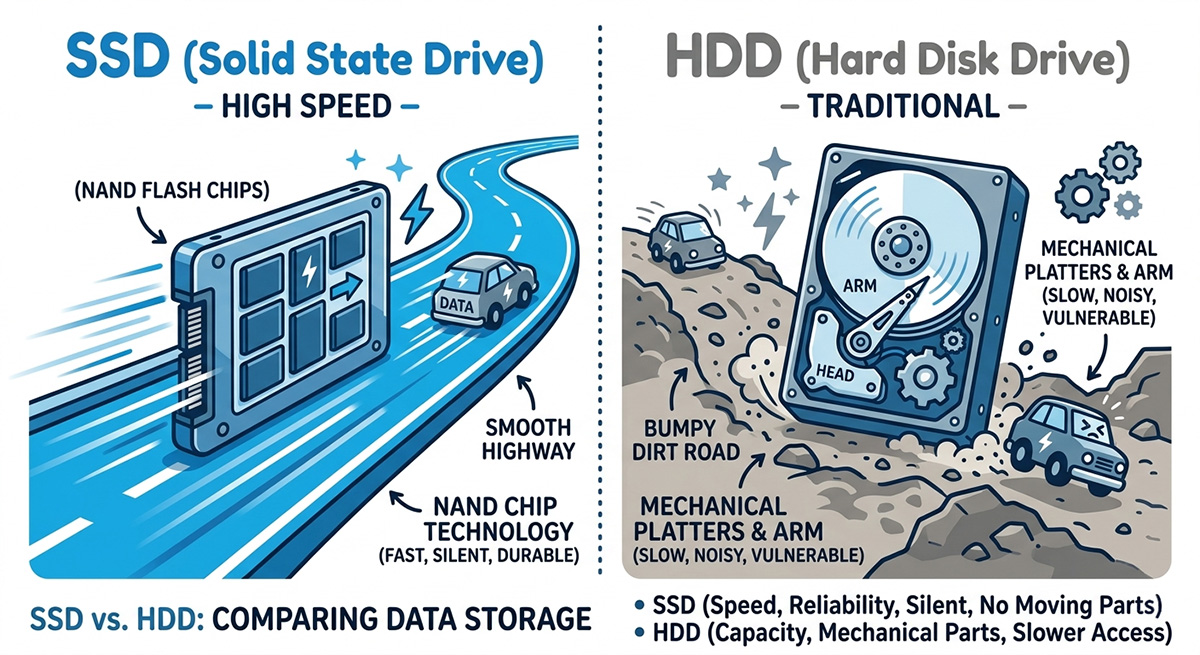
Your storage drive is the single biggest factor in how fast Windows 11 installs. Think of an SSD as a wide-open highway where data moves at full speed. An old spinning hard drive is more like a narrow dirt road, and every file has to travel it one at a time.
A computer with a modern NVMe SSD can finish the file-copying phase in under 10 minutes. The same phase on an older mechanical hard drive might take 30 minutes or more. That difference alone can push your total install time well past the one-hour mark.
Your internet connection also plays a small role during the setup screens phase. Windows may try to download updates or check for drivers during that stage. Disconnecting your internet before you start is one of the best time-saving moves you can make, and we cover that trick in detail below.
How Long Does It Take to Install Windows 11 on Older Computers
Older computers add a layer of complication that can stretch your install time and cause real frustration. How long does it take to install Windows 11 on a machine that is a few years old often depends on whether the hardware meets Microsoft’s strict requirements. The most common roadblock is something called TPM 2.0.
What Is TPM and Why Windows 11 Requires It
TPM stands for Trusted Platform Module. Think of it as a tiny physical security vault that sits directly on your computer’s motherboard. Its job is to lock away sensitive information like your passwords and encryption keys so that hackers cannot steal them even if they physically remove your hard drive.
Microsoft made TPM 2.0 a firm requirement for Windows 11 to raise the security floor across all supported devices. Computers made before 2017 often either lack TPM 2.0 or have it disabled by default. That disabled setting is what causes the compatibility error most people run into.
How to Get Past the Hardware Requirements
If your computer shows a TPM compatibility error, the first thing to do is check your BIOS settings. Most modern motherboards have TPM 2.0 built in and just need it switched on. You can usually find the setting under a menu labeled Security or Advanced in your BIOS.
Look for options labeled TPM Device, fTPM, or PTT depending on your motherboard brand. Enabling the right one and saving the settings lets the Windows 11 installer proceed normally. A quick search for your specific motherboard model and the phrase “enable TPM 2.0” will point you to the exact steps.
Minimum System Requirements for Windows 11 You Need to Know
Before you start any installation, checking your hardware against the minimum system requirements for Windows 11 saves you a lot of time and frustration. Microsoft published a firm list of what your computer needs, and the installer will stop and tell you if something is missing.
Your processor needs to be a 1 GHz or faster chip with at least two cores, and it must be 64-bit compatible. Your computer also needs at least 4 GB of RAM and 64 GB of available storage space. Most machines built in the last eight years clear those thresholds without any issue.
Beyond the processor and memory, your system needs UEFI firmware with Secure Boot capability, a DirectX 12 compatible graphics card, and a display that supports at least 720p resolution. The minimum system requirements for Windows 11 also include the TPM 2.0 chip we just covered. Running Microsoft’s free PC Health Check tool before you start is the fastest way to confirm everything on your machine is good to go.
How Long Does It Take to Install Windows 11 With the OOBE Shortcut
The setup screens phase is where most people waste the most time. Knowing how long does it take to install Windows 11 when you skip the slow parts changes the whole experience. The biggest time sink is Microsoft’s push to get you signed in with a Microsoft account, and there is a simple way around it.
This shortcut saves most people around 15 minutes. It lets you create a straightforward local account without a Microsoft email address, a password reset phone number, or a string of privacy prompts. You end up at the desktop faster and with a cleaner setup.
Using the OOBE Bypass to Skip the Slow Screens
When Windows reaches the screen asking you to connect to the internet, disconnect your network cable or turn off your Wi-Fi before continuing. Then press Shift and F10 at the same time to open a command prompt window. Type OOBE\BYPASSNRO exactly as written and press Enter.
Your computer will restart and bring you back to the beginning of the setup screens. This time, you will see an option that says something like “I don’t have internet.” Choosing that option lets you skip the Microsoft account requirement entirely.
From there, Windows asks you for a simple username and lets you set an optional password. The rest of the setup moves quickly because you are skipping all the cloud account prompts and advertising screens. Most people shave 10 to 15 minutes off their total time using this method.
How Long Does It Take to Install Windows 11 When You Prepare First
If you are doing this for the first time, how long does it take to install Windows 11 may feel like an intimidating unknown. The reality is that the process is mostly waiting. Windows does the hard work, and your job is mostly to click a few screens and let the installer run.
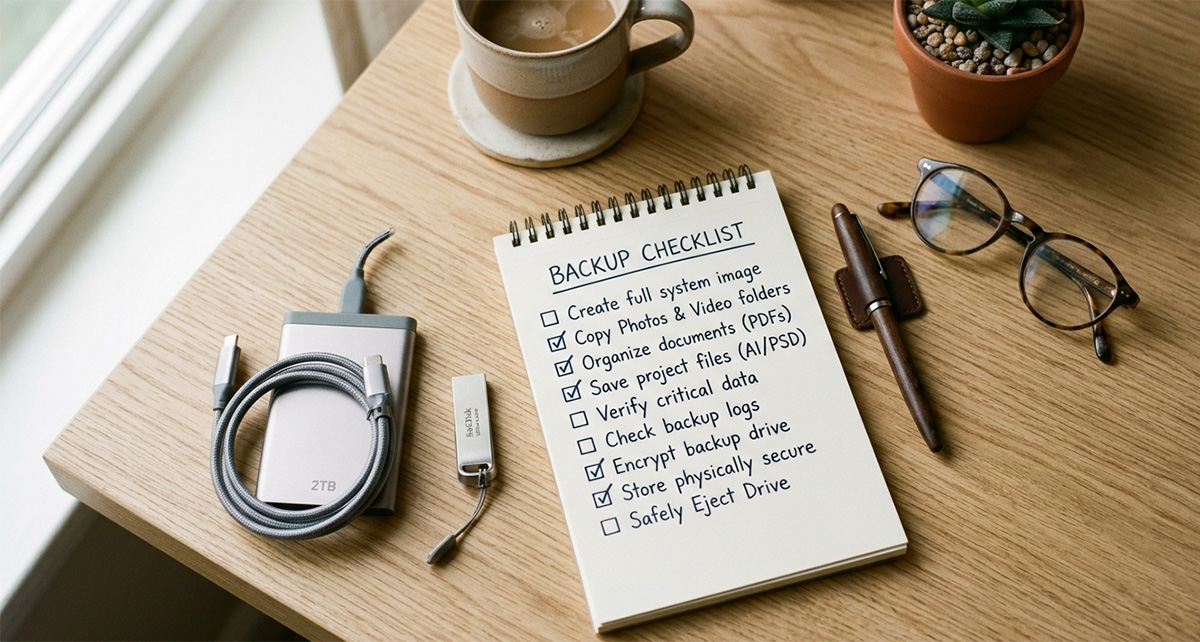
Taking 20 minutes to prepare before you start can save you hours of frustration afterward. How long does it take to install Windows 11 when everything is ready on your end is almost always shorter than when you go in unprepared. The two most important preparation steps are backing up your files and creating your bootable USB drive correctly.
Back Up Before You Begin
Windows installation wipes the drive where the old system lives. If your documents, photos, and other personal files are on that same drive, they will be gone when the installation finishes. Backing them up first is not optional if those files matter to you.
The fastest way to back up is to copy your important folders to an external hard drive or a USB drive you are not using for the installation. You can also use a cloud service like OneDrive or Google Drive if you have enough storage space. Knowing how to protect your data properly before you start is covered in full detail in this guide on backing up Windows before it is too late.
A Quick Note on BitLocker
After setup, Windows may offer to turn on BitLocker encryption. BitLocker locks your entire drive behind an encryption key, which sounds great in theory. For most home users, though, it creates more problems than it solves.
If you lose your BitLocker recovery key, you lose access to everything on that drive permanently, with no way to get it back. Unless you are setting up a computer for a business environment or need enterprise-level security, leaving BitLocker turned off is the smarter and safer choice.
How Long Does It Take to Install Windows 11 Across Different Setups
Not every computer finishes in the same amount of time, and the gap between setups can be dramatic. How long does it take to install Windows 11 on a machine with a brand-new NVMe SSD versus one with a spinning hard drive can differ by 30 minutes or more.
On a modern computer with an NVMe SSD, the full installation from USB boot to usable desktop typically wraps up in 20 to 30 minutes. That includes all three phases and a few restarts. It is the fastest real-world experience most people will have.
On a computer with a standard SATA SSD, expect the process to take 30 to 45 minutes in total. SATA SSDs are still fast, just not as fast as NVMe. The file-copying phase is smooth, and the setup screens move at a comfortable pace.
On a computer with an older spinning hard drive, the total time often stretches to 50 to 70 minutes. The file-copying phase alone can take 30 to 40 minutes on a slow or older drive. If your install is taking a long time, a sluggish hard drive is almost always the reason.
People shopping for a new computer often factor in how long does it take to install Windows 11 as part of their decision. A laptop with an NVMe drive and modern specs means you spend less than half an hour getting up and running. That is a meaningful advantage for anyone who needs to get back to work quickly.
How Long Does It Take to Install Windows 11 After a Fresh Wipe
Wiping your drive before installing gives Windows a completely clean slate to work with. How long does it take to install Windows 11 on a freshly wiped drive is almost identical to a standard install, since the file-copying phase does not change.
What changes is what happens after setup finishes. A clean slate means no leftover files, no old drivers, and no conflicting software competing for resources. Your system will generally feel faster and more responsive right from the start.
The one thing to watch is that a fresh wipe removes your Windows activation status from the drive. If your license is tied to your Microsoft account, you can recover it by signing in after setup. If you have a standalone product key, have it ready before you start.
What to Do the Moment Setup Finishes
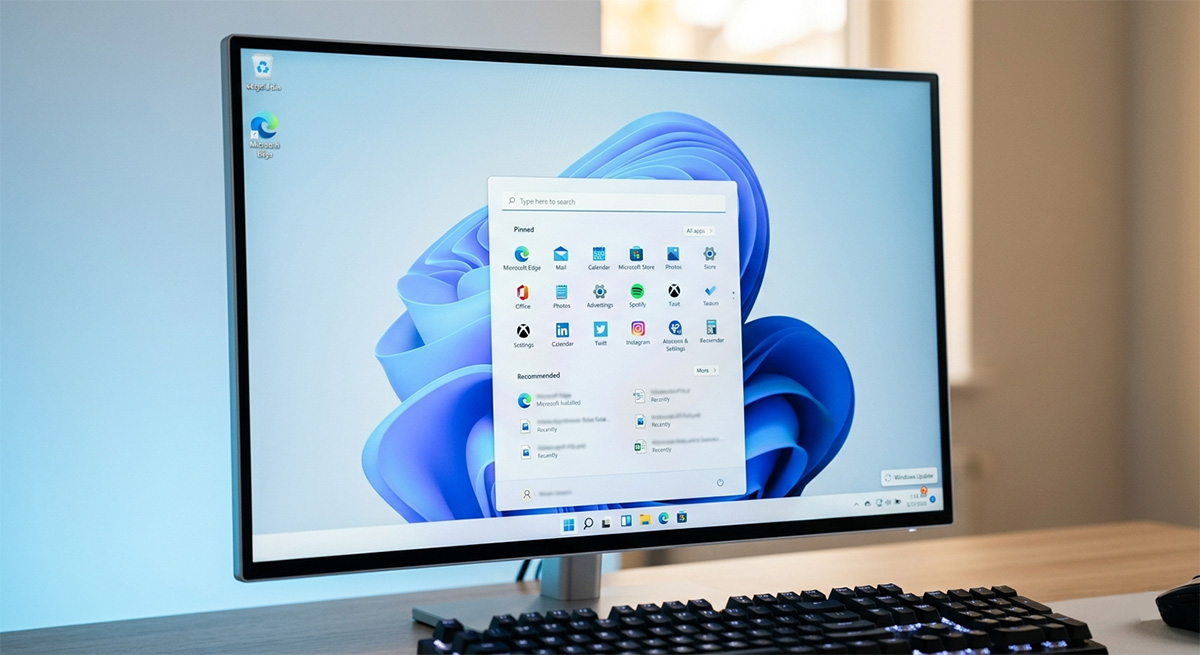
Reaching the desktop does not mean the work is done. A few quick steps in the first few minutes after installation set your system up for long-term stability and good performance.
Remote workers and gamers often want to know how long does it take to install Windows 11 on a fresh machine before committing to the process. The short answer is that a well-prepared setup on modern hardware rarely takes more than 35 minutes. Having everything ready in advance makes the biggest difference.
The first thing to do is open Windows Update and check for any pending updates. Fresh installations often have dozens of security patches and driver updates waiting. Running them right away closes any gaps and gets your system fully current.
Next, install your most important applications and restore your backed-up files. Reconnect to your network, sign in to your preferred browser, and get your cloud storage syncing. Your computer will feel familiar and fully functional again within 30 minutes of finishing the setup.
It is also worth checking Device Manager for any hardware that did not get a driver automatically. A yellow warning triangle next to a device name means Windows did not find the right driver on its own. Downloading the driver directly from the manufacturer’s website usually resolves it quickly.
Thinking ahead about how long does it take to install Windows 11 also helps if you are helping someone else set up their computer. Walk them through the timeline before you start so they know what to expect. A calm, prepared user makes the whole process feel much smoother.
Something Often Overlooked
One final step that many people skip is creating a system restore point after everything is installed and working correctly. This gives you a safe fallback if a future update or software installation causes problems. Setting one up takes under two minutes and can save hours of troubleshooting down the road.
Need Repair? Let’s Get It Fixed Today
Ready to Fix Your Computer Problem? Schedule Service Today!!