
Comcast email not working in Outlook can feel alarming when messages suddenly stop sending or arriving, since your account may have quietly moved to Yahoo’s mail servers. This guide explains what changed, the current settings you need, and a real troubleshooting experience to help you fix it.

What Does Comcast Email Not Working in Outlook Actually Mean?
Comcast email not working in Outlook usually means your Outlook account can no longer connect to the mail server that now handles your Comcast.net inbox. Comcast has been moving Comcast.net accounts to Yahoo’s mail infrastructure. Once your account finishes that move, Outlook needs updated server settings to keep working properly.
This shift explains why an Outlook setup that worked fine for years can suddenly stop sending or receiving messages. The problem is not always Outlook itself. Instead, Outlook may still be pointed at the older Comcast servers instead of Yahoo’s current servers.
Not every Comcast.net account behaves the same way during this transition. Some existing Outlook configurations continue working without any changes. Others start asking for credentials repeatedly or stop syncing altogether, which leaves many users unsure what to fix first.
Why Did Comcast.net Email Move to Yahoo Servers?
Comcast.net email now runs on Yahoo’s mail infrastructure because Comcast partnered with Yahoo to manage its email service. After an account completes this migration, Outlook and other third-party apps must connect through Yahoo’s servers rather than Comcast’s older ones.
This change happens on Comcast’s side, so you cannot prevent it or opt out. However, you can control how you respond to it once your account has moved.
Because the migration rolls out gradually, some readers may already be affected while others have not seen any changes yet. Checking your account status is the logical first step before changing any Outlook settings.
What Are the Correct Yahoo Mail Settings for Comcast.net Accounts?
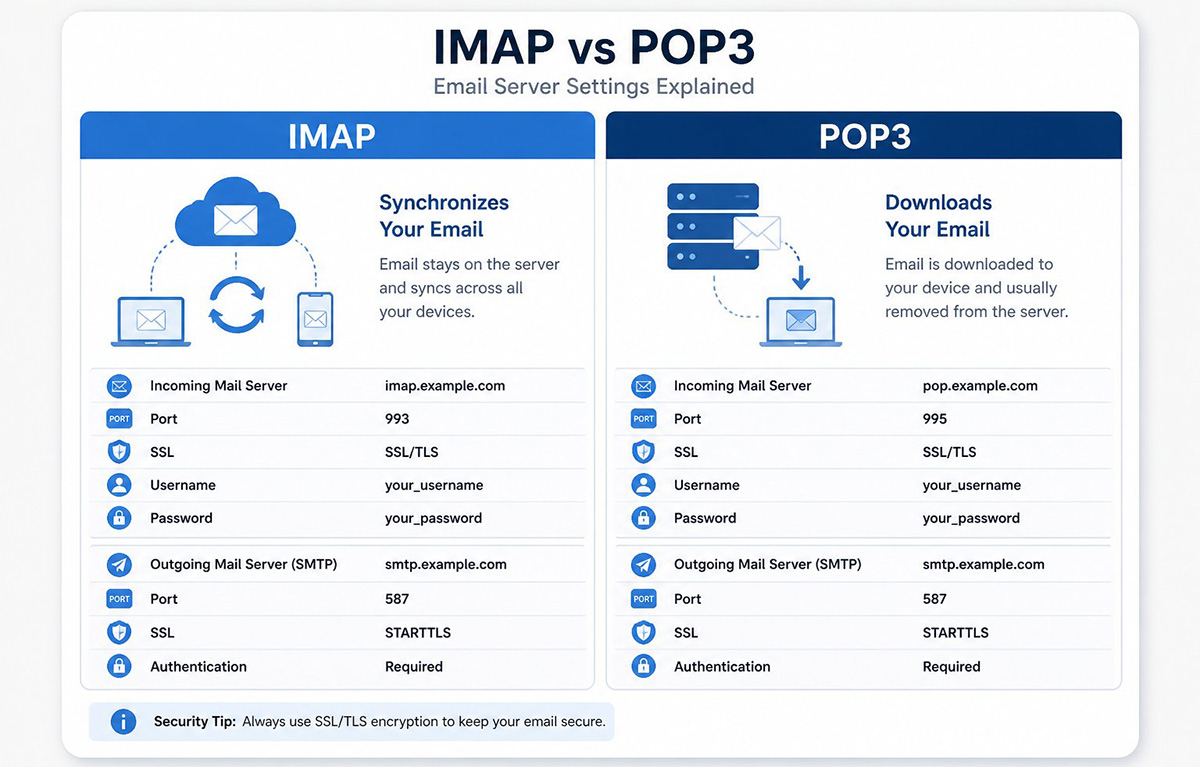
The correct Yahoo mail settings for a migrated Comcast.net account depend on whether Outlook uses IMAP or POP3. For IMAP accounts, the incoming server is imap.mail.yahoo.com on port 993 with SSL/TLS encryption.
For outgoing mail on an IMAP account, use smtp.mail.yahoo.com on port 587 with SSL/TLS encryption. If your account uses POP3 instead, the incoming server is pop.mail.yahoo.com on port 995, also using SSL/TLS.
For POP3 outgoing mail, the SMTP server is still smtp.mail.yahoo.com. You can use port 465 or port 587, and SSL/TLS along with authentication are both required. Your full Comcast.net address always serves as the username.
If Outlook still points to the old Comcast servers, it may fail to send or receive mail after your account moves to Yahoo. Updating these settings is often the fastest fix once migration is confirmed.
My Own Comcast Email Not Working in Outlook Experience
My own experience with Comcast email not working in Outlook turned out differently than expected. I use a Comcast.net address configured as a POP3 account inside the desktop version of Outlook 2019.
When Comcast moved my account to Yahoo, I never had to log into Yahoo manually or reconfigure Outlook from scratch. My existing setup simply kept working, which surprised me at first.
A couple of times, Outlook displayed a message saying my credentials were incorrect while sending or receiving mail. I tried again shortly afterward, and the connection worked normally each time without any changes on my end.
That experience matters because it shows migration does not affect every account the same way. If your Outlook setup still works, you may not need to delete the account or start over completely.
Why Do Some Outlook Accounts Keep Working While Others Fail?

Some Outlook accounts keep working after migration because of how POP3 and IMAP handle mail differently. POP3 typically downloads copies of messages directly to your computer instead of syncing with the server continuously.
IMAP, on the other hand, keeps your inbox synchronized between the server and Outlook at all times. Yahoo currently supports both protocols for migrated Comcast.net accounts, so neither one is being phased out.
If your account already uses POP3 in an older Outlook version, your experience may differ from someone using a newer IMAP setup. This does not guarantee POP3 will always avoid changes, but it does explain why results vary between users.
Do You Need a Yahoo App Password for Outlook?
You may need a Yahoo app password for Outlook if your account can no longer authenticate normally after migration. An app password is a separate code generated through your Yahoo Account Security settings, and it allows apps like Outlook to access your inbox securely.
Simply updating the server settings is not always enough. If Outlook keeps rejecting your regular password, Yahoo’s system may require this additional step before mail can flow again.
To create one, sign in to your Yahoo Account Security page and look under External Connections for the App Passwords section. From there, you can generate a new password, label it something like Outlook, and use it during setup.
Yahoo recommends creating this password in a browser you have already used to sign in successfully. Avoid using Incognito mode during this process, since it can interfere with the verification steps.
Why Do Old Comcast Email Instructions Cause Problems?
Old Comcast email instructions cause problems because they reference servers that no longer apply to migrated accounts. Many guides still list imap.comcast.net and smtp.comcast.net as the correct settings, even though those addresses are outdated for Yahoo-based accounts.
Consequently, following an old setup guide can leave Outlook looking configured correctly while it fails to connect. Yahoo’s current documentation for Comcast.net accounts lists imap.mail.yahoo.com, pop.mail.yahoo.com, and smtp.mail.yahoo.com as the accurate servers instead.
Therefore, always confirm you are reading current instructions before changing anything in Outlook. Outdated advice is one of the most common reasons Comcast email stops working in Outlook long after the real fix was already available.
How Do You Fix Comcast Email Not Working in Outlook Step by Step?
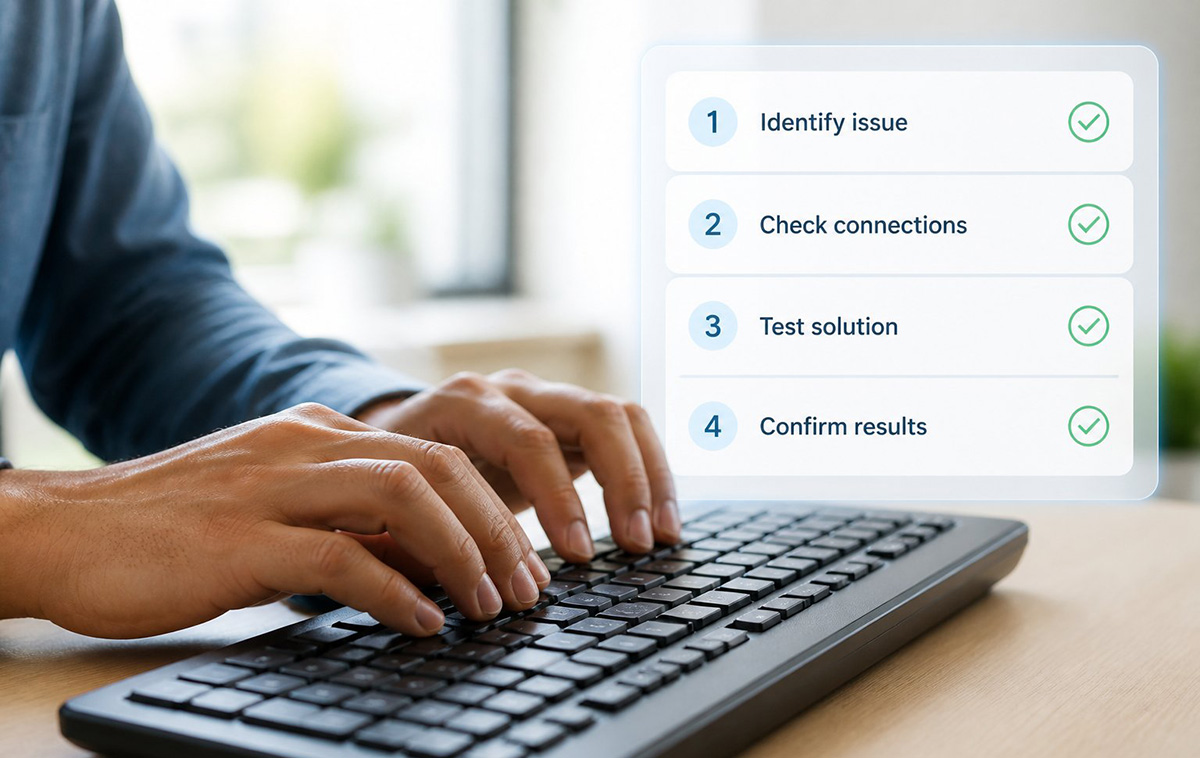
You can fix Comcast email not working in Outlook by working through a few checks in order. First, confirm whether your Comcast.net account has actually completed the Yahoo migration by signing in directly through Yahoo.
Next, check whether Outlook has your account configured as POP3 or IMAP, since each protocol uses a different incoming server. This detail changes which settings apply to your specific setup.
Then verify the current Yahoo server addresses and ports for your protocol, since they differ between IMAP and POP3. Finally, generate a Yahoo app password if Outlook continues rejecting your normal credentials during sign-in.
If your existing Outlook account still works normally, there is no need to change anything unnecessarily. Save these changes for accounts that are actually failing to send or receive mail.
When Should You Get Help With Comcast Email Not Working in Outlook?
Working through Comcast email not working in Outlook can be a lot to handle, especially if you are not particularly comfortable with mail server settings and account authentication. Mixing up POP3 and IMAP settings, or missing a needed app password, can make the process feel confusing fast.
If you would rather have someone walk through the migration status, server settings, and authentication for you, RDPShop IT Services can help. The team regularly resolves email connectivity issues like this for clients who just want their inbox working again.
You can review the available computer repair services in Knoxville, TN and schedule a session at RDPShop’s service request page whenever you would rather have a professional handle the fix.
Frequently Asked Questions About Comcast Email Not Working in Outlook
What Are the Correct Settings for Outlook to Connect to the Yahoo Server?
IMAP settings:
- Incoming server: imap.mail.yahoo.com
- Incoming port: 993
- Incoming encryption: SSL/TLS
- Outgoing server: smtp.mail.yahoo.com
- Outgoing port: 587
- Outgoing encryption: SSL/TLS
POP3 settings:
- Incoming server: pop.mail.yahoo.com
- Incoming port: 995
- Incoming encryption: SSL/TLS
- Outgoing server: smtp.mail.yahoo.com
- Outgoing port: 465 or 587
- Outgoing encryption: SSL/TLS required
- Authentication: Required
Should You Check the Box for Authenticated SMTP or Require Sign In?
Yes, you should check the box requiring authentication for outgoing mail. Yahoo’s servers reject outgoing messages sent without authentication, so this setting must stay enabled for mail to send correctly.
Can You Use Outlook’s Auto Connect or Auto Discover Feature Instead of Manual Settings?
Auto connect can work if Outlook successfully detects Yahoo’s servers on its own, but it does not always succeed for migrated Comcast.net accounts. If auto connect fails or times out, enter the IMAP or POP3 settings manually instead.
Which SMTP Port Should You Use, 465 or 587?
Either port 465 or port 587 will work for outgoing mail through smtp.mail.yahoo.com. Port 587 with SSL/TLS is the more commonly recommended option, though 465 remains a valid alternative if 587 does not connect.
Need Repair? Let’s Get It Fixed Today
Ready to Fix Your Computer Problem? Schedule Service Today!!