
Email is not working right when you need it most, and that can feel urgent fast. Before changing any settings, figure out whether the problem sits with your internet, your account, or the email program itself. A quick webmail check often points you in the right direction.
What Should You Check First When Your Email Is Not Working?
When your email is not working, first find out whether the problem is truly your account or something else entirely.
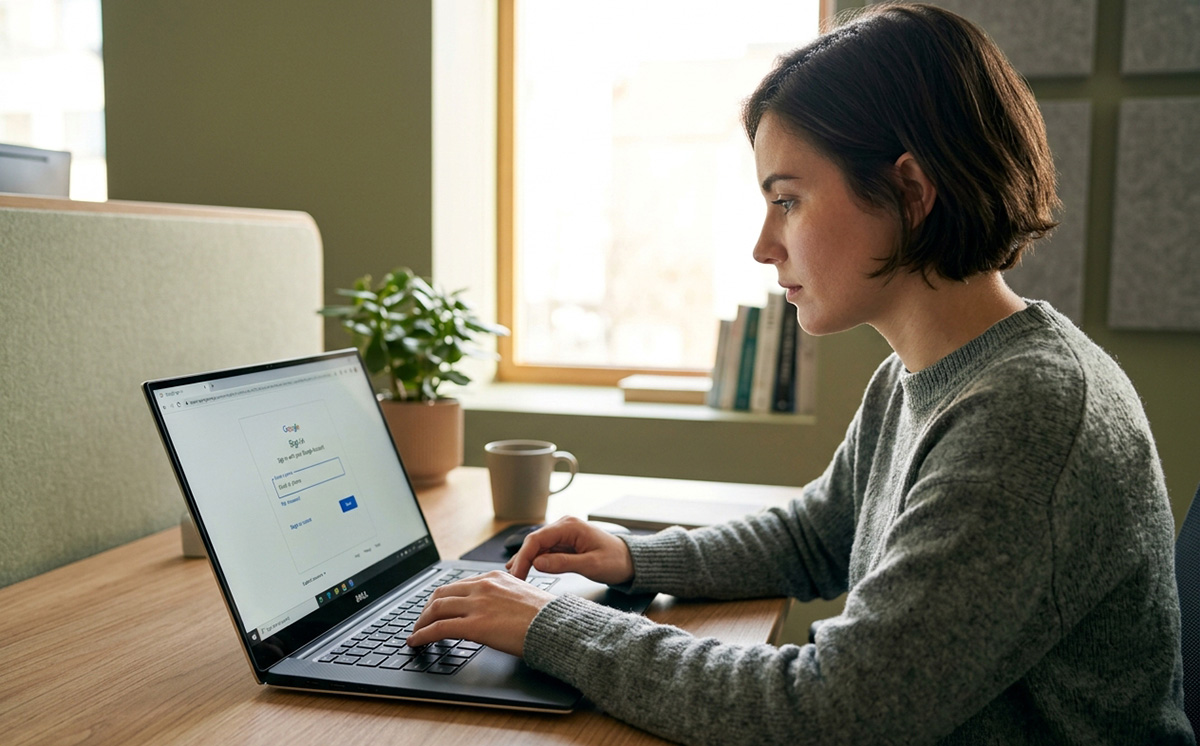
- Log into your email through a web browser.
- If webmail loads and shows your messages, the problem likely sits with your email program or its settings, not the account itself.
- If webmail also fails to load, move to the internet check below.
Could Your Internet Connection Be the Reason Email Is Not Working?
Yes, a lost internet connection can easily explain why email is not working.
- Open a browser and try loading a website you use often.
- If nothing loads, check that Wi-Fi is connected, then reconnect if needed.
- Restart your router if other devices are also struggling to get online.
Is a Password Change Why Your Email Is Not Working?
A recent password change is one of the most common reasons your email stopped working in an app like Outlook.
- Confirm you can sign into webmail with your new password.
- If webmail works, update the saved password inside your email program.
- Look for a prompt in the app asking you to re-enter your credentials.
Is a Full Mailbox Slowing You Down?
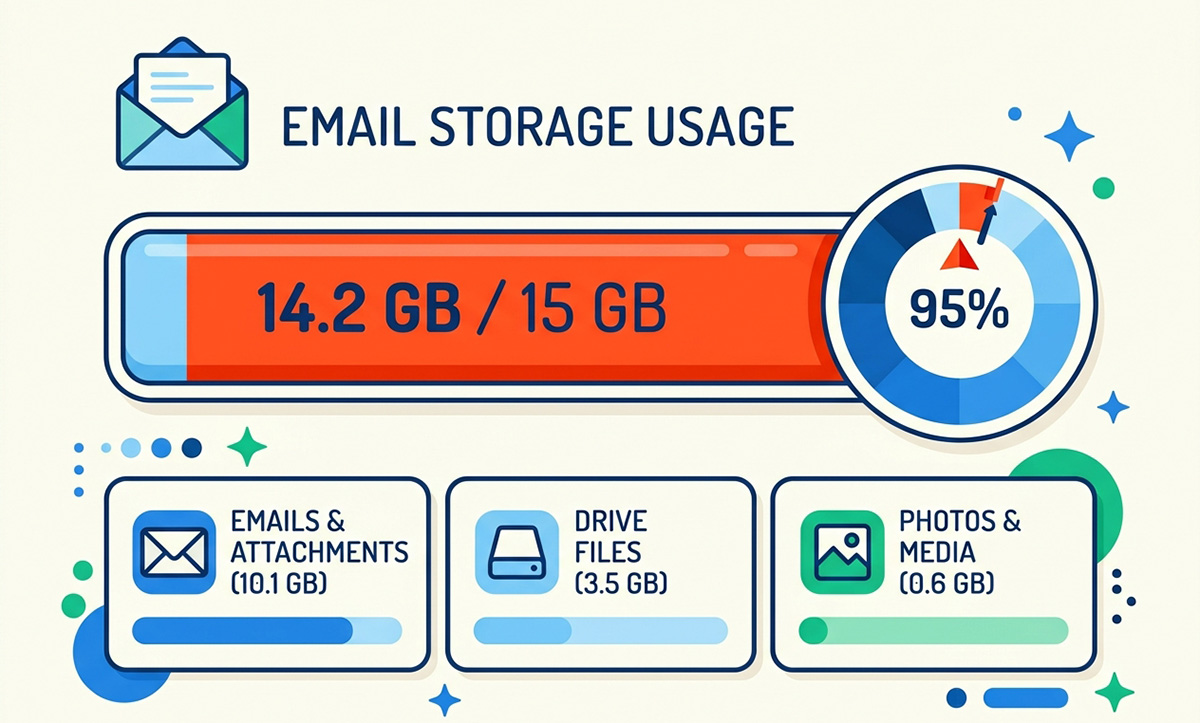
A full mailbox can quietly stop new messages from coming in or going out.
- Log into your account through a browser and check the storage or mailbox usage indicator.
- Delete large messages first.
- Empty your Deleted Items or Trash folder too, since deleted mail still counts against your limit until it’s fully gone.
Could Two-Factor Authentication Be Blocking Your Email?
Two-factor authentication can sometimes block older or third-party email apps from signing in properly, which is an easy-to-miss reason email is not working after a security update.
- Sign in through your provider’s website and complete any extra verification.
- Check whether your provider requires a special app password for programs like Outlook.
- Generate and use that app password in your email program if required.
Are Your Account Settings Incorrect?
Your account settings may simply be outdated, especially with older desktop email programs.
- Check your provider’s current incoming and outgoing server settings, ports, and security requirements.
- If Windows 11 quietly moved you into the new Outlook app, that switch can also affect your setup. Our guide on switching Outlook back to classic view can help you sort it out.
If none of these steps work, a technician can quickly check your account and mail server settings for you.
Need Repair? Let’s Get It Fixed Today
Ready to Fix Your Computer Problem? Schedule Service Today!!