
Computer turns on but screen is black, and you check the power light only to find it already glowing. You might assume your computer failed, but the real problem usually starts somewhere simpler. Before you panic, work through a few quick checks that often solve this fast.
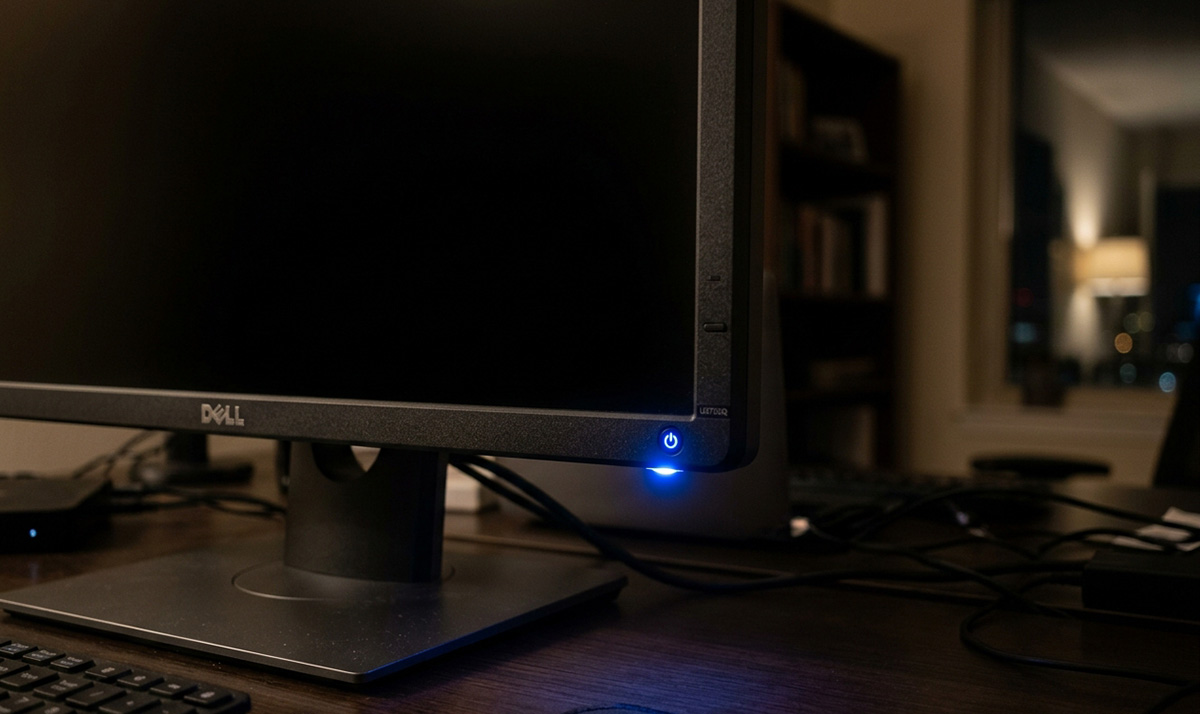
When your computer turns on but screen is black, the fastest way forward is figuring out whether your monitor is actually receiving a signal. Power and video signal are two separate things. A black screen often points to a simple display problem rather than a failed computer.
What to Check First When Your Computer Turns On But Screen Is Black
The first thing to check is your monitor itself, since it can appear off even when your computer is running normally. Start with these quick checks before you assume anything is broken.
- Confirm the monitor’s power light is on and glowing steadily.
- Look closely for a “No Signal” message, since this tells you the monitor is fine and waiting for a signal.
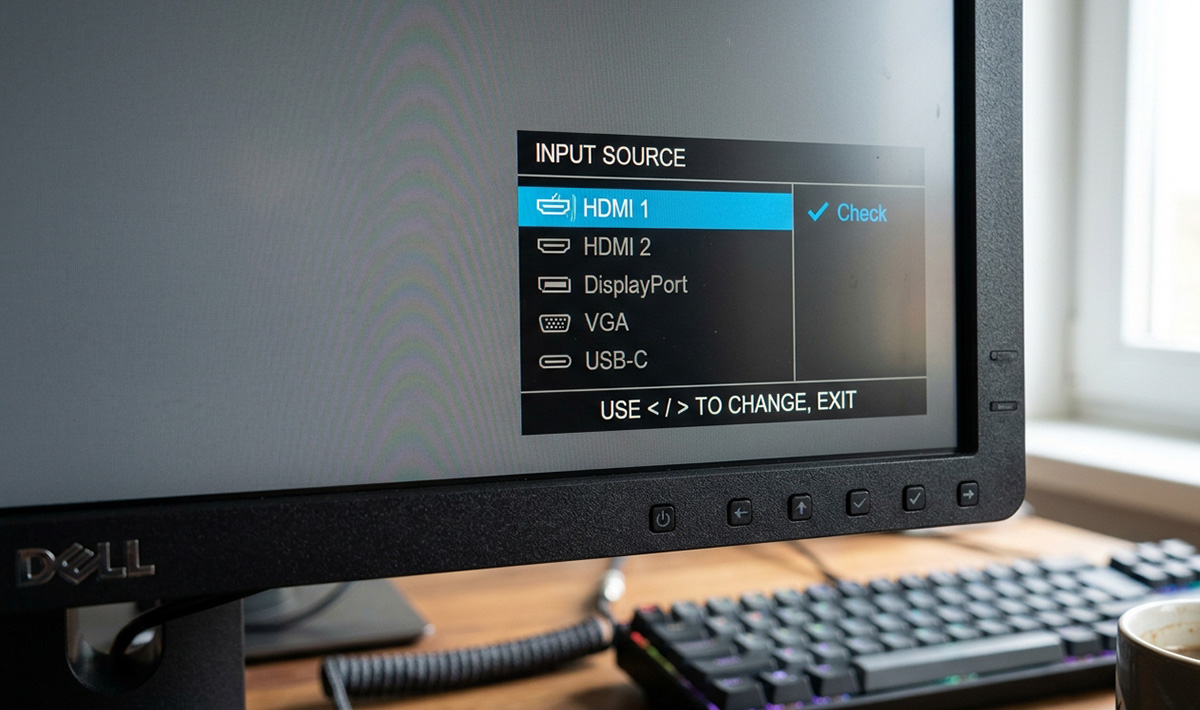
- Check that the monitor is set to the correct input, such as HDMI or DisplayPort, especially if you recently plugged in a different cable. Note: if the monitor menu will not come up, that can indicate the monitor itself has gone bad.
Next, check the video cable at both ends. A loose connection is one of the most common reasons a computer turns on but the screen stays dark. Unplug the cable, inspect it for damage, and firmly reconnect it at both the computer and the monitor.
Try Another Cable, Port, or Monitor
Try swapping in a different cable, testing another port on your computer, or connecting a second monitor or television to see if the picture appears. This single test tells you a lot, because it separates a computer problem from a monitor or cable problem, and it quickly narrows down why your computer turns on but screen is black in the first place.
Check Your Display Settings and Multiple Monitors
If you’ve been searching for why “my computer turns on but the screen is black” even after trying a new cable, the next likely cause involves your display settings rather than your hardware. If you use more than one monitor, Windows might be sending your display to the wrong screen. Press Windows key plus P to open the projection menu and cycle through the display options until your main monitor shows a picture again.
Still Have the Computer Turns On But the Screen Is Black Issue? Reset the Display

Press the Windows key, Control key, Shift key, and B at the same time to reset your graphics driver without restarting your computer. Your screen may flicker briefly, or you may hear a short beep, since this shortcut simply refreshes the display driver. This trick solves a surprising number of cases where a computer turns on but screen is black for no obvious reason.
When Should You Get Professional Help?
If none of these steps bring your screen back, your computer turns on but screen is black may point to a driver conflict following a recent update, or a hardware component that needs closer inspection. At that point, professional diagnostic tools can pinpoint the cause faster than continued guesswork. If your computer in the Knoxville area still turns on but the screen is black after trying these steps, RDPShop’s computer repair services can take a closer look, and you’re always welcome to get in touch with any questions.
Need Repair? Let’s Get It Fixed Today
Ready to Fix Your Computer Problem? Schedule Service Today!!