
Windows 11 won’t start after an update? Try Startup Repair, uninstalling the recent update, or System Restore from the Windows Recovery Environment before resetting your PC. These built-in tools usually fix startup problems fast without erasing your files, apps, or settings.
When Windows 11 won’t start after an update, the timing itself is your best clue. Your computer worked fine before the update, so the update is the most likely place to start looking. You do not need to reset or reinstall Windows right away.
Windows 11 Won’t Start After an Update? Enter the Recovery Environment First
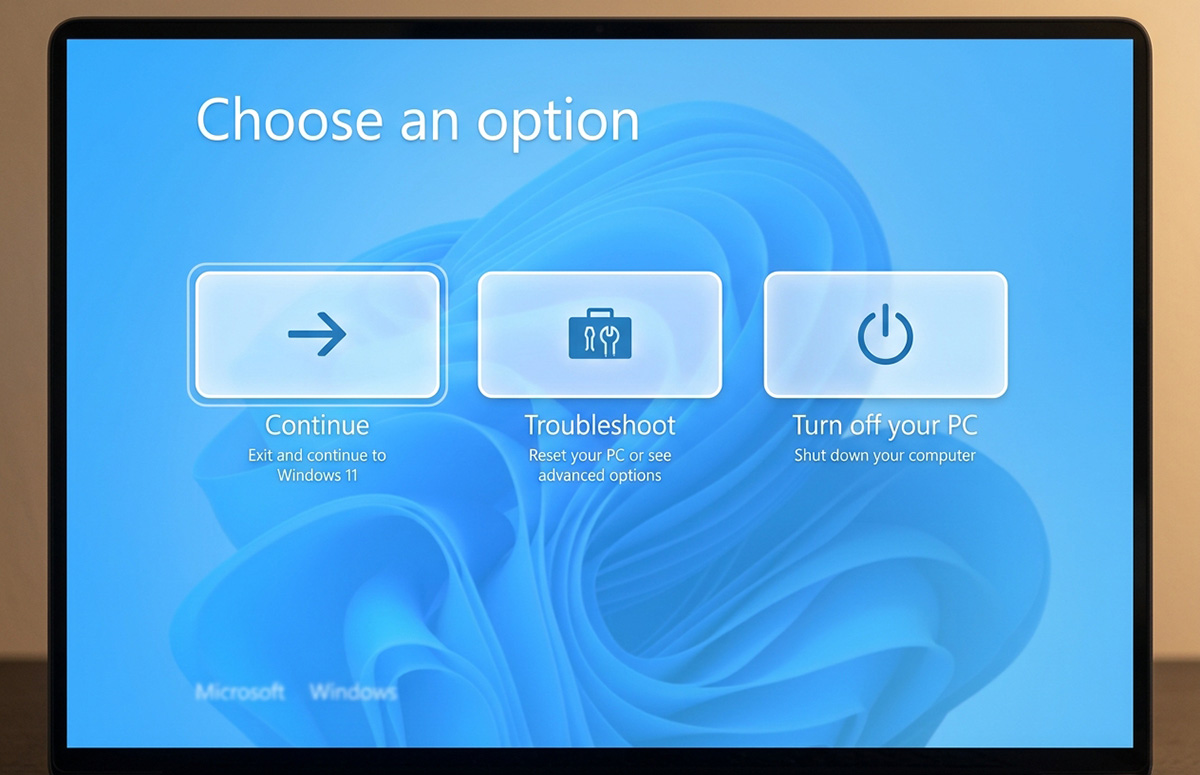
The first step is entering the Windows Recovery Environment, often called WinRE. It gives you several repair tools without needing a working desktop. Restart your computer and interrupt the startup process three times in a row by holding the power button as soon as you see the Windows logo. After the third interruption, Windows should automatically boot into the recovery environment.
Try Startup Repair First
Once you’re in WinRE, select Troubleshoot, then Advanced options, then Startup Repair. Startup Repair scans for common problems with boot files, startup settings, and driver conflicts that can prevent Windows 11 from starting correctly. Give this tool a few minutes to finish, since it may restart your computer more than once while it works.
Windows 11 Won’t Start After an Update? Uninstall the Update
If Windows 11 won’t start after an update even once Startup Repair finishes, look for the option to uninstall the recent update. From Advanced options, choose Uninstall Updates, then pick either the latest quality update or the latest feature update, depending on which one installed most recently. Removing that update often restores normal startup while Microsoft works out any bugs.
Use System Restore to Roll Back Changes
System Restore is another useful tool if a restore point exists from before your problem began. From Advanced options, select System Restore, then choose a restore point dated before the failed windows 11 update. This rolls back system files and settings without touching your personal files.
Still Windows 11 Won’t Start After an Update? Try Safe Mode
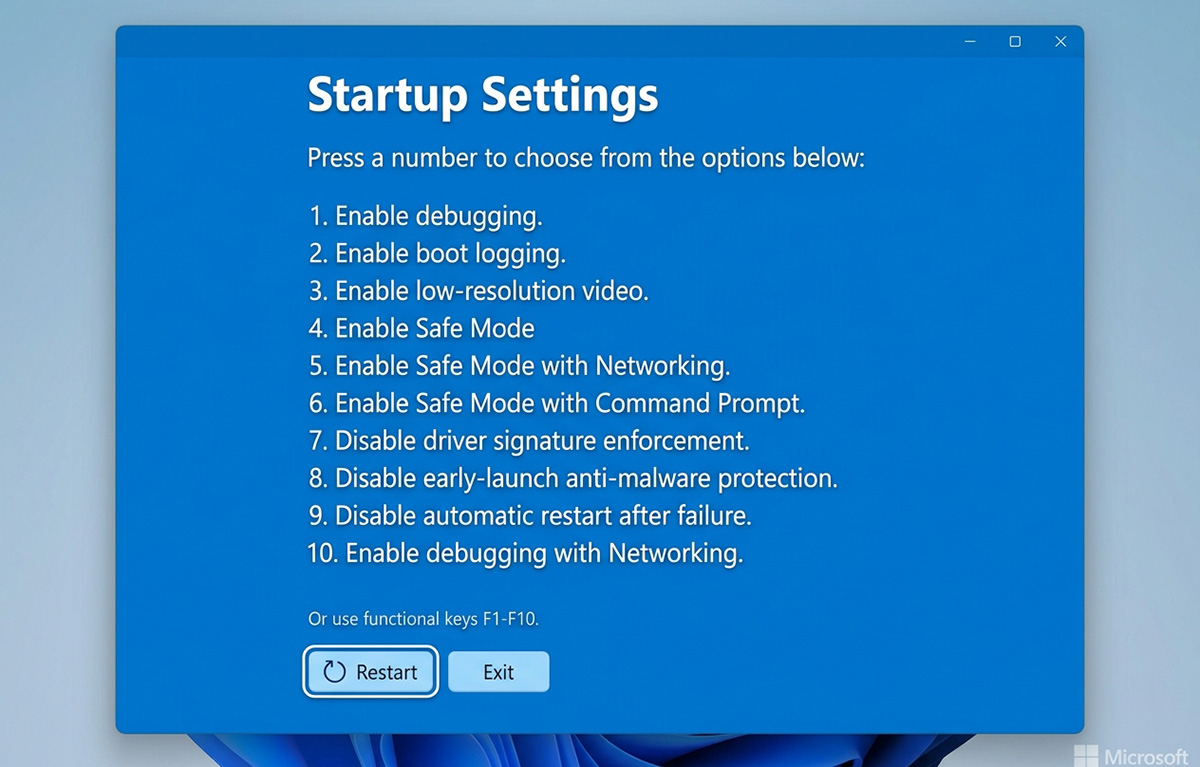
Boot into Safe Mode from Advanced options by selecting Startup Settings, then Restart, then pressing 4 for Safe Mode. If Windows starts normally in Safe Mode, a driver or startup program is likely interfering, which narrows down your next step when windows 11 won’t start after an update through normal boot. This still points to a computer won’t start after windows 11 update problem worth digging into further.
Should You Try Fix Problems Using Windows Update?
On some systems, Windows 11 also offers Fix problems using Windows Update, a recovery option that reinstalls Windows while keeping your files, apps, and settings. This option takes longer, so it’s worth trying the steps above first if Windows 11 won’t start after an update but your files still matter to you.
When Should You Get Professional Help?
If your Windows 11 still won’t start after an update once you’ve worked through these options, a deeper driver conflict or system file issue may be involved. RDPShop’s computer repair services can diagnose the cause without guesswork, and you can always reach out with questions.
Need Repair? Let’s Get It Fixed Today
Ready to Fix Your Computer Problem? Schedule Service Today!!