
How to update to Windows 11 confuses many PC owners, especially when error messages mention hardware. This guide helps you check your version, review hardware, and confirm compatibility. You will also fix common “update problems” before you spend any money on a new computer.

How to Update to Windows 11 Without Buying a New Computer
You can update a PC to Windows 11 without buying new hardware when the computer meets Microsoft’s requirements. Microsoft delivers feature updates through Windows Update. Additionally, a manual installation tool helps compatible PCs that have not received the latest update automatically.
However, an installed copy of Windows 11 does not prove that Microsoft supports your computer. For example, some owners installed it with workarounds that bypassed Microsoft’s hardware checks. In fact, Microsoft warns that those devices do not receive guaranteed updates, including security updates.
Therefore, the right question is whether your PC can run a currently supported release. Once you answer it, how to update to Windows 11 becomes a simple process of checks and installation. Meanwhile, the sections below walk you through each check in the right order.
Also, staying on a supported release matters because Microsoft stops delivering security fixes to retired versions. In addition, a quick backup of your files protects you if any update step goes wrong. Therefore, a few minutes of preparation prevents lost files and wasted effort.
How Do You Check Which Version of Windows 11 You Have?
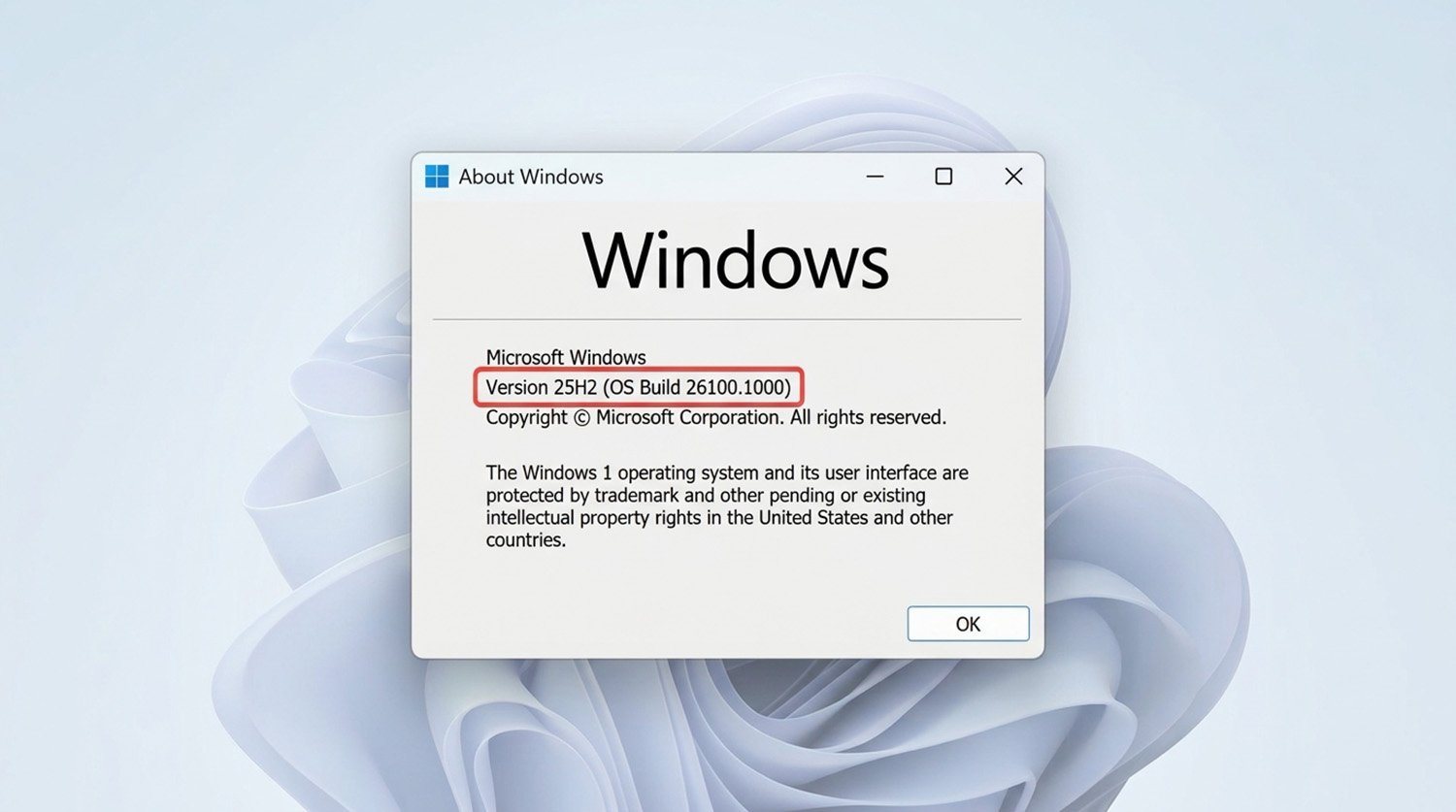
You check your Windows 11 version by pressing the Windows key plus R, typing winver, and pressing Enter. Then a small About Windows window shows your version number and OS build. For example, you may see version 24H2 or 25H2 listed beneath the Microsoft Windows heading.
Alternatively, open Settings, select System, and choose About to see your edition and version details. Next, compare your version number with Microsoft’s support lifecycle. If you are unsure whether your installed version still receives updates, start with the Windows 11 support-check guide.
Your exact version also shapes how to update to Windows 11, because each release follows its own path. For instance, an eligible 24H2 PC can reach 25H2 through a small enablement package. Therefore, supported PCs usually do not need BIOS changes for that move.
Also, record your version number before you change anything. Later, that note helps you or a technician match any error message to the right release. Furthermore, note the edition, such as Home or Pro, because setup requirements can differ.
How Can You Check the Windows 11 Hardware Requirements on Your PC?

You can check the Windows 11 hardware requirements on your PC by running Microsoft’s PC Health Check app. The app reports whether your processor, TPM, and Secure Boot status qualify. Moreover, it names the specific requirement that blocks your upgrade.
Microsoft lists these baseline requirements for a supported installation:
- A compatible 64-bit processor with two or more cores at 1 GHz or faster
- At least 4 GB of RAM
- A storage device with at least 64 GB of capacity
- UEFI firmware with Secure Boot capability
- TPM version 2.0
- DirectX 12 graphics with a WDDM 2.0 driver
- A display larger than 9 inches diagonally with 720p resolution
However, these figures are minimums, not a promise that every application runs well. Also, a processor must appear on Microsoft’s approved list, so speed alone does not qualify a chip. In addition, a 64 GB device is a capacity minimum, and updates need extra free space.
Additionally, personal Windows 11 Home and Pro installs need an internet connection and a Microsoft account during setup. Therefore, confirm both items before you begin the installation.
Before you learn how to update to Windows 11, run this check, because eligibility decides every later step. In addition, a passed check does not rule out driver or application problems that need attention.
What Is a TPM in Windows 11?
A TPM, or Trusted Platform Module, is a security component that protects encryption keys and other sensitive information. Think of it as a small, protected vault for the digital keys Windows uses to secure your device. For that reason, Windows 11 requires TPM version 2.0.
Specifically, a TPM helps Windows protect the keys behind BitLocker drive encryption. It also secures Windows Hello sign-in credentials. In addition, it records security measurements of the startup process to help detect tampering.
However, a TPM is not antivirus software, and it does not make your computer faster. Instead, its purpose is hardware-backed security. Also, you may not need to buy a separate part.
Additionally, TPM functionality can come from a separate motherboard chip or from the processor platform. However, on some computers, the feature exists but stays disabled in the BIOS or UEFI settings. For example, manufacturers label it Intel PTT or AMD fTPM.
Therefore, you need this background before you learn how to update to Windows 11 on older hardware.
How to Update to Windows 11 When Windows Says TPM 2.0 Is Missing

When Windows says TPM 2.0 is missing, check firmware settings for a disabled TPM before buying hardware. Specifically, a “Compatible TPM cannot be found” message can mean the TPM is disabled, not absent. In fact, Microsoft’s guidance notes that eligibility problems with TPM can involve settings rather than missing hardware.
Manufacturer and Microsoft guidance support these steps before you buy anything:
- Press Windows and R together, type tpm.msc, and press Enter.
- If the TPM is ready, confirm that Specification Version reads 2.0.
- If Windows cannot find a compatible TPM, read your PC or motherboard manufacturer’s documentation.
- Look for settings named Intel PTT, AMD fTPM, Security Device Support, or TPM State.
- If the manufacturer confirms support, enable the feature, restart, and rerun the compatibility check.
Before you change firmware settings, back up your important files. Also confirm that you can access your BitLocker recovery key if device encryption is on. Firmware changes can trigger a recovery key prompt, so avoid clearing the TPM or changing unrelated boot settings.
However, enabling TPM only fixes that single requirement. Your computer must still meet every other requirement, including the processor list. Therefore, fixing TPM detection never solves an unsupported processor.
This scenario fits you if you are moving from Windows 10 to Windows 11 or checking a bypassed installation. In contrast, a supported 24H2 device does not need a BIOS visit to reach 25H2. Once TPM passes, how to update to Windows 11 continues through the normal Windows Update process.
How to Update to Windows 11 Through Windows Update
You can update to Windows 11 by opening Settings, selecting Windows Update, and choosing Check for updates. Before you start, back up important files and connect a laptop to power. Next, follow the steps below.
- Select Start, then Settings, and open Windows Update.
- Click Check for updates.
- Install every available update and restart when Windows asks.
- Check again for a newer feature update.
- Follow the installation prompts and allow the required restarts.
These steps show how to update to Windows 11 once your PC passes the Windows 11 hardware requirements. Furthermore, expect restarts, so save your work before each one.
Meanwhile, avoid shutting the PC down while the update installs. In addition, close other programs so the installation finishes without interruptions.
However, updates do not reach every device at the same time. Because Microsoft checks compatibility before offering an update, another PC may receive it first.
For example, a supported 24H2 PC can move to 25H2 through the same Windows Update page. Afterward, restart once more and open Windows Update again to confirm that nothing else is waiting.
How to Update to Windows 11 When the Update Does Not Appear
When Windows 11 does not appear in Windows Update, read the displayed message before assuming your PC is obsolete. If the installer shows “What needs your attention,” fix the listed hardware, driver, or application issue first. In addition, Microsoft recommends against continuing when a device fails the upgrade requirements.
Alternatively, Microsoft offers the Windows Update Assistant for compatible PCs that have not received the latest feature update. However, the tool installs the latest feature update, so do not assume it installs 25H2 specifically. Likewise, treat a manual upgrade as an alternative route, never a way to ignore a compatibility warning.
Therefore, how to update to Windows 11 in this situation starts with the exact message on your screen. For example, a driver conflict, a disabled TPM, or an unsupported processor each requires a different fix. Consequently, a precise diagnosis saves both time and money.
Also, an installation that bypassed Microsoft’s checks may not receive guaranteed updates, even when it runs today. Thus, successfully running an older release does not guarantee eligibility for a newer one.
Do You Need a New Computer If Updating Fails?
No, a failed update does not automatically mean you need a new computer. In fact, a failed update and an unsupported PC are different problems. Therefore, check the actual error or eligibility message first.
Then resolve any installation, driver, or compatibility issue that Windows names. If your hardware truly cannot run a supported release, replacing the computer becomes a reasonable choice. Until then, verify whether a required feature sits switched off before you spend money.
Ultimately, how to update to Windows 11 safely means reaching a supported release without wasting a usable computer. Above all, avoid forcing an upgrade past a known compatibility warning. Similarly, avoid buying parts until you confirm the exact failed requirement.
Still, some update problems need hands-on testing, such as firmware settings, drivers, or repeated installation errors. Furthermore, a technician can confirm whether your processor and firmware support a newer release. If you prefer expert help, request computer repair and IT support using the card below.
Need Repair? Let’s Get It Fixed Today
Ready to Fix Your Computer Problem? Schedule Service Today!!