
How to get into Windows Safe Mode is a question most people only ask once their PC starts acting up, and if you remember tapping F8 years ago, that trick will not work on modern Windows 10 or Windows 11 computers anymore.
Why Doesn’t F8 Work Anymore?
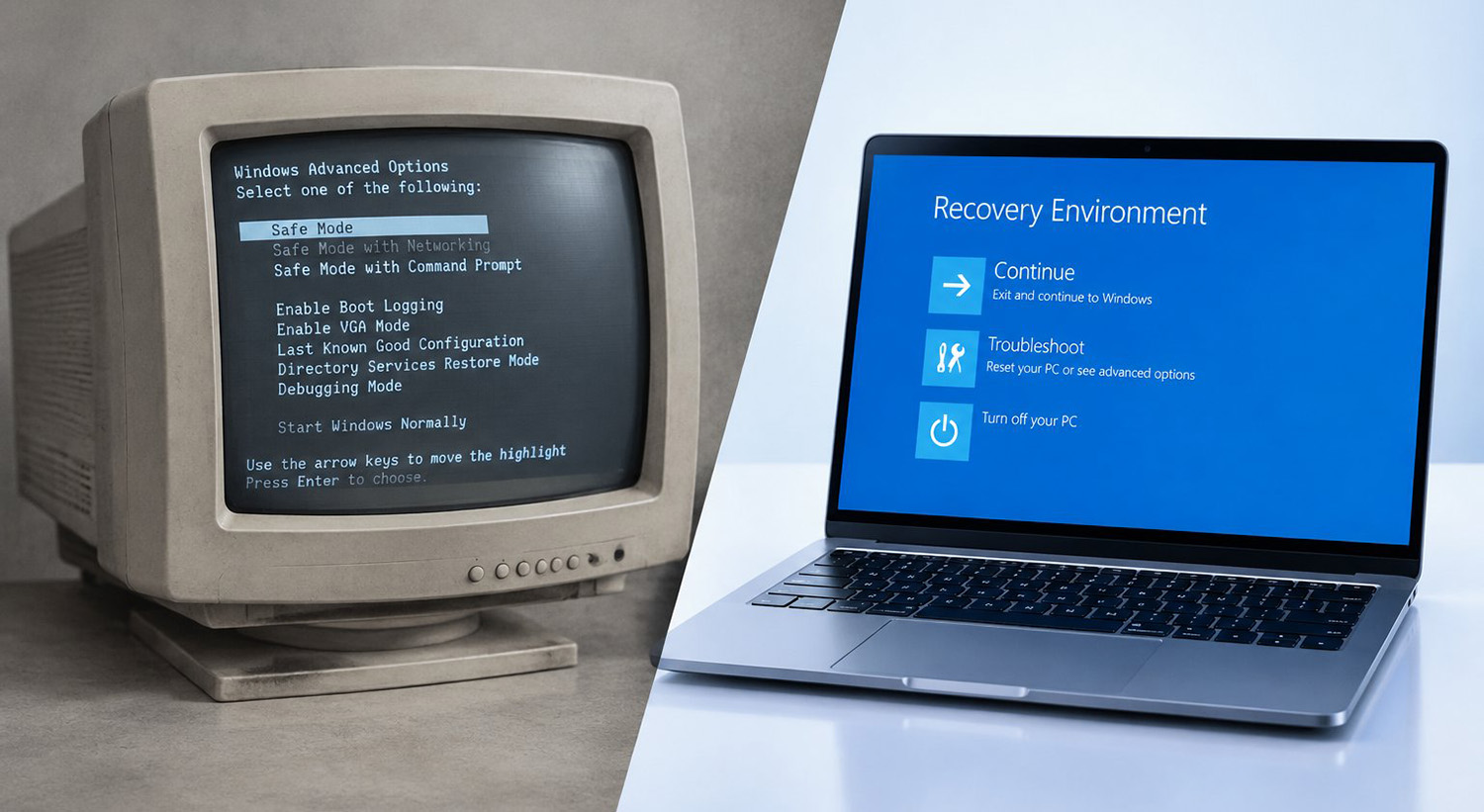
Microsoft moved away from the F8 key because modern Windows systems boot too fast for it to catch. For years, restarting a PC and tapping F8 repeatedly opened the Advanced Boot Options menu.
Today, Windows usually skips that screen entirely. So if you are pressing F8 and nothing happens, you have not done anything wrong.
Windows now relies on the Windows Recovery Environment and the Startup Settings menu instead. Understanding this shift is the real key to learning how to get into windows safe mode. That knowledge alone saves you time and frustration.
How to Get Into Windows Safe Mode From the Sign-In Screen
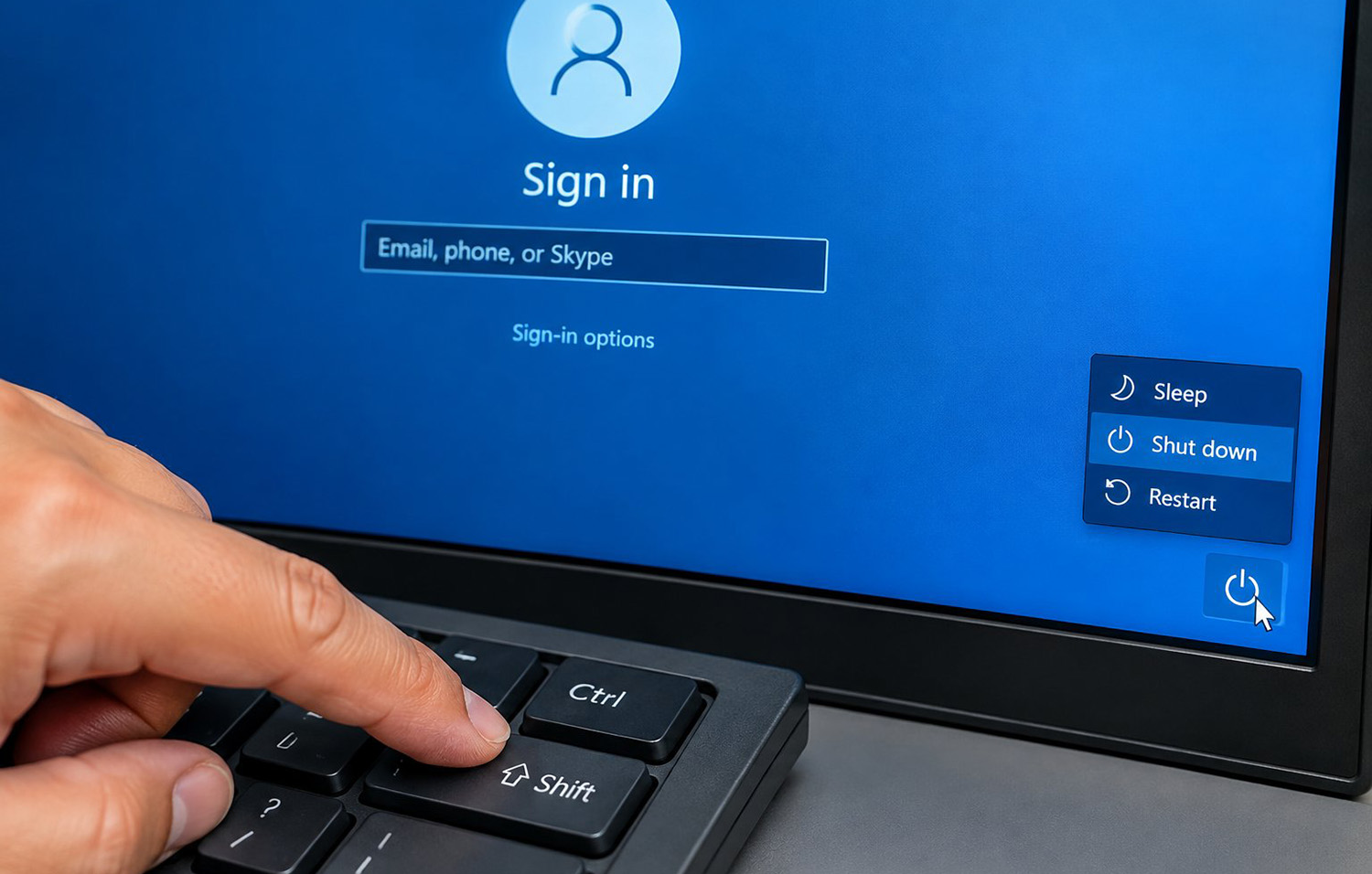
You can reach Safe Mode by holding Shift while you click Restart from the sign-in screen. This is currently the fastest way to get there when Windows still starts normally.
Here is the exact path. First, hold the Shift key on your keyboard. Then select Power, followed by Restart, and keep holding Shift until the screen changes.
Once your PC restarts, choose Troubleshoot, then Advanced Options, then Startup Settings, and finally Restart again. Windows will then show you a numbered list of startup choices, including several Safe Mode options.
How to Start Windows in Safe Mode From Settings
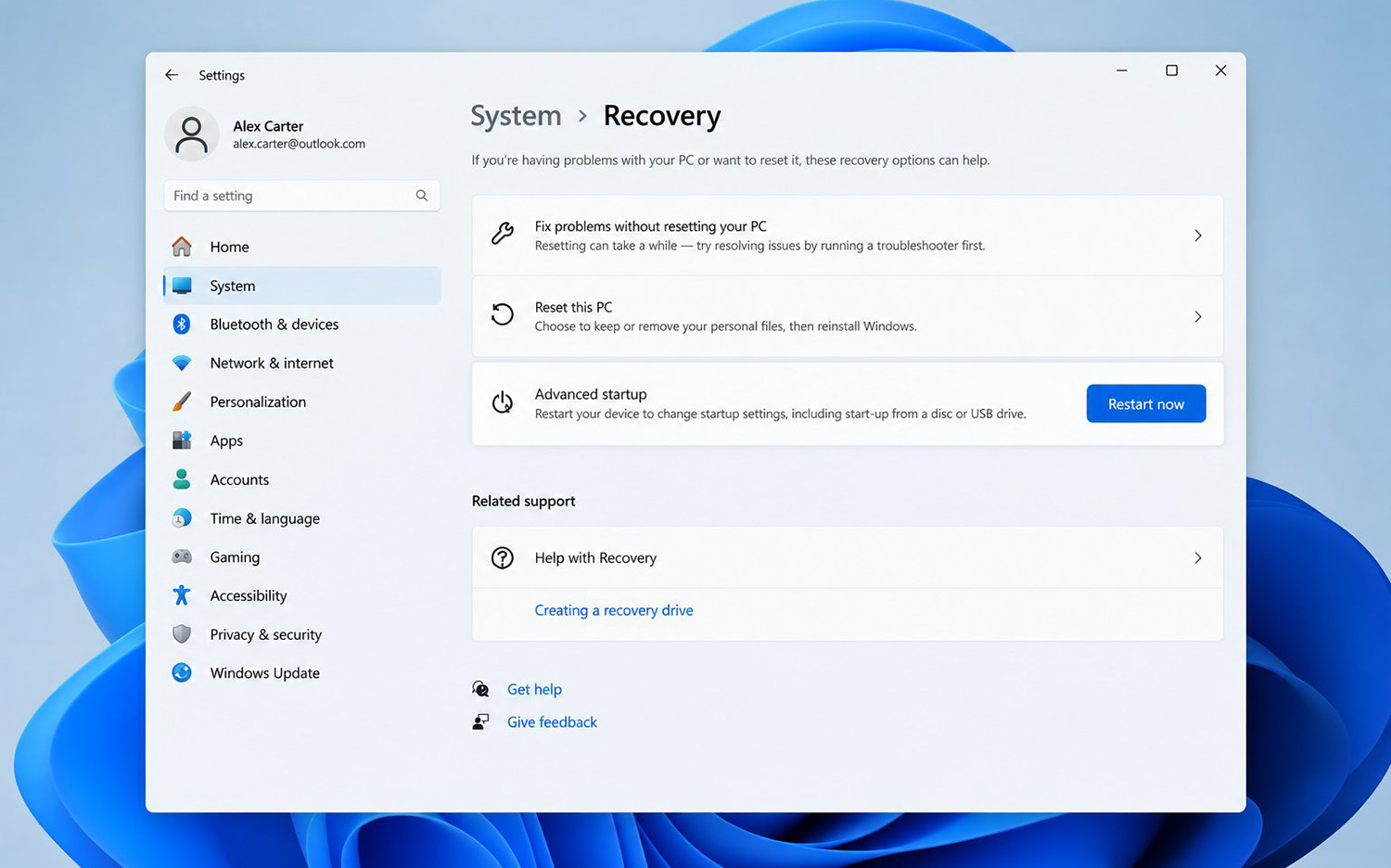
You can also reach Safe Mode through your Windows Settings app if your computer boots normally. On Windows 11, go to Settings, then System, then Recovery, then Advanced Startup, and select Restart Now.
On Windows 10, the path is nearly the same, but slightly different. Go to Settings, then Update and Security, then Recovery, then Advanced Startup, and select Restart Now.
Either version takes you to the same Startup Settings menu described above. From there, you can choose the exact Safe Mode option you need.
How to Get Into Windows Safe Mode If Windows Won’t Start
Sometimes Windows will not load normally at all, and that changes your approach. If your PC fails to start three times in a row, Windows usually enters the Recovery Environment automatically.
You can also force this by interrupting startup yourself. Turn the PC on, and as soon as Windows begins loading, hold the power button to shut it off.
Repeat that a few times, and Windows should enter Recovery Mode on its own. From there, follow the same Troubleshoot, Advanced Options, and Startup Settings path.
Only use this forced method when Shift plus Restart or Settings are not available to you. It works, but it should be your backup plan rather than your first move.
What Can You Do in Safe Mode?
Safe Mode loads Windows with only the essential drivers and services it needs to run. That stripped-down setup helps you figure out whether a problem comes from something that normally loads in the background.
Technicians commonly use it to test bad or outdated drivers, startup software conflicts, and display issues. It also helps after a new program or device causes crashes or a black screen.
One detail trips up a lot of homeowners. PIN and fingerprint sign-in often will not work inside Safe Mode, so you will need your actual account password instead. Nothing is broken if that happens. It is simply how Safe Mode behaves.
If you have tried these steps and your PC still will not cooperate, that usually points to a deeper hardware or software issue worth having a second set of eyes on. When that happens, the team below can take a closer look and get things running again.
You can also configure computer repair services in Knoxville, TN to walk through the same troubleshooting hands-on if you would rather not do it alone.
Need Repair? Let’s Get It Fixed Today
Ready to Fix Your Computer Problem? Schedule Service Today!!