
How to stop game notifications on Android without deleting anything? First, identify the app sending them. Then decide how much control you want. You can mute its notifications, mute certain alert types, or disable the app if your phone allows.
How to Stop Game Notifications on Android
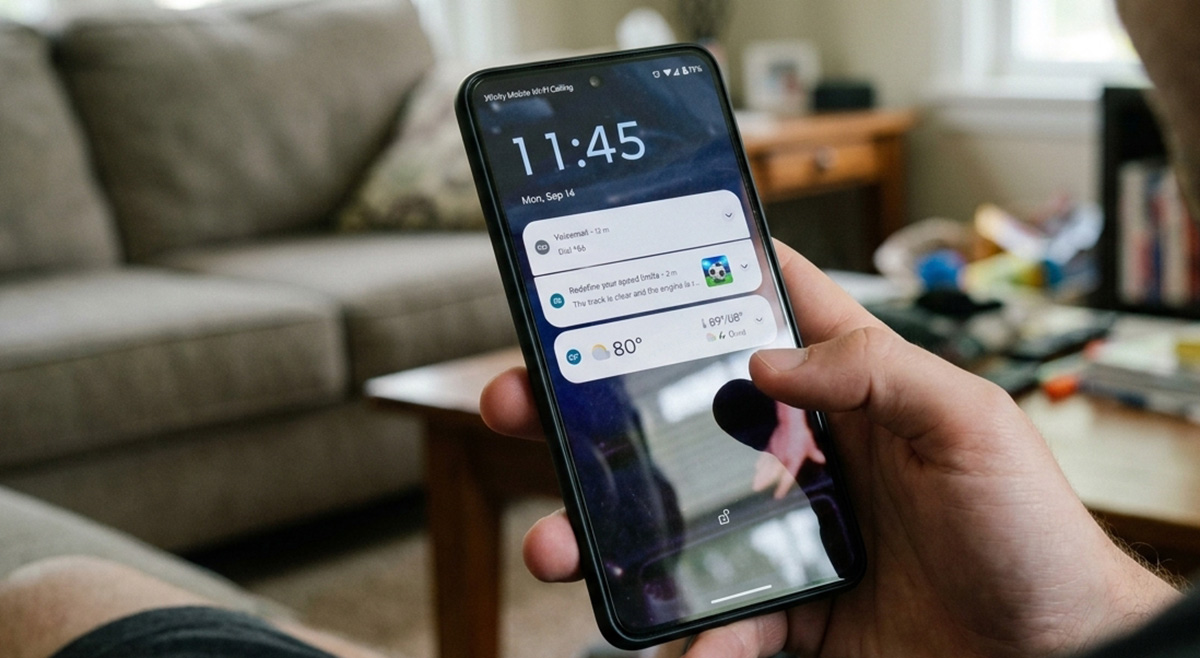
Stopping game notifications on Android starts with finding which app is sending them. Then you choose how much control you want over it. Some Android phones come with games or gaming apps preinstalled. These apps can send promotions or suggestions even if you never open them. Finding the source first keeps you from changing settings for the wrong app or assuming your phone has a problem.
How Do You Find Which App Is Sending Game Notifications?
You can find it by pressing and holding the notification itself the next time it appears. This opens a quick link to that app’s settings. If you already dismissed it, go to Settings, then Notifications, then App notifications to see which app has been sending alerts, though the exact wording varies between Android phones.
How to Turn Off Game Notifications on Android for a Specific App
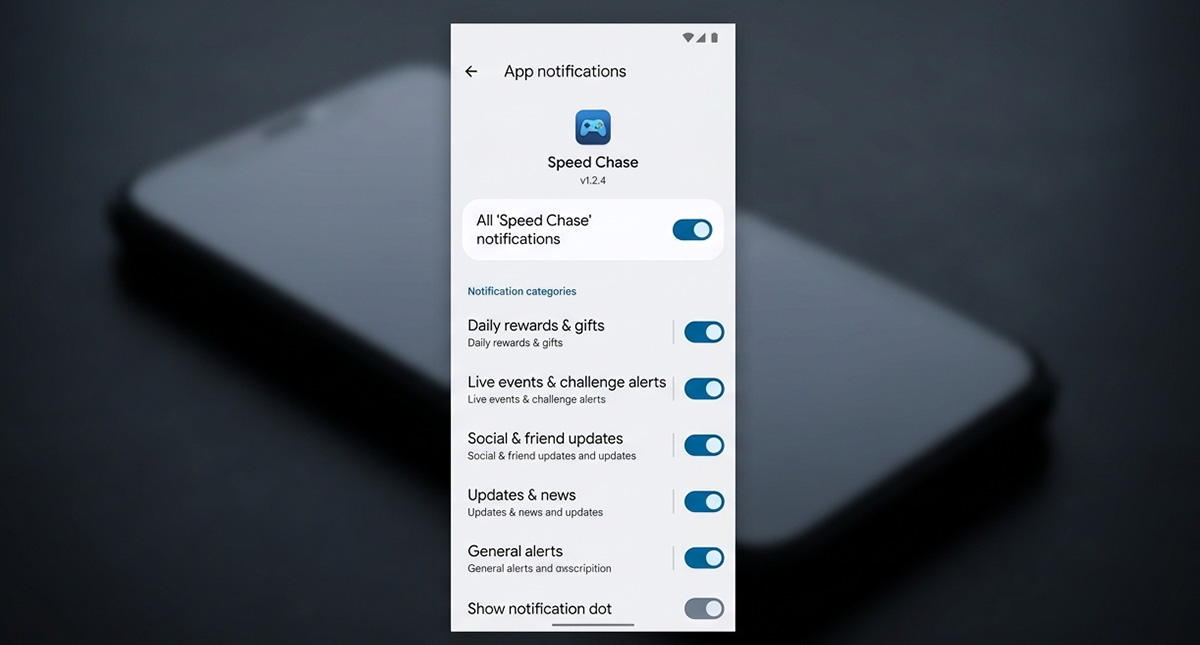
On Android, you can turn off game notifications for one app. Open the app’s notification settings and choose how much you want to allow.
- Turn off all notifications if you don’t want to hear from the app at all.
- Turn off specific notification types if the app lets you keep some alerts and mute others, like promotions.
- Turn off the notification dot if the alert itself isn’t the issue, just the icon badge.
Not every app offers all three options, and some only let you turn notifications fully on or off. If you want to know how to turn off game notifications on Android for good instead of case by case. Start with the app itself, not your phone’s global settings. This is really the same question as how to stop game notifications on Android in general, just aimed at one app at a time.
Should You Disable or Uninstall the App Instead?
If muting notifications isn’t enough and you’re still looking for how to stop game notifications on Android completely. Disabling the app is often the better option instead of trying to uninstall it, since many phones won’t let you remove it completely. Go to Settings, then Apps, then See all apps, find the gaming app, and look for a Disable option.
Disable and uninstall are not the same thing. Disabling hides the app and stops it from running or sending notifications, but it stays on your phone, while uninstalling removes it completely when that option exists. If you never use the app’s gaming features, disabling it is usually the cleaner choice.
Here’s How to Stop Game Notifications on Android for Good
Here’s how to stop game notifications on Android for good: identify the source app, then choose the level of control that fits, mute it, limit it, or disable it. A game notification does not mean something is wrong with your phone or that you have a virus, it’s usually just a preinstalled app trying to get your attention.
I actually started writing this one after a client in Clinton, TN brought it up while I was there working on an unrelated computer issue. Once they mentioned it, I found the app sending the notifications and disabled it on their phone before I left.
Game notifications aren’t the only preinstalled feature people ask us to quiet down. If Gemini keeps popping up on your Android phone too, our guide on how to disable Gemini on Android covers two quick ways to turn it off. If you’re still getting notifications you don’t want after trying all of this, it may be worth having someone take a closer look.
Need Repair? Let’s Get It Fixed Today
Ready to Fix Your Computer Problem? Schedule Service Today!!