
How do I reconnect my wireless printer to a new router? Open its wireless settings, select your new Wi-Fi network name, and enter the new password to reconnect it. Then print a test page to confirm it’s connected. This works for most home and office setups.
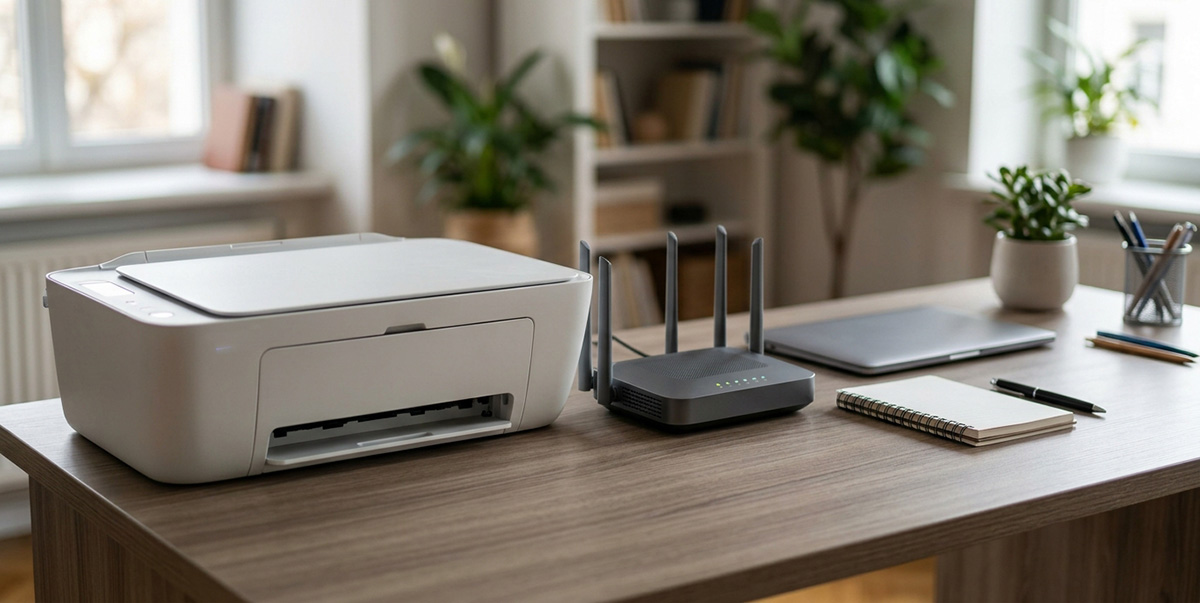
Why Wireless Printers Disconnect After a Router Change
A new router usually doesn’t mean your printer needs to be replaced. Your printer simply needs to learn the new Wi-Fi network.
A new router often creates a new network name and password. Your printer still remembers the old network information. HP identifies a new router, ISP, or password as common reasons a printer loses connection. Brother’s setup process also requires your printer’s current network name and password.
How to Reconnect Your Wireless Printer to a New Router
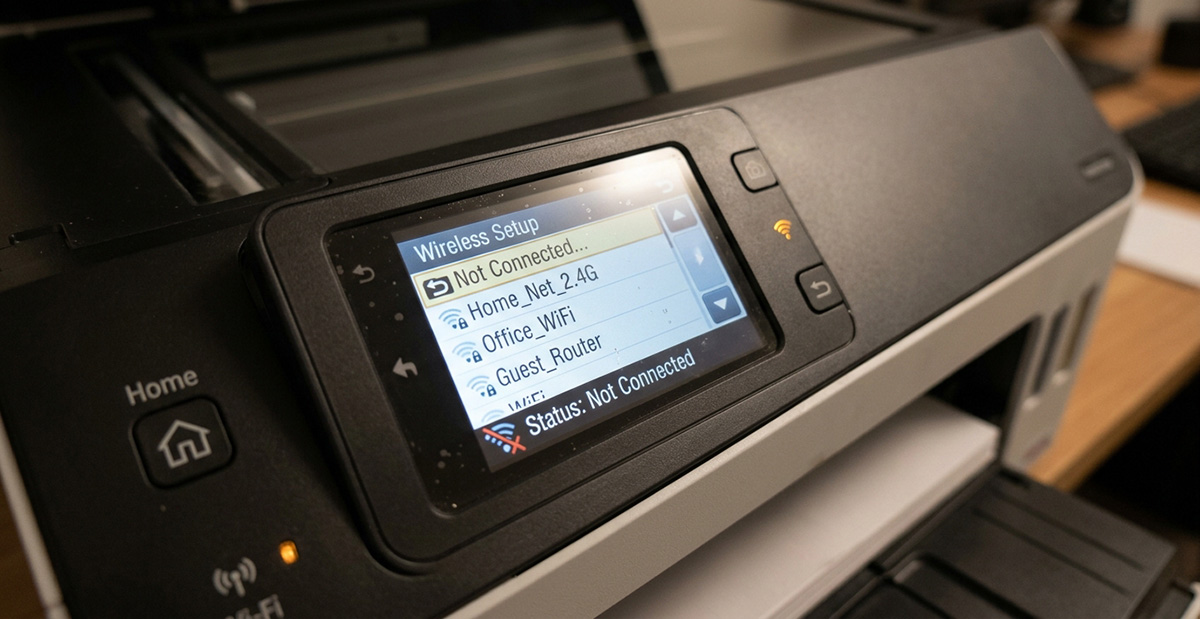
Follow these steps to reconnect your wireless printer to a new router.
- Find your new Wi-Fi name and password. A phone or computer already connected can confirm the exact network name.
- Open your printer’s wireless settings. Look for Settings, then Network or Wireless Setup Wizard. ![Printer wireless settings screen used to reconnect a wireless printer to a new router]
- Select your new Wi-Fi network from the list shown on the printer.
- Enter your new Wi-Fi password. Wait for the printer to show a connected status.
- Print a test page. This confirms your wireless printer connection is working.
Menu wording varies by printer brand and model. HP recommends its Wireless Setup Wizard on compatible printers.
What to Do If Your Printer Has No Screen
Not every printer has a screen for network setup. The right method depends on your printer model.
Try one of these options:
- Use the manufacturer’s printer app to connect it to Wi-Fi.
- Use Wi-Fi Protected Setup (WPS) if both devices support it.
- Connect the printer through USB and run the setup software.
- Use a wireless setup button, if your model has one.
Button combinations vary by printer, so check your manual first.
Fix an Offline Printer After Reconnecting to Wi-Fi
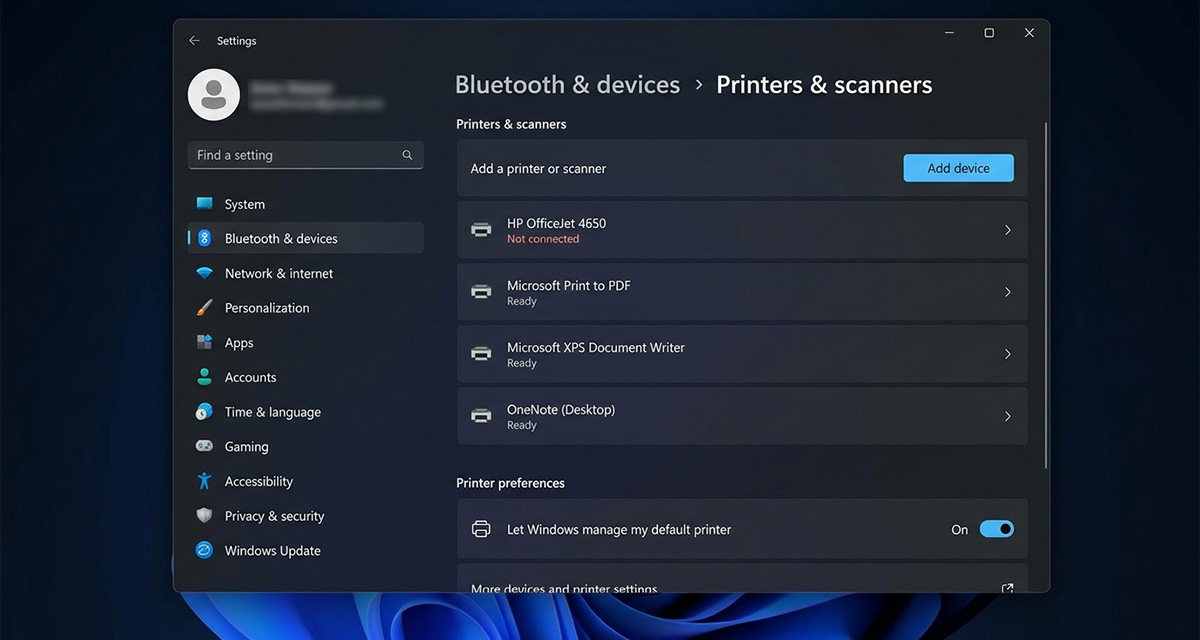
Sometimes your printer connects to Wi-Fi, but your computer still shows it offline. This happens because the computer still has the old printer connection saved.
On Windows, remove the old printer and add it again:
![Windows printers and scanners settings screen for wireless printer connection issues]
- Go to Settings, then Bluetooth & devices, then Printers & scanners.
- Remove the old printer, then select Add device.
- Choose your printer again from the list.
A Real Example: When the Router Won’t Trust the Printer
Sometimes the printer isn’t the real problem at all. On a service call in Halls Crossroads, a client’s printer would not print from her computer or phone.
Her Wi-Fi kept turning on and off on its own. She was using an AT&T router.
After logging into the router, I found it would not keep the printer listed as a trusted device. The router kept dropping the wireless printer connection instead of remembering it.
This can happen with some AT&T routers. It may not show up during normal printer troubleshooting.
If you recently switched to an AT&T router and still have trouble, check your router’s trusted or connected devices list. Make sure your wireless printer connection stays allowed, not just accepted once.
Still Can’t Reconnect Your Printer? Try These Steps
If these steps don’t work, try this quick checklist.
- Restart your printer and router.
- Make sure the printer is close enough to the router.
- Double-check your new Wi-Fi password.
- Reset the printer’s network settings if needed.
- Run the wireless setup process again.
Some printers also have Wi-Fi compatibility limits. Check your printer’s manual if your new router uses different settings.
If your Wi-Fi connection keeps dropping across your whole home, your printer may not be the real problem. Read our guide on why your Wi-Fi keeps disconnecting and how to fix it for more help.
Conclusion
Getting a new router doesn’t mean starting over with your printer. Update your printer’s Wi-Fi settings, confirm the connection, and print a test page. Most printers reconnect quickly once they know the new network details.
Need a more reliable network at home or for your business? Our home and business networking service can help.
Need Repair? Get in Contact Today Schedule Your Appointment
Need Repair? Let’s Get It Fixed Today
Ready to Fix Your Computer Problem? Schedule Service Today!!