
Wifi keeps disconnecting for a few common reasons. A weak signal, interference, or a router problem can cause it. So can many devices, an ISP outage, or a bad driver. The fix starts with one simple test. Check whether every device loses connection, or only one, then work from there.
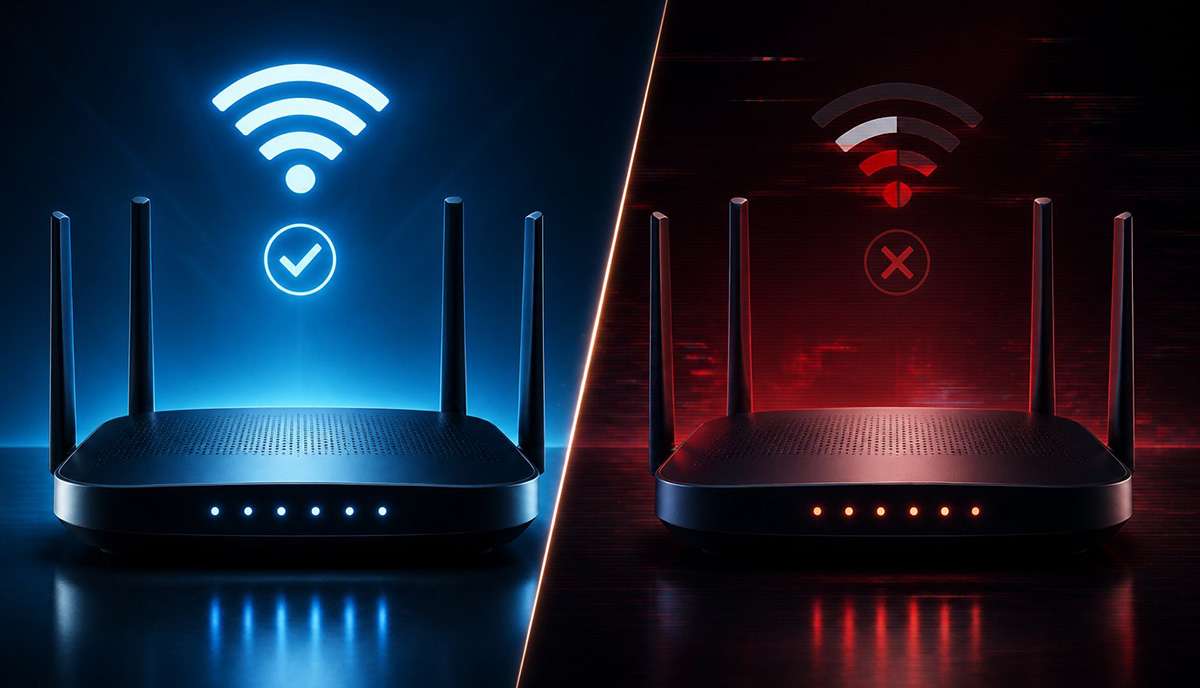
Wifi Keeps Disconnecting? Here’s the Fastest Way to Find Out Why
You find out why wifi keeps disconnecting by testing whether every device loses connection or only one. Start by checking your phone, a tablet, or another computer nearby.
What the results mean:
Every device drops at once: the problem probably sits with your router, modem, or internet provider
Only one computer drops while everything else stays online: that computer is the more likely suspect
This simple test saves you from guessing. It also stops you from blaming the wrong piece of equipment before you know the real cause. Run it before you touch a single setting. It points you in the right direction every time your wifi keeps disconnecting.
Is the Problem a Weak Wifi Signal in Your Home?

A weak wifi signal is often the reason a laptop or phone loses connection in certain spots. Your device might still show a wifi icon even when the connection is unstable underneath.
Common signal blockers:
- Distance from the router
- Walls, floors, and furniture
- Large appliances
- A router hidden in a cabinet or closet
If your wifi keeps dropping mainly in one bedroom or a back office, coverage is likely the culprit rather than your equipment. A full signal bar does not always mean a strong connection. Distance and obstacles matter more than the icon on your screen. Moving closer to the router is an easy way to test this theory yourself. For a deeper look at this exact pattern, see the linked guide below. It explains why your internet feels fine in most rooms but weak in just one.
Try this next:
- Move closer to the router and see if it helps
- Relocate the router to an open, central spot in your home
- If your wifi keeps disconnecting mostly on one side of the house, try that first before assuming it needs replacing
A router tucked inside a cabinet or hidden behind a television struggles to spread its signal evenly. The same is true if it sits inside a closet. An open, central spot almost always performs better than a hidden one.
Could Interference Be the Reason Your Wifi Keeps Disconnecting?
Yes, interference is a common reason wifi keeps disconnecting, especially in crowded neighborhoods or apartment buildings. This is one of the easiest causes to rule out once you know what to look for.
Common sources of interference:
- Nearby wifi networks competing for the same channel
- Microwaves and older cordless phones
- Baby monitors
- Some smart home gadgets
You do not need to become a network engineer to understand this. Just know that a busy wireless environment can cause drops that have nothing to do with your equipment being broken. Moving your router away from thick walls and other electronics often helps more than any advanced setting change. Small adjustments like this frequently solve problems that felt mysterious at first, especially in apartments where several networks overlap.
Could Your Router or Modem Be the Reason Wifi Keeps Disconnecting?
Your router or modem can develop small problems that build up over time. This is one of the most common reasons wifi keeps disconnecting at home.
Restart the right way:
- Unplug the modem and router
- Wait about thirty seconds
- Plug the modem back in first and let it fully reconnect
- Then plug in the router
A basic restart clears temporary glitches without touching any of your settings or your wifi password. That is different from a factory reset, which wipes your configuration and should never be your first move. If restarts only offer short relief and the problem returns quickly, something deeper is going on. That points to a router or modem issue worth investigating further.
Also worth checking:
- Loose or damaged cables between the modem and router
- Router firmware that has grown unstable over time
- Aging hardware that struggles with newer devices
Replacement becomes worth considering once these other causes have been ruled out, not before. Router firmware can grow unstable over the years. Aging hardware can also struggle with newer phones, streaming devices, and smart home gadgets.
Could Your Internet Provider Be Causing the Problem?
Your internet provider can be the real source of the problem even when your wifi looks fine on your end. Your network can work correctly while the connection coming into your home does not.
Signs it may be your ISP:
- Multiple devices lose internet at the same time
- The problem starts during a storm or a known maintenance window
- Wired connections fail along with wireless ones
Check your provider’s outage page or send a quick message before touching your equipment. Do not replace a router that was never the problem in the first place. A quick call or chat with your provider can save you an unnecessary equipment purchase. This step alone resolves many cases where wifi keeps disconnecting across every device in the home.
Are Too Many Devices Overloading Your Network?
Heavy network use can make a connection feel unreliable even when nothing is technically broken.
A few common bandwidth hogs:
- Streaming on several devices at once
- Large file downloads or cloud backups
- Multiple video calls happening together
- Security cameras running around the clock
None of this means your wifi is broken. It usually means your network is simply busy handling too much at one time. The problem tends to show up during evenings or other peak hours, then ease up again once things quiet down. Try pausing large downloads for a few minutes and see if the connection steadies out. If it does, you have found a real clue instead of a coincidence. Heavy use rarely explains every case where wifi keeps disconnecting. Still, it deserves a look before you assume something is broken.
Only One Computer? Here’s Why Wifi Keeps Disconnecting
Wifi keeps disconnecting on a single computer when the problem lies with that machine, not your network. This happens while your phone and TV stay perfectly connected. That pattern is your biggest clue. It means the fix likely lives on that computer, not your network.
Common culprits:
- An aging wifi adapter
- Outdated or damaged drivers
- Windows power settings turning the adapter off to save battery
- The wrong wifi band for your location
What to try:
Check Windows Update first, since it often includes current drivers automatically
Visit your manufacturer’s support site if the problem continues, not a random download site
Switch to your router’s other wifi band, 2.4 GHz or 5 GHz
Forget the saved network and reconnect, keeping your wifi password handy first
Skip third-party driver tools entirely, since they cause more problems than they solve. Many routers broadcast both bands, and one often performs better than the other depending on your walls and distance.
What’s the Step-by-Step Fix When Wifi Keeps Disconnecting?
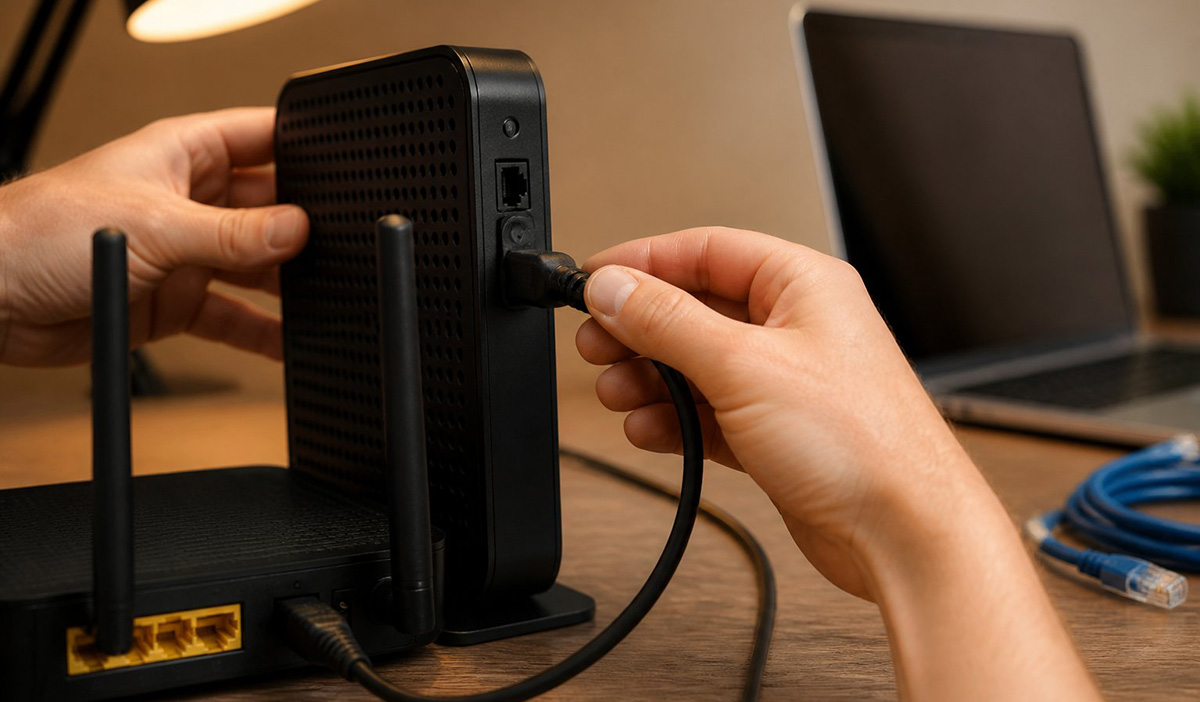
The step-by-step fix starts with testing one device, then works through your equipment and connection in order. Each step narrows down the real cause before you move to the next. Working through steps in this order matters, because wifi keeps disconnecting for different reasons from one household to the next.
Follow this order:
- Test one device at a time
- Restart the modem, then the router
- Check for an ISP outage
- Forget and reconnect to the wifi network
- Update Windows and your wifi driver
- Check wifi adapter power settings
- Try the other wifi band
- Test with an ethernet cable
Skipping around this list can waste hours chasing the wrong fix. A neighbor’s solution may not apply to your setup at all. Testing first protects you from spending money or time on the wrong problem.
Restarting Your Equipment the Right Way
Restarting your equipment the right way starts with unplugging both the modem and the router. This order matters more than most people realize.
Steps to follow:
Unplug the modem and the router
- Wait about thirty seconds
- Plug in the modem first and let it fully reconnect
- Then plug in the router and let it finish booting
It gives your modem time to reestablish its own connection with your provider first. Skipping this order is one of the most common mistakes people make when troubleshooting on their own.
Trying Ethernet to Confirm the Problem
Trying ethernet to confirm the problem is one of the most useful tests you can run at home. Connect your computer directly to the router with a cable and see what happens next.
What the results tell you:
Wired stays solid while wifi keeps dropping: your wireless connection is the likely culprit
Wired also fails: the issue probably sits upstream with your router, modem, or provider
This single test often saves hours of guesswork. It tells you exactly which half of your network deserves your attention right now. From there, you can decide what to focus on next instead of guessing again.
How Do You Tell If It’s the Router, the Computer, or the ISP?
The router, the computer, or the ISP can each cause this problem, and a few clues make the difference clear.
Likely the router, modem, or ISP:
- Multiple devices lose connection at once
- Wired connections fail along with wireless ones
- The router overheats or needs constant restarts
Likely the computer:
- Only one device loses wifi
- Everything else in the home stays connected
- It happens even close to the router
This pattern is one of the clearest signals in the entire process. It rules out your network almost immediately.
Older routers can also struggle to keep up with a modern, connected home, even without an obvious failure. None of these clues guarantee an answer by themselves, but together they build a clear picture fast. Pay attention to timing too, since it often reveals why wifi keeps disconnecting at certain moments and not others.
Why Wifi and Internet Are Not the Same Thing
Wifi and internet are not the same thing, even though most people use the words interchangeably. Wifi is simply the wireless link between your device and your router. Your internet connection is the separate link between your router and your provider. Either one can fail on its own without warning.
A device can show full wifi bars while the internet itself stays completely unavailable. That mismatch is exactly why wifi keeps disconnecting can mean two very different problems depending on your household. Keeping that distinction in mind explains a lot of confusing situations you might run into along the way.
Still Stuck? Here’s What to Do When Wifi Keeps Disconnecting
Some wifi problems come from older equipment, unusual setups, or issues that need hands-on diagnosis instead of more troubleshooting. If you have tried every step above and wifi keeps disconnecting, there is no shame in reaching that point.
If you have isolated the problem but cannot resolve it yourself, that is completely normal. The same goes if you would simply rather not mess with settings and cables. Either way, feel free to reach out directly. You can also take a look at the option below for hands-on help with your setup whenever you are ready. A little targeted help usually costs far less time than watching wifi keeps disconnecting week after week on your own. Some issues are simply easier to hand off than to keep testing solo.
Need Repair? Let’s Get It Fixed Today
Ready to Fix Your Computer Problem? Schedule Service Today!!