
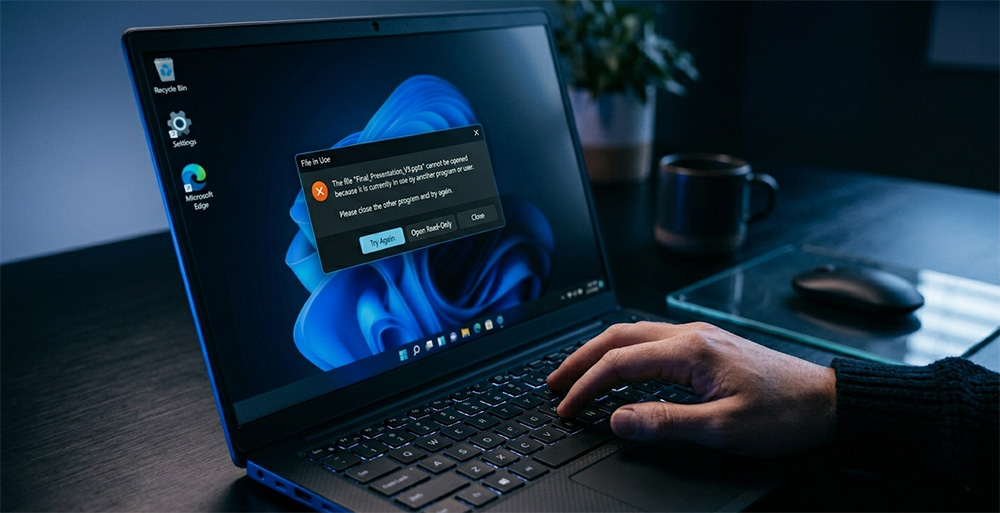
How to fix file in use error messages is something every Windows user will face. You close every open window, but the error still appears. Something invisible holds your file hostage, and Windows will not tell you what it is. This guide shows you exactly how to track it down.
Why Windows Shows a File in Use Error

Windows is a multitasking operating system. At any given moment, dozens of programs and background services run quietly in the background. When one of those programs opens a file, Windows places a lock on it to prevent other processes from modifying or deleting it at the same time.
The problem is that programs do not always release those locks when you expect them to. You might close a document in Microsoft Word, but a background process tied to Word may still hold the file open. An autosave service or an indexing tool can maintain that lock without any visible window on your screen.
This is not a bug. Windows is actually protecting your data from corruption. The frustrating part is that Windows does not tell you which program is responsible, and that is exactly why knowing how to fix file in use error messages is such a useful skill.
Common Programs That Cause File Locks
Several programs are frequent offenders when it comes to file locks. Antivirus software often scans files in the background immediately after you use them. Cloud sync services like OneDrive or Dropbox can hold files open while uploading changes to the cloud.
Microsoft Office applications are another common source of file locks. Temporary files created during editing sessions can persist after you close the main document. Windows Explorer itself sometimes holds a handle on a file longer than expected, particularly after previewing images or documents in the preview pane.
How Temp Files Make the Problem Worse
Temporary files are one of the most overlooked causes of file in use errors. When Windows or an application works with a document, it often creates a temporary copy in the background. That temp file acts as a working copy while the main file is being edited or processed.
The trouble starts when the application closes without properly deleting its temp file. That orphaned temp file can maintain an open handle on your original file, making Windows believe the file is still actively in use. You end up facing a file in use error even though nothing appears to be running.
Clearing out your temp files regularly is a smart preventive step. If you want a straightforward walkthrough for doing that, the guide on how to delete Windows temp files fast covers the entire process clearly. Removing those files eliminates the hidden handles that temp files leave behind and often resolves the error without any further troubleshooting.
Where Temp Files Hide
Windows stores temporary files in a few key locations. The most common is the AppData\Local\Temp folder inside your user profile. Applications also write temp files to the Windows\Temp folder at the root of your system drive.
These folders can accumulate thousands of files over time. Each one is a potential source of a stale file lock. Keeping them clean is one of the simplest things you can do to reduce how often you encounter a file in use error.
Introducing Windows Resource Monitor
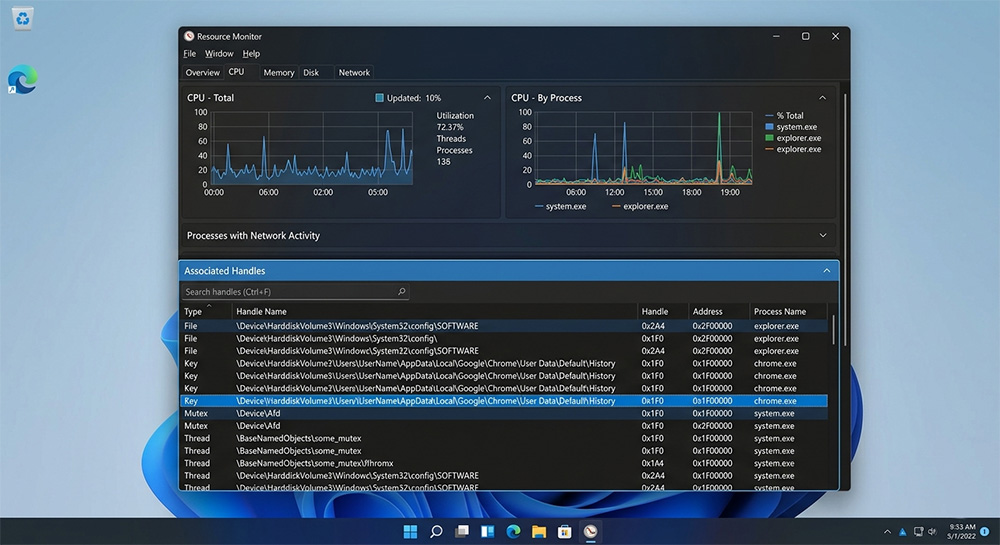
Most users know about Task Manager, but far fewer know about Windows Resource Monitor. Task Manager gives you a broad overview of what is running on your system. Windows Resource Monitor goes much deeper, showing you exactly what each process is doing, including which files it currently has open.
This distinction is critical when you are trying to learn how to fix file in use error messages. Task Manager tells you a program is running. Windows Resource Monitor tells you that a specific program has a specific file locked open right now. That is the difference between a general map and an exact GPS coordinate.
Windows Resource Monitor is built directly into Windows 10 and Windows 11. You do not need to download anything or install any third-party software. The tool you need is already sitting on your computer waiting to be used.
Understanding Associated Handles
Inside Windows Resource Monitor, there is a feature called Associated Handles. A handle is a software connection between a program and a resource such as a file or folder. When a program opens a file, it requests a handle from the operating system, and Windows records that connection.
The Associated Handles search box lets you type in the name of your locked file. Windows Resource Monitor then scans all active handles across every running process and returns a list of exactly which programs are holding that file open. This turns a frustrating guessing game into a precise, targeted search.
Step-by-Step Guide to Fix a File in Use Error
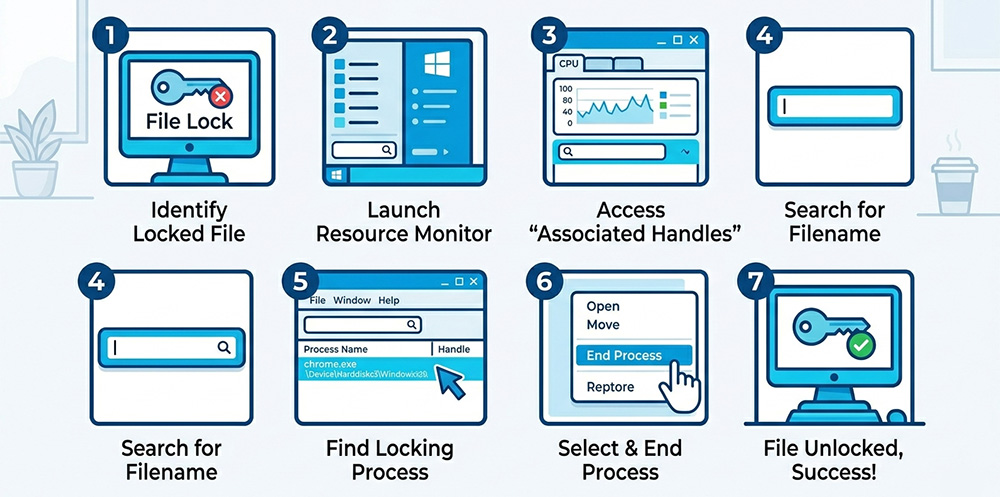
Now that you understand the tools involved, here is how to fix file in use error problems using Windows Resource Monitor. The entire process takes about 30 seconds once you know the steps. Work through each step carefully the first time and it will become second nature quickly.
Step 1 – Open Windows Resource Monitor
Press the Windows key and the R key at the same time to open the Run dialog box. Type resmon into the box and press Enter. Windows Resource Monitor will launch immediately.
Alternatively, open Task Manager by pressing Ctrl, Shift, and Escape at the same time. Click the Performance tab, then click the Open Resource Monitor link at the bottom of that tab. Both methods take you to the same place.
Step 2 – Navigate to the CPU Tab
Once Windows Resource Monitor is open, click the CPU tab near the top of the window. Look for the panel labeled Associated Handles near the bottom of the CPU tab view. Click the panel header to expand it if it is not already open.
A search box will appear at the top of the Associated Handles panel. This is where the real detective work begins. Everything you need to track down the problem process is right here in this panel.
Step 3 – Search for Your Locked File
Click inside the Associated Handles search box and type the name of the file or folder showing the file in use error. You do not need to type the full file path. Just the file name or a portion of it is enough for Windows Resource Monitor to find a match.
Press Enter or wait a moment for the results to populate. Windows Resource Monitor will display every process that currently holds an open handle on any file matching your search term. The results show the process name, the process ID, and the full file path for each match.
Step 4 – End the Problem Process
Once you identify the process holding your file, right-click on it in the results list. A context menu will appear with the option to End Process. Click that option and confirm when Windows asks you to verify the action.
The process will close and release its handle on your file. You can then return to File Explorer and rename, move, or delete your file without seeing the file in use error again. Most of the time, this single step resolves the issue completely.
Step 5 – Verify the File Is Free
After ending the process, return to the file in File Explorer and try the action that was failing before. In most cases, the operation will complete immediately without any error message appearing.
If the error appears again, return to Windows Resource Monitor and repeat the search. Occasionally a second background process is also holding the file open. End that process as well and try the file operation one more time.
When to Restart Instead of Using Resource Monitor
Windows Resource Monitor solves most file in use error situations quickly and cleanly. However, there are times when a full system restart is the more practical choice. If the locked process is a core Windows system service, ending it manually can cause system instability.
In that case, a clean reboot releases all file handles automatically and safely. Knowing how to fix file in use error problems with Resource Monitor saves you from unnecessary restarts in most situations, but a restart is always a reliable fallback when the manual method does not fully resolve the issue.
Safe Mode as a Last Resort
If a file remains locked even after a restart, booting into Safe Mode is worth trying. Safe Mode starts Windows with only the minimum required drivers and services. Most third-party programs, including antivirus software and cloud sync tools, do not load in Safe Mode.
With those programs not running, the file lock will almost certainly be gone. You can then delete, rename, or move the file without interference. Restart normally afterward to return to your full Windows environment.
Preventing File in Use Errors Going Forward
Understanding how to fix file in use error messages is valuable, but preventing them from happening is even better. Close applications fully before attempting to move or delete files they have recently used. Give cloud sync services a moment to finish uploading before working with synced files.
Keep your antivirus software updated and configured to reduce background scanning of files you are actively working with. Regularly clean out your temp files to prevent orphaned handles from accumulating over time. These habits add up to a noticeably smoother experience when managing files in Windows.
Keeping Your System Running Clean
Restarting your computer at least once every few days clears accumulated file handles and refreshes system resources. Keeping Windows updated ensures that known bugs related to file locking behavior are patched promptly.
Monitoring your startup programs through Task Manager also helps reduce file conflicts. Fewer background processes at startup means fewer programs competing to hold file handles at any given moment. A leaner startup environment directly reduces how often you encounter a file in use error over time.
File Locks vs. Permissions Errors
Not every error you encounter when working with files in Windows is a file in use error. Permissions errors look similar but have a completely different cause. A permissions error means your user account does not have the right level of access to modify or delete the file.
A file in use error means the access rights are fine, but another process is blocking the action. Reading the exact wording of the error message tells you which situation you are dealing with. A permissions error will say something like “Access denied” while a file in use error will reference another program holding the file open.
Why This Distinction Saves You Time
Misidentifying the error type leads to wasted effort. Many users spend time adjusting folder permissions on a file that is actually locked by a background process, then wonder why nothing changes. Taking a few seconds to read the error message carefully puts you on the right path immediately.
Knowing how to fix file in use error messages specifically, rather than treating all file errors the same way, makes you a faster and more effective troubleshooter. Matching the right solution to the right problem is always faster than trying fixes at random.
Bringing Everything Together
Learning how to fix file in use error messages helps when Windows blocks delete, move, or rename actions. You know the file is not broken; another process is still holding it open in the background.
Windows Resource Monitor shows exactly which process has your file locked and stops the guessing game. You can end that process, then immediately delete, move, or rename the file without seeing the error again.
In rare cases, a reboot might be easier as a last resort when a stubborn program keeps the file locked. Good habits like closing apps fully and clearing temp files reduce how often file in use errors appear.
Or if you are like me and keep 30 tabs on a browser open, and 5 to 10 programs running at the same time. You may want to run things as you go and keep it simple.
Need Repair? Let’s Get It Fixed Today
Ready to Fix Your Computer Problem? Schedule Service Today!!