
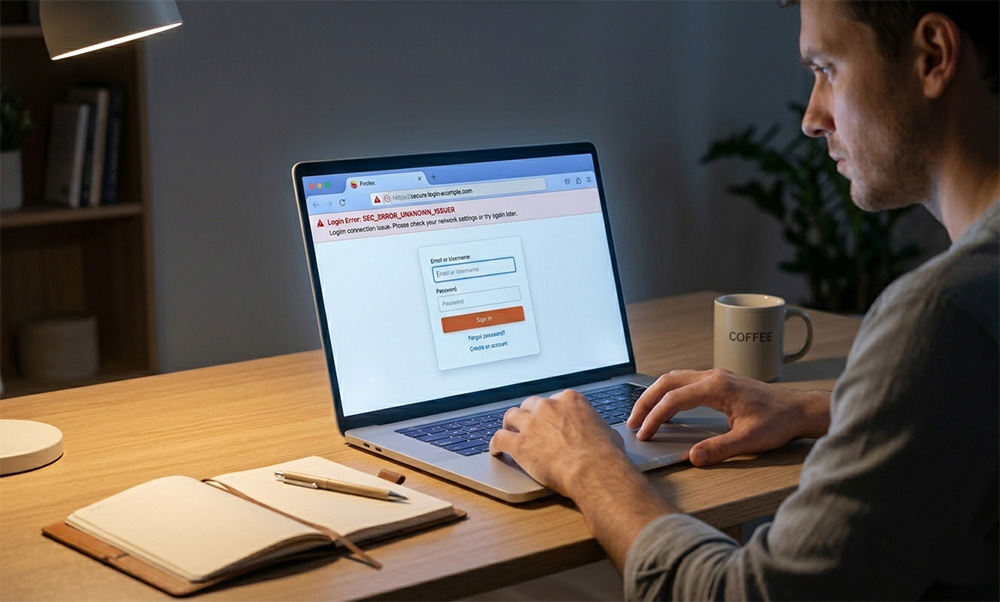
Website login blocked by Firefox is one of the most frustrating problems you can run into while browsing. You type your credentials, hit submit, and the page either loops or throws a vague error. This guide shows you exactly why Firefox does this and how to solve it in minutes.
Why Your Website Login Blocked by Firefox Happens
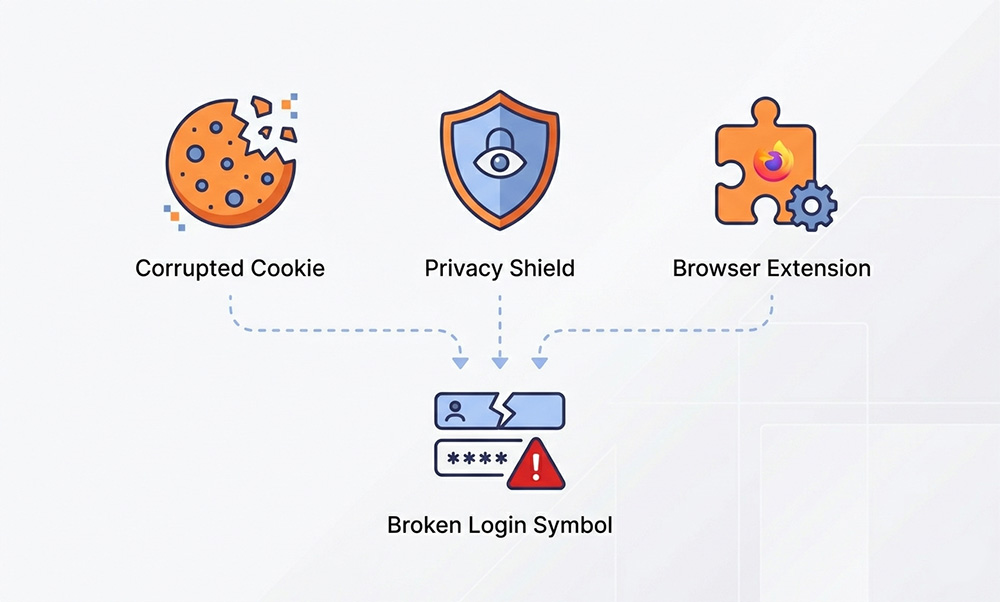
Firefox is one of the most privacy-focused browsers available today. That is a great advantage for security, but it can interfere with websites that depend on cookies and scripts to process logins. When you have a website login blocked by Firefox, three causes are almost always responsible.
The first cause is corrupted or outdated session cookies. Cookies store small pieces of data that help websites recognize you between visits. When those cookies expire or become corrupted, Firefox may fail to complete the login process at all.
The second cause is Enhanced Tracking Protection. Firefox runs this feature by default to stop trackers and third-party scripts from following you across the web. Unfortunately, some of those blocked scripts are actually the identity verification tools a website needs to authenticate you.
The third cause is conflicting browser extensions. Ad-blockers, privacy shields, and script blockers are common culprits. They can intercept requests that your login page depends on, causing the process to fail without any clear error message.
Knowing which cause applies to your situation helps you pick the right fix quickly. The steps below are organized by how often each one solves the problem, so start from the top.
Fix 1 – Clear Site-Specific Cookies and Cache
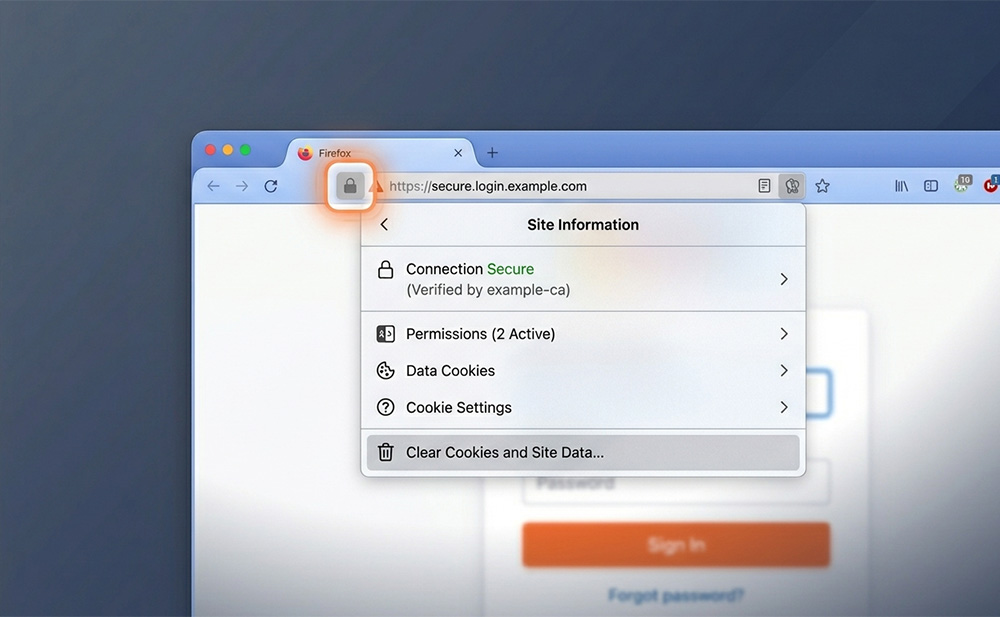
The fastest way to resolve a website login blocked by Firefox is to clear the cookies and cached data for that specific site. You do not need to wipe your entire browser history to do this. Firefox gives you a precise built-in tool to remove data for just the site causing trouble.
Open Firefox and navigate to the site where the login is failing. Look at the left side of the address bar. You will see a small icon that looks like a padlock or a shield depending on your Firefox version. Click that icon to open the site information panel.
Inside that panel, you will find an option labeled “Clear cookies and site data.” Select it and confirm your choice. Firefox will remove all locally stored data for that website, including any expired or corrupted session cookies that may be blocking you.
After clearing the data, reload the page and try logging in again. This fix resolves the majority of cases where a website login blocked by Firefox is tied to corrupted cookie data.
Fix 2 – Turn Off Enhanced Tracking Protection for the Site
Enhanced Tracking Protection is one of the most powerful privacy tools Firefox offers. It runs quietly in the background and blocks trackers across every site you visit. But a website login blocked by Firefox is often caused by this feature preventing login scripts from running correctly.
You can turn off Enhanced Tracking Protection for a single site without changing your global privacy settings. Click the shield icon in the address bar while you are on the problem website. You will see a toggle at the top of the panel that reads “Enhanced Tracking Protection is ON for this site.”
Flip that toggle off. Firefox will reload the page automatically. Try logging in again after it reloads. This step helps especially when the site uses a third-party identity verification service or security script that Firefox was classifying as a tracker.
If you still have a website login blocked by Firefox after this step, the issue likely goes beyond tracking protection.
Fix 3 – Test the Login in a Private Browsing Window
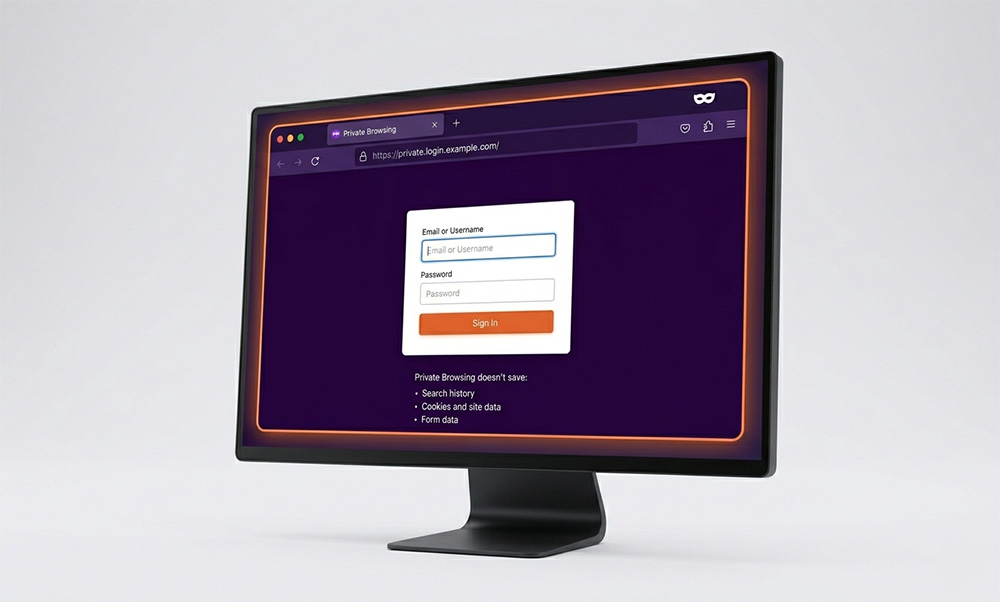
Private Browsing in Firefox loads a clean session with no extensions active. This makes it an ideal diagnostic tool when you suspect a website login blocked by Firefox is being caused by something you have installed. Extensions do not carry over into Private Browsing, so any interference they cause disappears.
Open a Private Browsing window by pressing Ctrl + Shift + P on Windows or Cmd + Shift + P on a Mac. Navigate to the site and attempt to log in. If the login works in Private Browsing, a browser extension in your regular session is the cause of the problem.
To find the specific extension, return to your regular browser window. Open the Firefox menu and go to Add-ons and Themes, then select Extensions. Disable each extension one at a time and test the login after each change. This process isolates the exact extension that is blocking the login.
Ad-blockers, cookie managers, and script-blocking tools are the most frequent offenders. Once you identify the problematic extension, you can either remove it completely or configure it to allow the site to function correctly.
This fix catches cases where a website login blocked by Firefox is caused not by the browser itself but by a third-party tool running inside it.
Fix 4 – Switch from Strict to Standard Tracking Protection
If none of the previous fixes have resolved the issue, the problem may be rooted in your global Firefox privacy settings. Firefox offers multiple levels of Enhanced Tracking Protection, and the Strict setting can be aggressive enough to block logins on certain websites by default.
To adjust this, open Firefox and go to the top-right menu. Select Settings from the drop-down. Inside the settings panel, click Privacy and Security in the left sidebar. You will see the Enhanced Tracking Protection section near the top of the page.
If your setting is currently on Strict, change it to Standard. The Standard setting still blocks the most harmful trackers but gives legitimate login scripts more room to function. This adjustment often resolves a website login blocked by Firefox problem that affects multiple sites rather than just one.
After making the change, close Firefox completely and reopen it. Return to the site and test the login again. This is the broadest of the four fixes, so try it only after the site-specific options have not worked.
What to Do If Your Website Login Is Still Blocked by Firefox
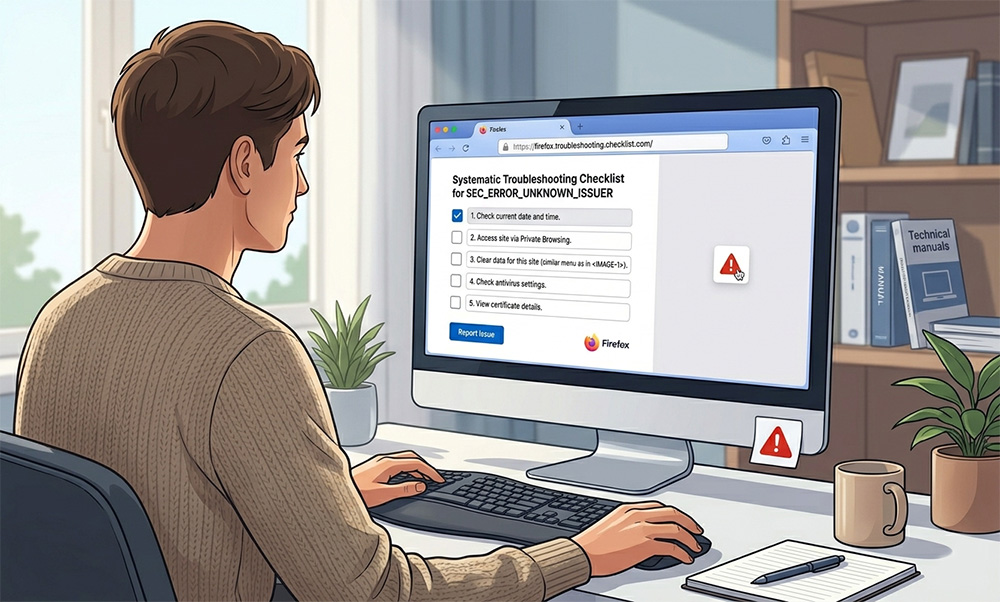
Most users solve the problem with one of the four steps above. But occasionally the issue goes a little deeper. Here are a few additional things worth checking if your website login remains blocked by Firefox after trying everything else.
First, check whether your Firefox browser is fully up to date. An outdated version can have compatibility bugs that affect how login pages behave. Open the Firefox menu, go to Help, and select About Firefox. The browser will check for updates automatically and install them if available.
Next, test the same site in a different browser such as Chrome or Edge. If the login also fails there, the problem is on the website’s end and not in Firefox at all. Contact the site’s support team in that case and describe what you are experiencing.
You can also try creating a new Firefox profile to rule out profile corruption. Go to about>profiles in the Firefox address bar to create and test a fresh profile. Corruption in an existing profile can cause unusual browser behavior including login failures that appear without explanation.
Finally, keep in mind that temp files stored on your computer can sometimes interfere with how browsers process web requests. cleaning up Windows temp files can help browsers avoid being redirected to incorrect pages and may also prevent certain login errors from occurring. It is a simple maintenance step that supports more consistent browser performance overall.
How Firefox Privacy Features Interact with Website Logins
Understanding the relationship between Firefox privacy features and website logins helps you troubleshoot faster any time this happens again. Firefox evaluates certain types of web activity as potential tracking, even when that activity serves a legitimate purpose like authenticating a user.
Cookies are a good example. Many websites use session cookies purely to maintain your login state between page loads. When Firefox blocks cookies as a privacy measure, it sometimes removes the very data a site needs to keep you logged in. That is not a bug. It is the browser behaving exactly as designed.
Cross-site resources work similarly. A login page may call on a third-party identity verification service to confirm who you are before granting access. Firefox may classify that service as a tracker and block the request entirely. Your website login ends up blocked by Firefox not because something is broken, but because the browser applied its rules correctly.
This is why the targeted fixes in this guide are more effective than simply switching browsers. They give specific sites the exceptions they need without removing your broader protection.
Firefox Blocking Cookies and What It Means for Logins
Firefox blocking cookies is directly connected to how Enhanced Tracking Protection functions. Cookies are small data files stored in your browser that websites use for many purposes, including keeping you logged in, saving preferences, and in some cases tracking your behavior across multiple sites.
Firefox blocking cookies focuses primarily on third-party cookies. These are cookies set by domains other than the site you are currently visiting. They are the ones most commonly used for cross-site tracking, and Firefox targets them specifically to protect your privacy.
The problem arises when a login system relies on a third-party service to handle authentication. That service sets a cookie from its own domain rather than the main website’s domain. Firefox sees a third-party cookie and blocks it. Your login never completes because the authentication step never receives a valid response.
When you experience your website login blocked by Firefox in this specific pattern, the fix is almost always one of two things. You can disable Enhanced Tracking Protection for that site using the shield icon, or switch your global setting from Strict to Standard. Both options allow the authentication cookie to be set while keeping your broader privacy protection in place.
Firefox blocking cookies is a deliberate design choice, not an error. Knowing when to create a targeted exception makes all the difference between a smooth login experience and a frustrating loop.
Common Misconceptions About Firefox and Login Errors
Many users assume that when a website login is blocked by Firefox, the browser has made a mistake. That is not always accurate. Firefox follows defined rules based on real security research, and those rules exist to protect you.
The confusion often comes from the fact that the same behavior blocking genuine threats can also interfere with legitimate websites. That does not mean Firefox is wrong. It means some websites have not updated their login systems to align with modern privacy standards.
Another common misconception is that switching from Strict to Standard mode turns off your protection entirely. That is not true. Standard mode still blocks a significant portion of cross-site trackers and harmful scripts. It simply allows more room for sites with legitimate needs.
Some users also believe that if Chrome loads a site without problems, Firefox must be broken. The reality is more nuanced. Chrome applies different default privacy settings than Firefox. Chrome may permit scripts that Firefox intentionally blocks. Neither browser is necessarily wrong. They simply make different tradeoffs between compatibility and user privacy.
Should You Switch Browsers or Fix It in Firefox?
When a website login is repeatedly blocked by Firefox, switching browsers can feel like the easier solution. For most users, fixing the problem in Firefox is the better long-term choice.
Firefox offers privacy protection that other major browsers do not match by default. Moving to a different browser to avoid login issues means accepting weaker default privacy everywhere you go online. That is a significant tradeoff for what is usually a five-minute fix.
The steps in this guide take very little time to apply. Clearing site cookies takes under a minute. Toggling Enhanced Tracking Protection requires three clicks. Testing in Private Browsing takes less than two minutes. None of these tasks require technical expertise.
If one specific site consistently causes your website login to be blocked by Firefox even after applying all fixes, you can open that single site in a secondary browser while keeping Firefox as your primary. That approach gives you strong privacy on every other site while working around the one exception.
Switching browsers entirely should be a last resort. Firefox is a capable, trustworthy browser, and most login issues it causes have clear solutions once you understand what is triggering them.
Need Repair? Let’s Get It Fixed Today
Ready to Fix Your Computer Problem? Schedule Service Today!!