
Laptop docking station setups turn a cluttered, cable-heavy desk into a clean one-cord workspace in seconds. If you work remote or hybrid, you already know the struggle of plugging in five cables each morning. This guide shows you how a modern dock fixes that fast.
What Is a Laptop Docking Station?
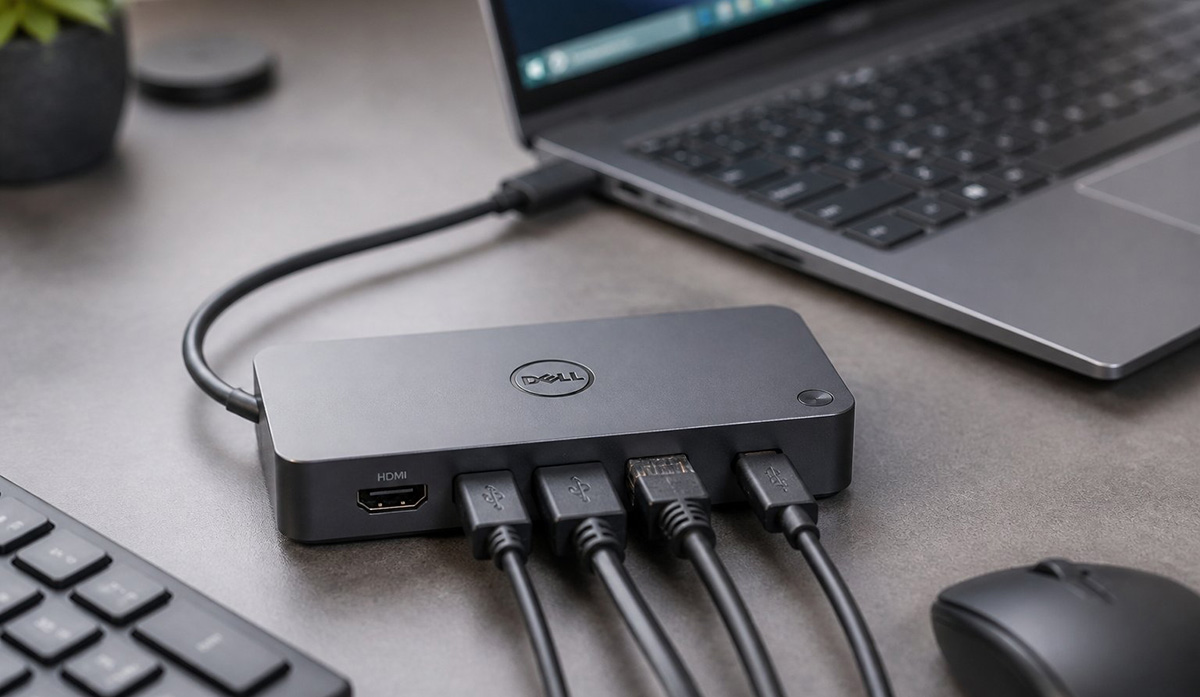
A laptop docking station is a compact hub for your monitor, keyboard, and mouse. It lets your laptop connect to all of them through one single cable. Think of it as a bridge between your portable laptop life and a real desk setup.
So you leave your screen, keyboard, and mouse plugged into the dock. Then you connect one cord, and your whole setup turns on. No more digging behind your desk for multiple different plugs.
As a result, your dock becomes the central hub for your workday. Picture a laptop docking station sitting under your monitor at home.
Then you dock in each morning and undock each evening without hassle. This desktop replacement still stays portable for meetings or travel days.
What Are the Benefits of a Laptop Docking Station?
A laptop docking station saves you time, protects your neck, and clears your desk. In fact, these benefits of a docking station matter most for remote and hybrid workers. Each one solves a real daily problem.
The main idea of a docking station, or sometimes referred to as a docking port. Is the ease of disconnecting your laptop from your computer peripherals. There are many jobs that require using a laptop like a desktop computer, but than also go mobile.
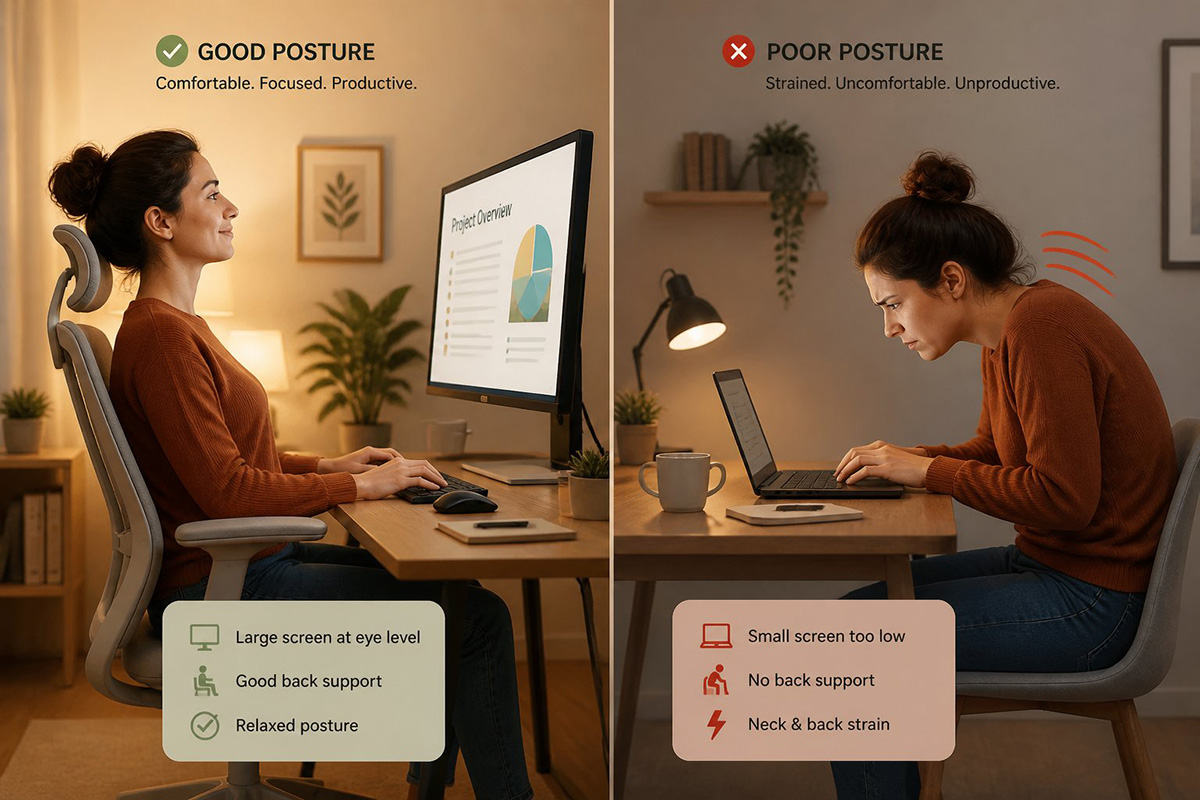
One big benefit that isn’t often talked about is ergonomics. You can actually hurt your neck or body trying to type and read the screen when sitting at a desk.
How Fast Is the Morning Setup With a Docking Station?
Your morning setup takes about ten seconds with a docking station in place. Then you plug in one cord, and your monitor, network, keyboard, and mouse power on together. This beats plugging in five separate cables every single morning.
In fact, remote workers often waste several minutes each day on this simple task. Instead, a dock turns that daily chore into one quick motion. Over a full week, those saved minutes add up fast.
Does a Docking Station Fix Laptop Neck?
Yes, a docking station fixes laptop neck by lifting your view to a full-sized monitor. In addition, staring down at a small laptop screen strains your neck and shoulders over time. A larger external monitor keeps your eyes at a natural, forward-facing height.
You also gain more screen space for multitasking. For example, two windows fit side by side without feeling cramped. Your posture improves, and your eyes get a break too.
How Does a Docking Station Clean Up Your Desk?
A docking station clears your desk by hiding cable clutter behind one small box. Your charging cords and video cables tuck neatly out of sight. As a result, this leaves you with a clean, organized surface for actual work.
Modern docks are small enough to sit under a monitor stand. You get a tidy desk without sacrificing function. A calm workspace also helps you focus better.
Does a Docking Station Add More USB Ports?
Yes, a docking station adds more USB ports for your laptop. Most models include extra USB-A and USB-C ports in one small unit. This helps if your laptop only has one or two ports built in.
In addition, many docks include USB 3.0 ports for faster transfer speeds. This matters if your laptop still uses an older USB-C-only design. So, a dock can fill in the gaps your laptop is missing.
Is a Laptop Docking Station Affordable?
Yes, a laptop docking station is affordable, and quality models often cost fifty dollars or less. This price point surprises most first-time buyers. So, you do not need a premium brand to get reliable performance.
I recently tested a universal dock priced under fifty dollars for this guide. In fact, it handled my monitor, keyboard, mouse, and printer without any issues. The setup process took less than five minutes from box to desk.
Modern docks also use Power Delivery, or PD, pass-through technology. Your laptop’s existing charger plugs into the dock instead of buying a separate power brick. The dock then passes that power through to both itself and your laptop battery.
In fact, this debunks an old myth about needing bulky extra hardware. You do not need a second charger sitting on your desk. Instead, your original laptop cord does all the work.
During testing, my laptop still had eighty five percent battery life after a full eight-hour workday. The dock ran my monitor, keyboard, mouse, and printer at the same time without any slowdown. I also confirmed my charger’s wattage covered both the dock and the laptop with room to spare.
Still, this kind of real-world testing matters more than spec sheets alone. Numbers on a box do not always match daily performance. Hands-on testing gave me confidence before recommending this setup to hybrid workers.
Laptop Docking Station vs Travel Hub: What Is the Difference?
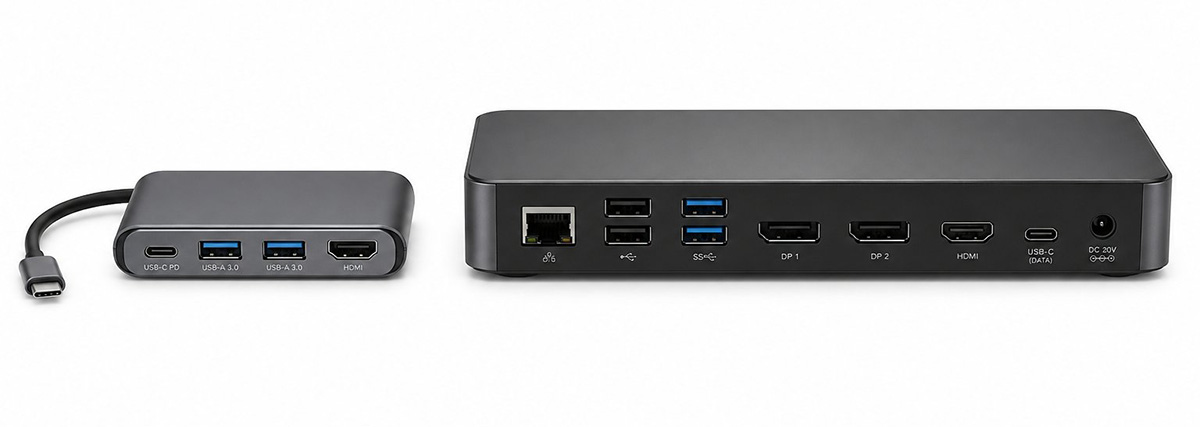
A docking station is your permanent home base, while a travel hub is a temporary tool for quick trips. You keep a docking station parked at your desk full time. Instead, a travel hub lives in your backpack for emergencies.
Travel hubs give you a couple of basic USB ports at a coffee shop. They work fine for occasional use away from your desk. But they are not built for heavy, all-day work.
A docking station handles high-end monitors and constant daily use with ease. In addition, it supports more ports, faster data, and steadier power delivery. Choose a dock for your main setup and a hub for travel days.
Picture working from a hotel room for two days versus working from your home office every day. In the hotel, a small hub still covers your basic needs just fine. At home, a full docking station gives you steady power and a proper monitor connection for real productivity.
Direct Comparison
| Feature | Laptop Travel Hub | Full Docking Station |
| Primary Use | Portable, on-the-go expansion | Permanent desk setup |
| Power Source | Draws power from your laptop | Uses your laptop’s own charger, passed through the dock |
| Laptop Charging | Limited pass-through (requires your charger) | Full pass-through charging through your laptop’s own cord |
| Monitor Support | Typically, 1 external screen | Ranges from 1 monitor on budget or VGA-style docks up to 4 monitors on higher-end models, depending on your needs and budget |
| Size & Weight | Small, pocket-sized, lightweight | Slightly larger than a hub, still desk-friendly, with no extra power brick |
| Port Variety | Basic (1-2 USBs, 1 HDMI, SD card) | Massive (Many USBs, audio, multiple video, fast Ethernet) |
What Should You Check Before Buying a Laptop Docking Station?
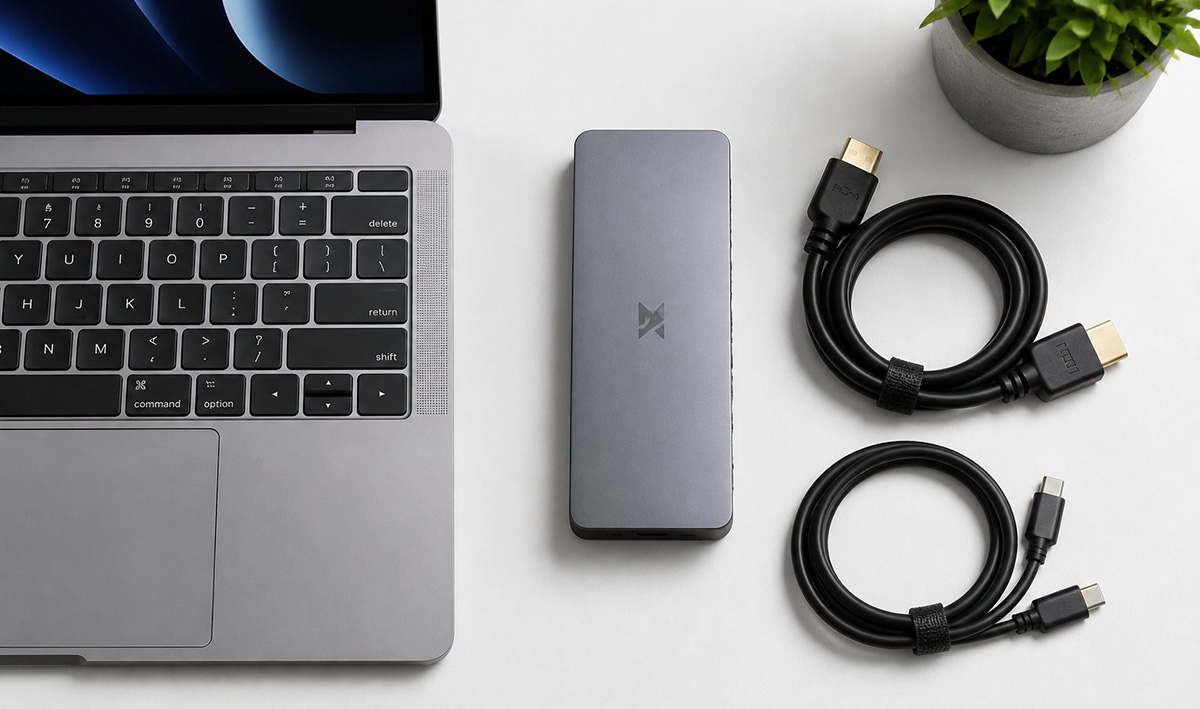
Check three things before you buy a docking station for laptop use. Then look at power draw, video cables, and port compatibility. Skipping these details can lead to a frustrating first day.
Your dock uses a small amount of power to run its own internal chips. As a result, this creates a mild wattage tax on your charging speed. If your charger barely meets your laptop’s needs, expect slightly slower charging through the dock.
You also need matching video cables for a crisp picture. Old, leftover monitor cables often will not deliver a sharp image. Check your cable generation, such as HDMI 2.0 or higher, before you connect your monitor.
Does Your Laptop Support Video Output Over USB-C?
Your laptop supports video output over USB-C only if its port includes a video signal, often called Alt Mode. Some USB-C ports only charge your laptop and move data. Without video support, your external monitor will show a black screen.
Check your laptop’s specs page for this detail before you buy a dock. So this one small check, saves you a return trip to the store. It also saves you a frustrating troubleshooting session later.
Will You Have Enough Ports on Your Docking Station?
You may not have enough ports if your dock supports only a few devices at once. In fact, many budget docks include just two or three USB ports. If you connect a mouse, keyboard, and printer, you can run out of space fast.
A simple USB extender solves this problem quickly and cheaply. It plugs into one open port on your dock and adds several more. As a result, this small fix keeps every device connected without any hassle.
Look for a dock with at least four or five USB ports if you run several accessories. This gives you room to grow without needing an extender right away. So, a little extra capacity now saves you a future upgrade.
You do not have to handle this alone if a dock feels tricky to set up. You can request computer repair service from RDPShop for hands-on help.
Is a Docking Station Worth It for Remote and Hybrid Workers?
Yes, a docking station is worth it for most remote and hybrid workers who want a real desk setup. The upfront cost stays low, often under fifty dollars for a solid model. As a result, the daily time savings and comfort gains add up fast.
You get a faster morning routine, a healthier neck position, and a cleaner desk. You also get flexibility for occasional travel with a lightweight hub. Together, these tools cover both your home setup and your life on the go.
Before you buy, confirm your laptop supports video output and check your charger’s wattage. Then match your video cables to your monitor’s input type. These small checks help your laptop docking station work perfectly from day one.
Want To Learn How To Make Your Laptop Repairs Yourself?

Save money on computer repairs by learning to fix your own laptop, Including MAC - Anyone can learn!!