
Video calls keep freezing because of your internet connection, other activity using your bandwidth, or your computer’s resources. It’s rarely the app itself. Check your Wi-Fi, close heavy programs, and update your software before blaming Zoom, Teams, or Google Meet.
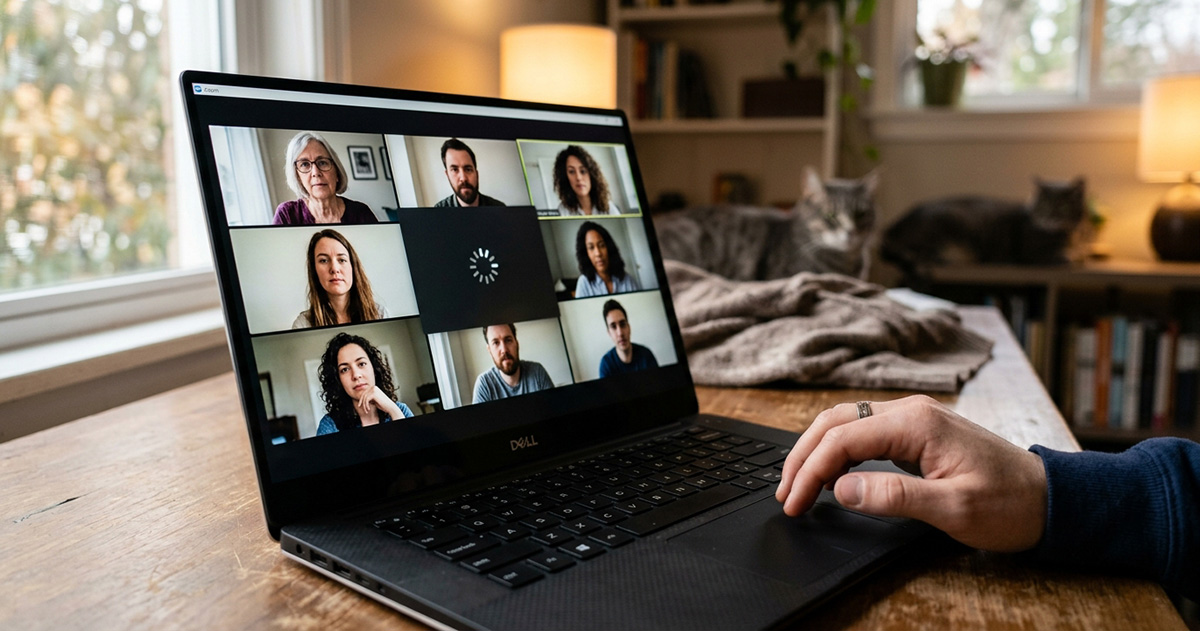
Most video-call freezing problems are not caused by the meeting app itself. Before blaming Zoom, Teams, or Google Meet, check your connection, your network activity, and your computer’s resources.
Is My Wi-Fi Causing Video Calls to Keep Freezing?
Yes, weak Wi-Fi is the most common reason video calls keep freezing. Poor connections can cause low-quality audio, video delays, and dropped calls. Test your connection, and use Ethernet when possible. Sit closer to your router if you can. Try 5GHz Wi-Fi when you’re near the router, since it has more capacity. Use 2.4GHz for better range farther away, even though it’s more crowded.
If one room in your home always struggles, that’s a separate, common problem. Our guide on why internet is slow in one room but fine elsewhere covers that in detail.
What Else Could Be Slowing Down My Zoom, Teams, or Google Meet Call?
Other devices on your network are a common culprit when video calls keep freezing. Streaming, gaming, large uploads, and cloud backups all compete for bandwidth. Pause streaming, downloads, and cloud sync during your call. This alone often fixes the problem.
Could My Computer Be Slowing Down the Call?
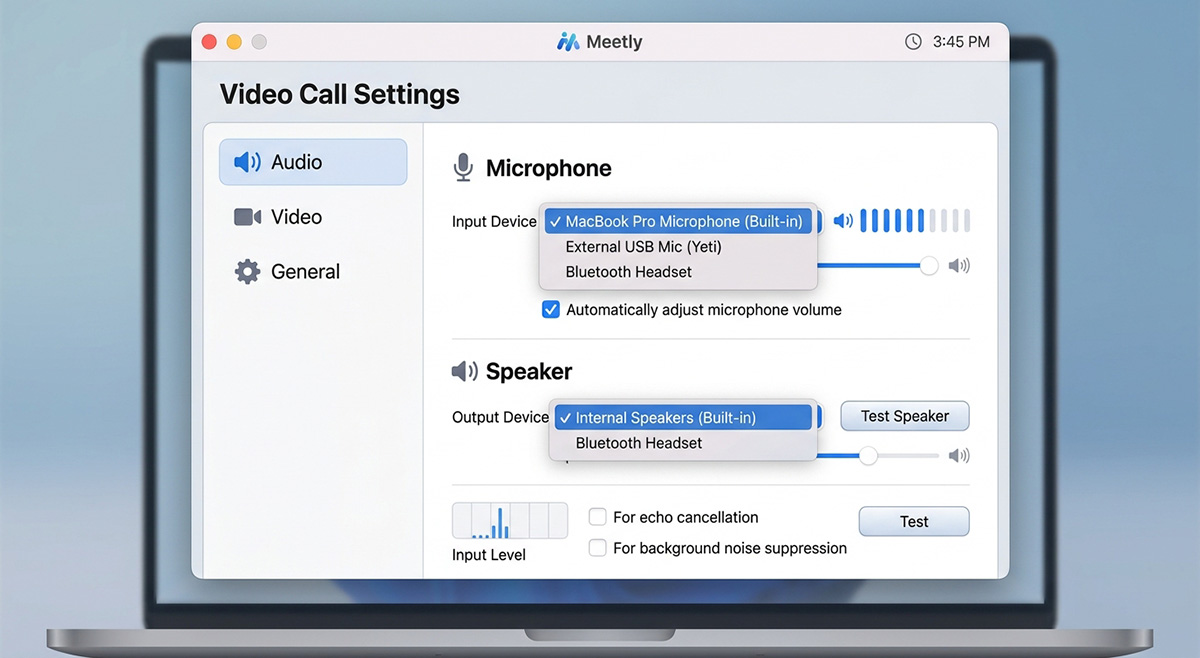
Yes, too many running programs can overload your computer. Close extra browser tabs, streaming apps, games, and background programs. Then restart your computer if freezing continues.
Also check your camera and microphone. Confirm the correct devices are selected. Make sure the app has permission to use them. Open your computer’s Camera app to quickly test that the webcam works.
Keep everything updated too. Update Zoom, Teams, or your browser. Then install available Windows or macOS updates.
If your computer feels sluggish beyond video calls, that points to a broader issue. Our guide on why your computer is running slow can help identify the cause.
What Should I Do If the Call Keeps Freezing Right Now?
When video calls keep freezing mid-meeting, turn off your camera and keep the audio running. Video uses far more bandwidth than audio alone. Have a backup plan ready too. Keep the meeting app installed on your phone. A phone hotspot, wired Ethernet, or a phone headset can save an important call.
Search results for “Zoom Teams Google Meet freezing” almost always trace back to one of these three causes. If the pattern continues with a strong connection and few programs running, the computer itself may need a closer look. Overheating, performance, or hardware issues could be to blame.
Need Repair? Get in Contact Today
Need Repair? Let’s Get It Fixed Today
Ready to Fix Your Computer Problem? Schedule Service Today!!